HIOKI
GENNECT
Cloud
One
Cross
Top
Applications
Functions
FAQ
Download
Manual
Contact Us
This website uses cookies.
We use cookies to personalise content and ads, to provide social media features and to analyse our traffic. We also share information about your use of our site with our social media, advertising and analytics partners who may combine it with other information that you’ve provided to them or that they’ve collected from your use of their services. You consent to our cookies if you continue to use our website.

Check or configure the network settings of the computer

This section describes how to check or configure network settings in Windows 7.

  1. Click [Start] button.
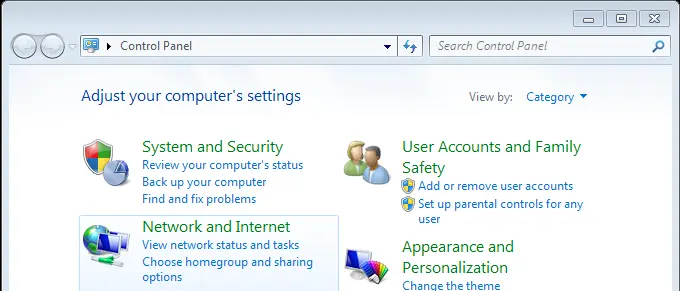
  1. Click [Control Panel].
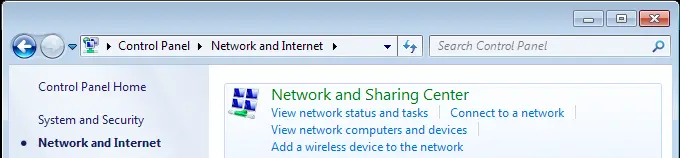
  1. Click [Network and Internet].
  1. Click [Network and Sharing Center].
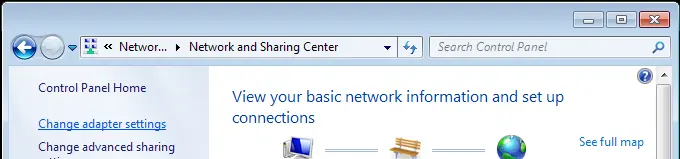
  1. Click [Change adapter settings].
  1. Right-click on the network you want to confirm and select [Properties] in the right-click menu.
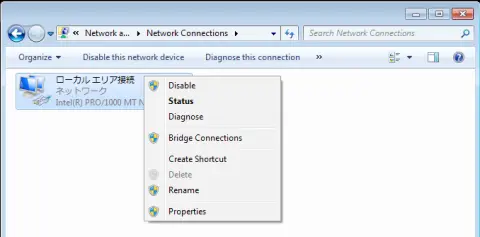
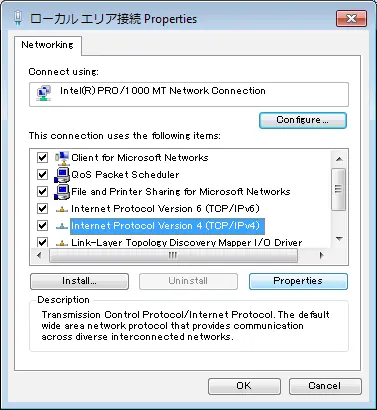
  1. Select [Internet Protocol Version 4(TCP/IPv4)] and click [Properties].
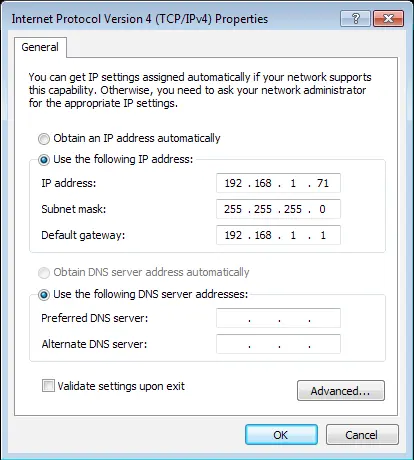
  1. Confirm the network settings. Click [OK] to apply the settings.
Want help or have questions?
Create new account
Login