

Logging in to GENNECT Cloud
* If you don’t have a GENNECT Cloud account, please create one first.
- Launch GENNECT One.
- Click the [Log In] button at the top right of the application window. The [Log in to GENNECT Cloud] window will open.
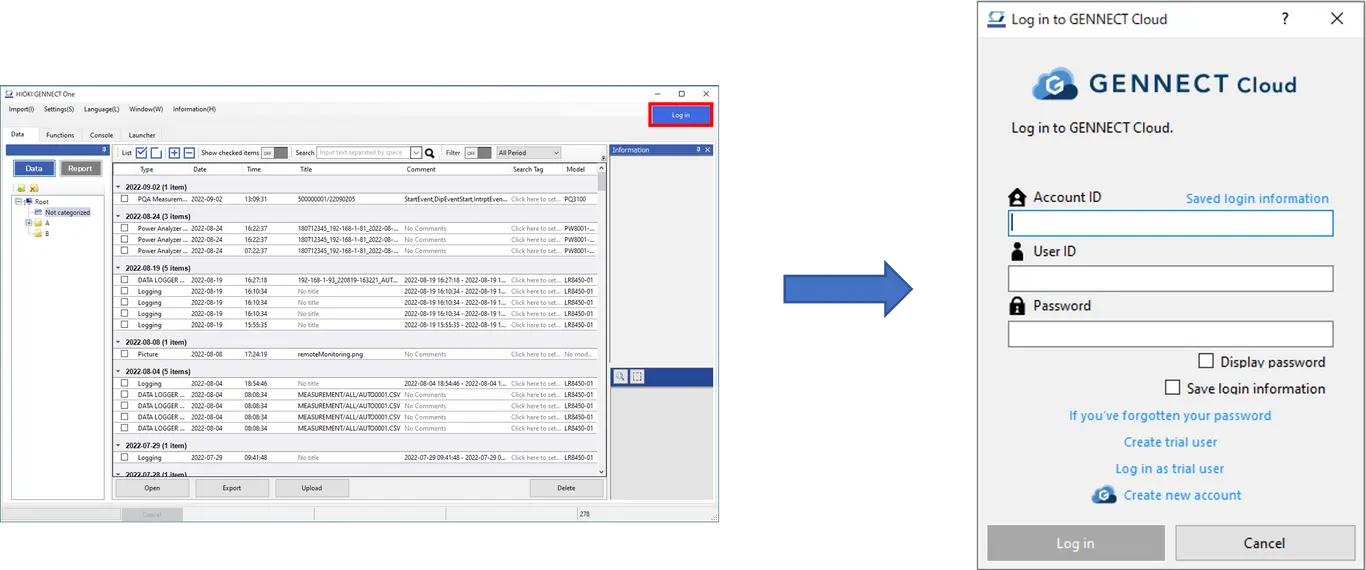
If you’re using a GENNECT Cloud Free, Standard, or Pro plan
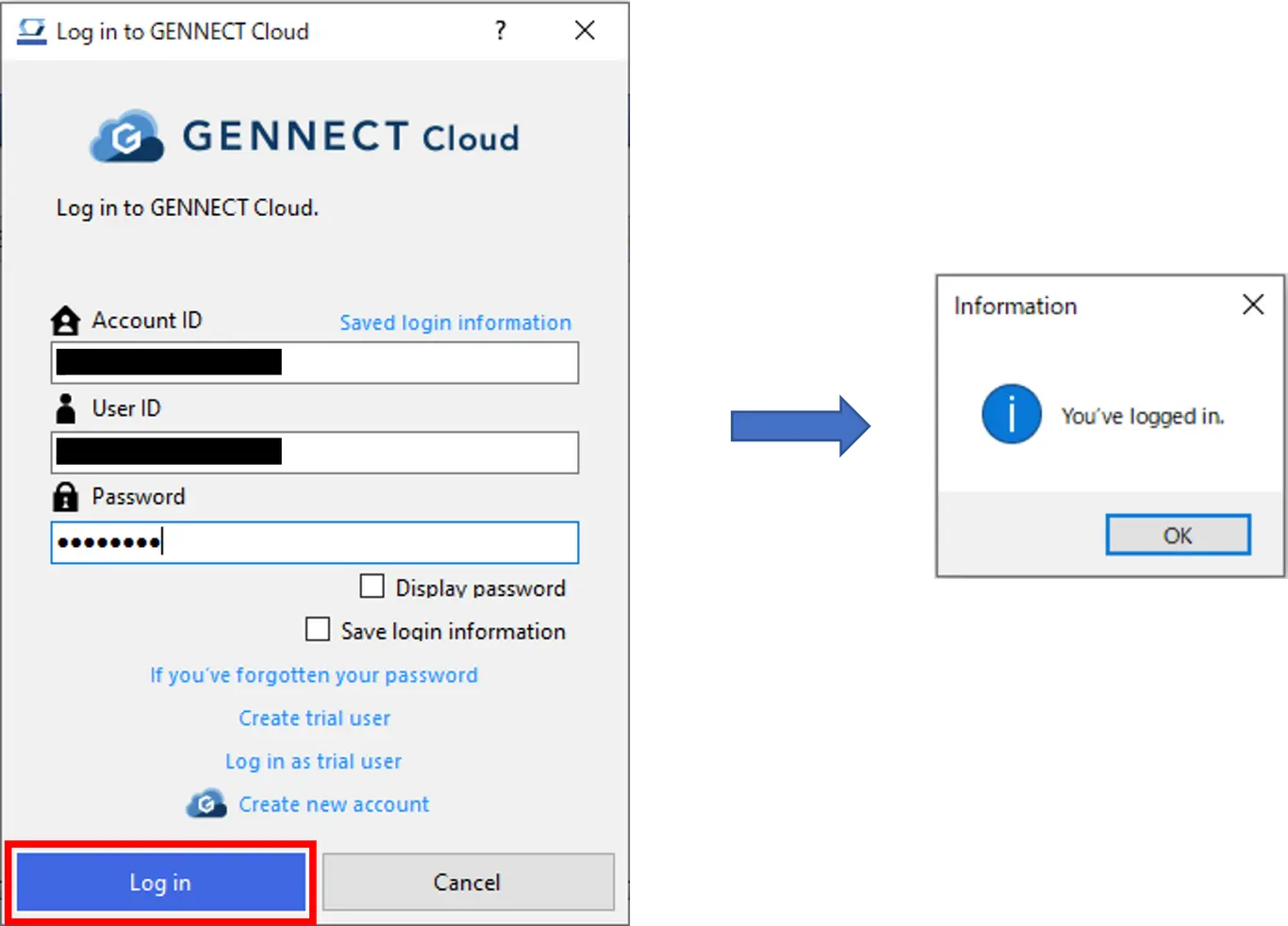
Enter your [Account ID], [User ID], and [Password] and click the [Log In] button.
If the login is successful, the message [You've logged in.] will be displayed.
If you’ve enabled two-factor authentication
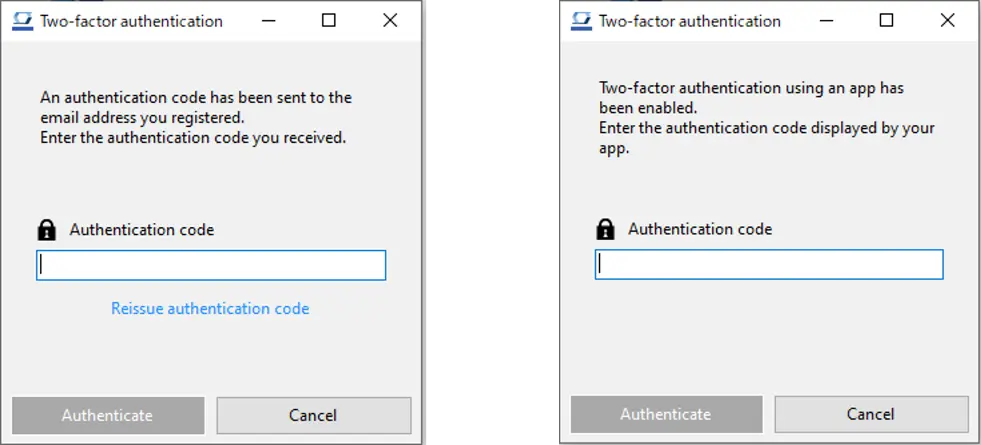
If you’ve enabled two-factor authentication, a window asking you to enter an authentication code will be displayed.
- If you’ve enabled two-factor authentication using email:
Enter the authentication code that was sent to the email address you registered and click [Authenticate]. - If you’ve enabled two-factor authentication using an app:
Enter the authentication code displayed by the two-factor authentication app you're using (Authy, etc.) and click [Authenticate].
* For more information about how to enable two-factor authentication, please see the GENNECT Cloud online help (Application) Enabling two-factor authentication for a user.
Want help or have questions?