

Configuring Application Settings Related to GENNECT Cloud
This section describes settings that apply to links between GENNECT One and GENNECT Cloud.
- Select [Settings] - [Application].
- Select [GENNECT Cloud settings] and click [Start] to display the settings window.
[Remote monitoring mode] tab
This tab allows you to change settings related to GENNECT One’s remote monitoring mode.

| Remote monitoring mode start confirmation | ||
|---|---|---|
| Display a confirmation dialog when starting remote monitoring mode | On | Display a confirmation dialog when starting remote monitoring mode. |
| Off | Do not display a confirmation dialog when starting remote monitoring mode. |
[Data list(cloud)] tab
This tab allows you to change settings related to the data list (cloud).
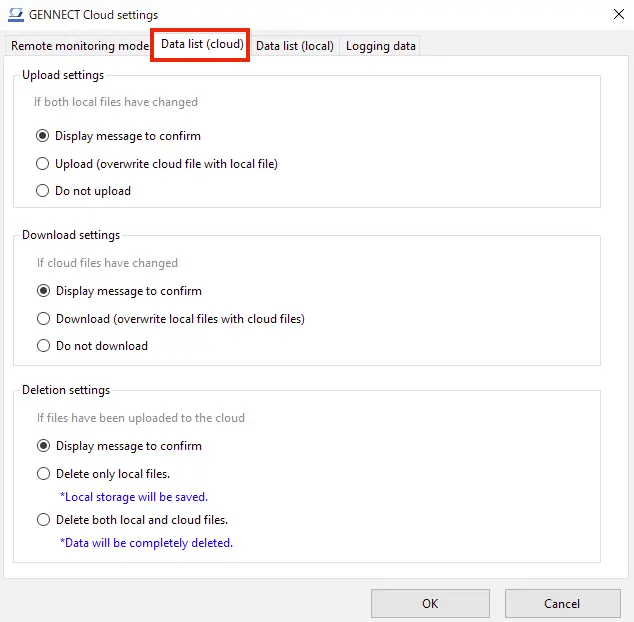
| Upload settings | ||
|---|---|---|
| If both local and cloud files have changed | Display message to confirm | Display a confirmation dialog when uploading. |
| Upload | Always overwrite GENNECT Cloud measurement data by uploading local measurement data. | |
| Do not upload | Never upload measurement data to GENNECT Cloud. | |
| If either the local or the cloud file has changed | Display message to confirm | Display a confirmation dialog when uploading. |
| Upload | Always overwrite GENNECT Cloud measurement data by uploading local measurement data. | |
| Do not upload | Never upload measurement data to GENNECT Cloud. |
| Download settings | ||
|---|---|---|
| If both local and cloud files have changed | Display message to confirm | Display a confirmation dialog when downloading. |
| Download | Always overwrite local measurement data with GENNECT Cloud measurement data. | |
| Do not download | Never download measurement data from GENNECT Cloud. |
| Delete settings | ||
|---|---|---|
| If files have been uploaded to the cloud | Display message to confirm | Display a message confirming the method of deletion. |
| Delete only local files | Always delete only local measurement data.(Setting for saving local storage space) | |
| Delete both local and cloud files | Always delete both local and cloud measurement data.(Setting for deleting all data) |
[Data list(local))] tab
This tab allows you to change settings related to the data list (local).
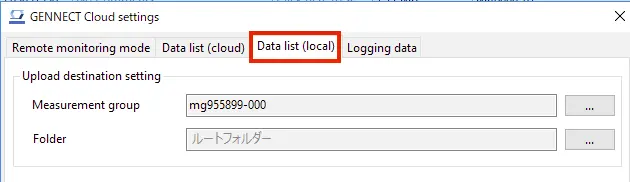
| Upload destination setting | ||
|---|---|---|
| Measurement group | Double-click and select | When uploading from the data list (local) to GENNECT Cloud, specify the measurement group to which to upload the data. When not specified, data will be uploaded to the [Default] measurement group. |
| Folder | Double-click and select | When uploading from the data list (local) to GENNECT Cloud, specify the data folder to which to upload the data. When not specified, data will be uploaded to the root folder on the GENNECT Cloud [Drive] window (Data folder). |
[Logging data] tab
This tab allows you to change settings related to logging data saved by the logging and dashboard functions.
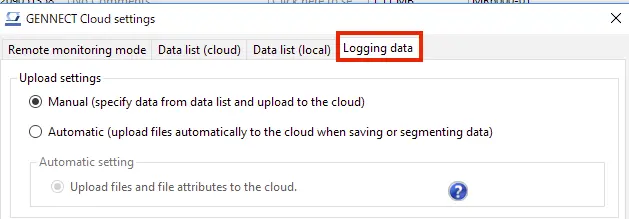
| Setting | Value | Description |
|---|---|---|
| Upload settings | Manual | Do not upload data to GENNECT Cloud automatically. Data will be saved in the data list (local). Please upload manually as desired. |
| Automatic | Upload saved or segmented logging data to GENNECT Cloud automatically. | |
| Automatic settings | Upload files and file attributes to the cloud | When saving and segmenting logging data, upload files and file attributes (information about links to GENNECT Cloud) to GENNECT Cloud. Once your GENNECT Cloud storage is full, logging data will no longer be uploaded automatically. This setting is valid only when the [Upload settings]-[Automatic] setting is enabled. |
Want help or have questions?