

Reviewing and Editing User Information and Account Information
View and edit the information of the user currently logged in to GENNECT Cloud with this application, as well as the information of the account to which the user belongs.
- Log in using the account and user whose information you wish to review or edit. (Reference: Logging In to GENNECT Cloud)
- Click the icon at the top right of the application’s main window and click the displayed [Display user information...] menu item.
The [User Information] window will open.
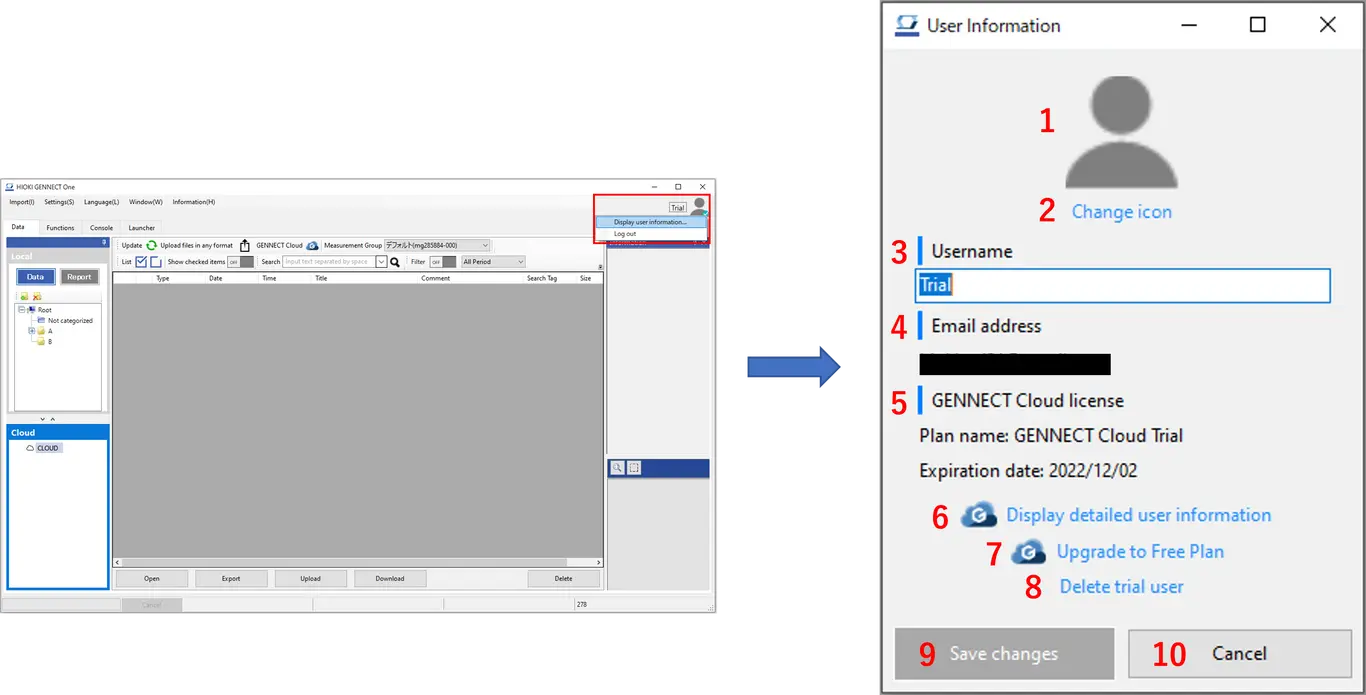
*Only the information in the table below can be reviewed and edited in the application. More detailed information can be reviewed and edited on the GENNECT Cloud web page.
| Item | Description | |
|---|---|---|
| 1 | User icon | Displays a user-configured icon. |
| 2 | Change icon | Displays a menu related to the icon. ·[Select icon...]: Specifies an image file to use as the user icon. Image files in the JPG, PNG, GIF, and BMP format with a file size of less than 1 MB are supported. ·[Initialize icon]: Changes the user icon to the default icon. |
| 3 | Username | Sets a string to use as the user’s display name. (1 to 50 characters) |
| 4 | Email address | Displays the registered email address. |
| 5 | GENNECT Cloud license | Displays the plan name and expiration date for the GENNECT Cloud subscription. If the expiration date is less than 31 days away, an exclamation point ("!") will be shown to indicate that the expiration date is approaching. |
| 6 | Display detailed user information | Accesses the GENNECT Cloud web page to allow review and editing of more detailed user and account information. *The page will open in your browser. |
| 9 | Save changes | Saves changes made in this window. *This button is available when the icon or username has been edited. |
| 10 | Cancel | Closes the window without saving changes. |
Want help or have questions?