

Main screens
The main window of GENNECT One is composed of [Data], [Functions], [Console], [Launcher] tabs.
[Data] Tab
View and manage data lists.
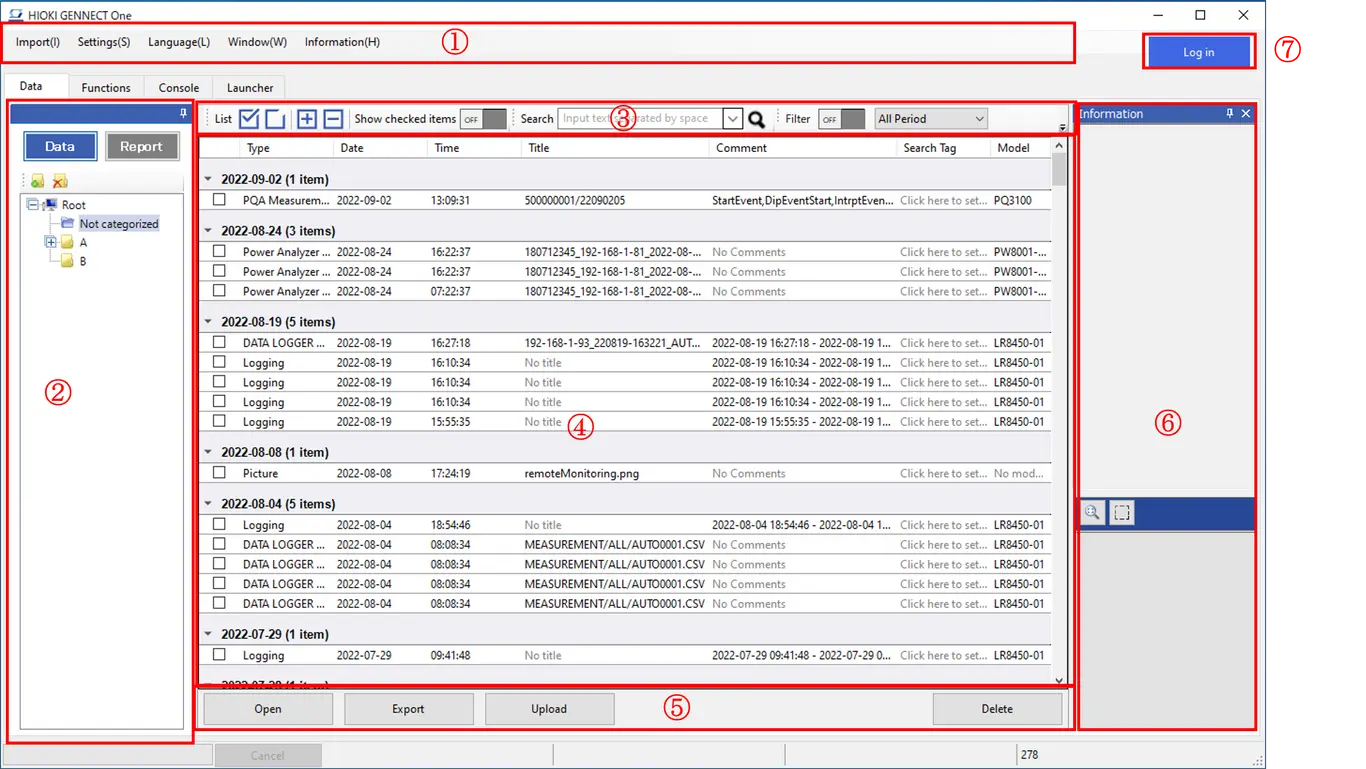
① Menu Bar
The menu of the application is displayed.
② Data Switch Window
- Changes the data type to display in the data list by selecting [Data]/[Report].
- Manage the data group in the tree style structure.
- Data displayed in the data list is filtered by selecting the group.
③ Toolbar
- Search data by text or search tag.
- Refine the data displayed in the data list by applying the criteria settings.
- Change the checked state or the expanded/collapsed state of the data list.
④ Data List
Display the data loaded from the measurement instrument or GENNECT One in the list. Data is listed in date order.
⑤ Button Panel
- Open the selected data.
- Output the selected data in the CSV/Image/PDF format.
- Delete the selected data.
- If you are logged in to GENNECT Cloud, the [Upload] button will be displayed.
You can upload saved measurement data to GENNECT One. Uploaded measurement data will be reflected on the GENNECT Cloud drive window and in the GENNECT One data list (cloud), creating a data link with GENNECT Cloud. Measurement data for which a data link has been created can be shared with other users in the same account.
For more information, see the following:
⑥ Information Windows
Show the detailed information of the selected data.
Show the preview image if the data is the image format.
⑦ Login button
Log in to GENNECT Cloud.
[Functions] Tab
The instrument and computer are connected via LAN to collect measurements.
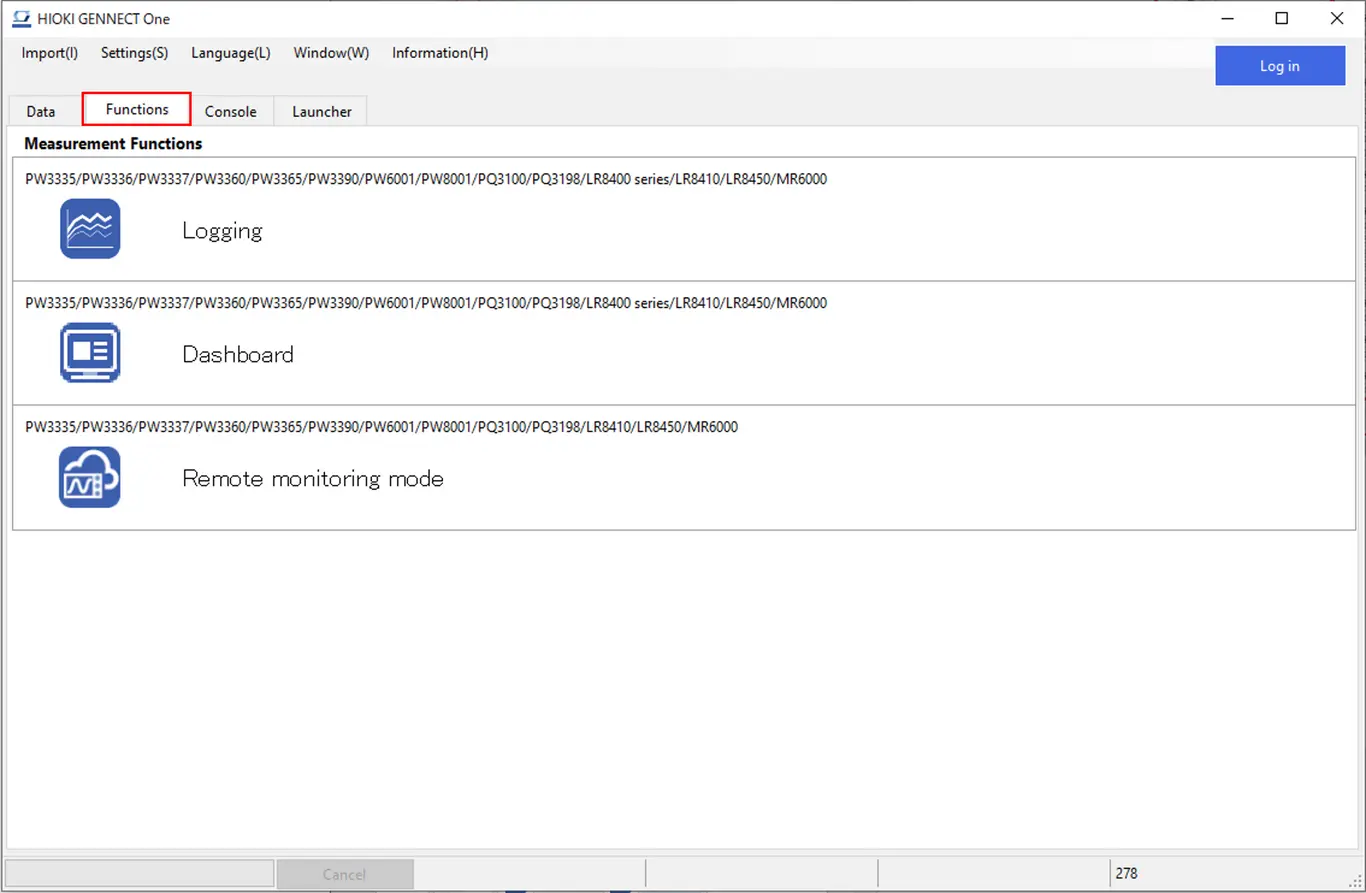
- Logging
"Logging" feature logs the measurement values with the specified logging interval. - Dashboard
The "Dashboard" function allows you to monitor the status of measurements in an easy-to-understand, visual manner by placing measured values on a user-specified background image. - Remote monitoring mode
Linked to GENNECT Cloud, remote monitoring (monitoring, file transfer, remote control, etc.) is performed.
[Console] Tab
Configure the measuring instruments connected to the computer via LAN.
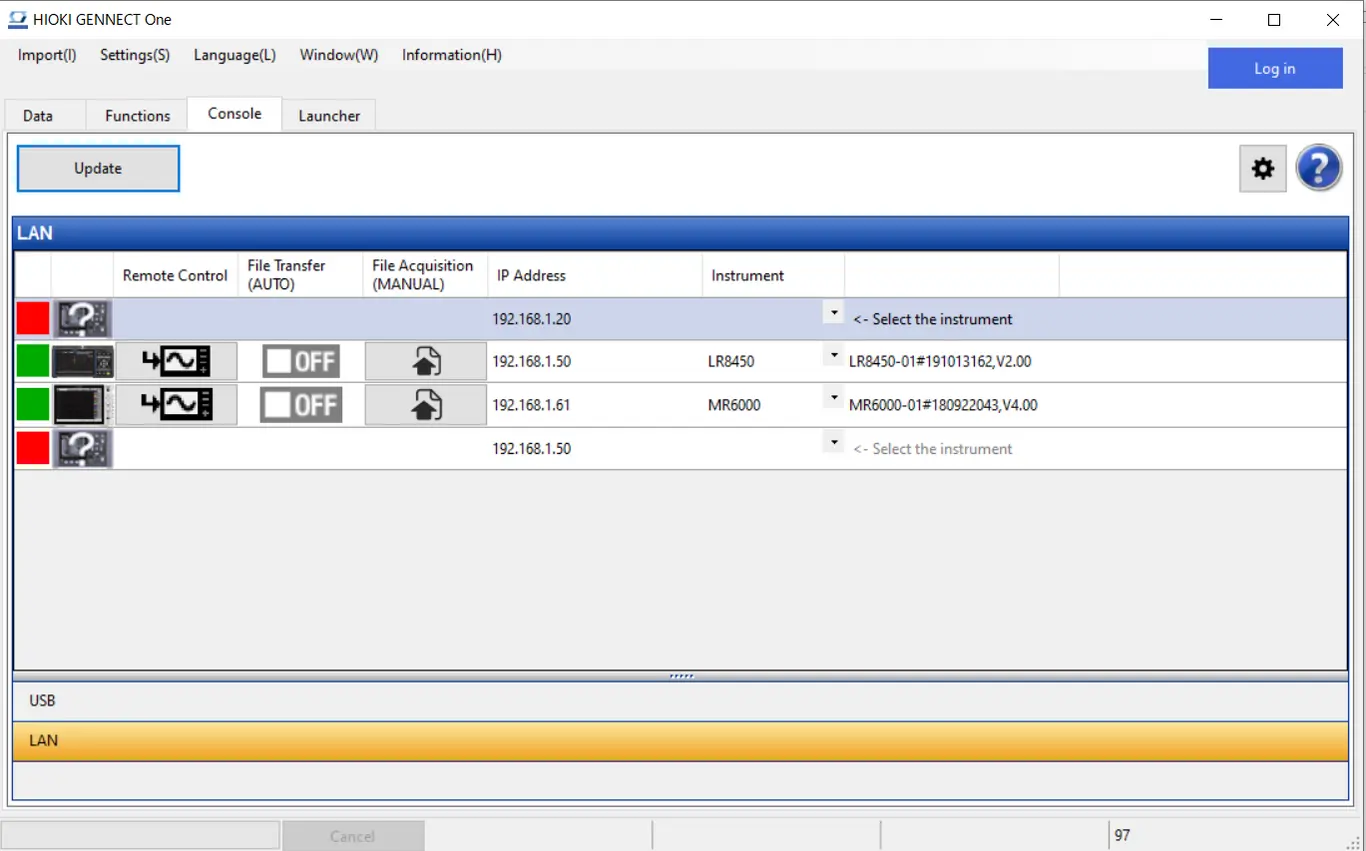
[Launcher] Tab
Open the HIOKI application software installed on your computer.
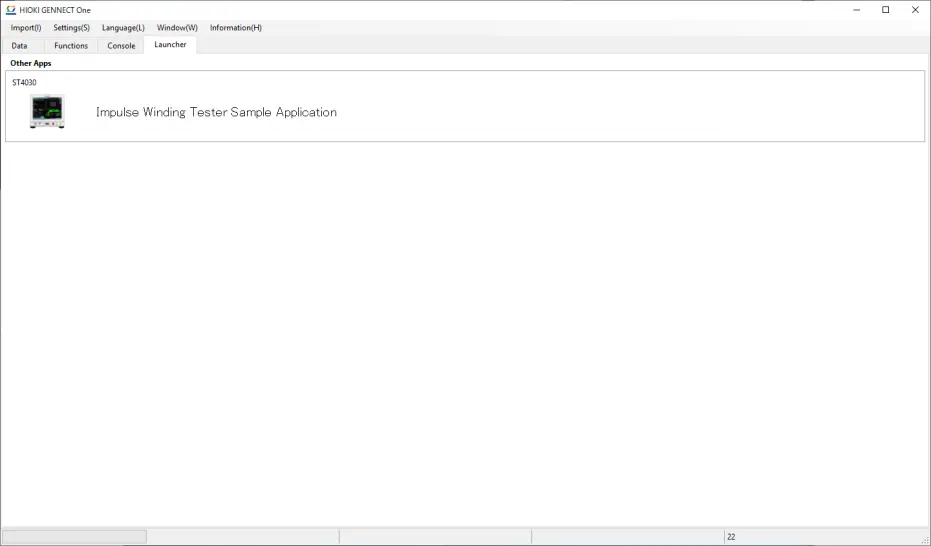
- Impulse Winding Tester Sample Application
Open the application software for ST4030 Impulse Winding Tester installed on your computer.
* If the application software listed in [Other App] tab has not installed on your computer, the following message appears. Install the application software if needed.