

Window layout and functionality (① Folder selection area)
When you log in to GENNECT Cloud, you can switch the display between two types of data list.
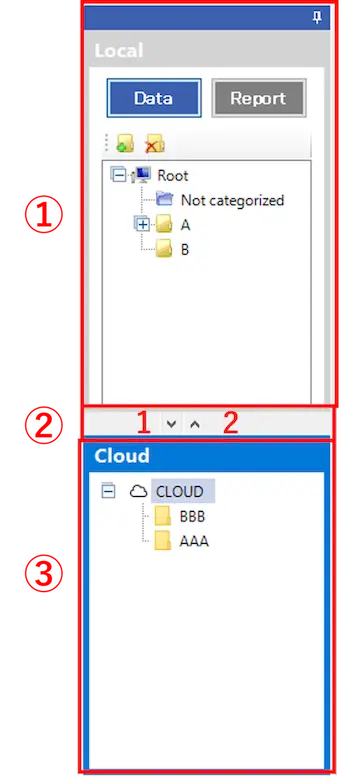
① Folder selection area (local)
Select a folder to display a list of measurement data saved on the local PC in the data list display area.
While you’re logged in, you can upload measurement files that exist only on the local PC to GENNECT Cloud.
② “Expand” buttons
1:Expands the folder selection area (local).
2:Expands the folder selection area (cloud).
③ Folder selection area (cloud)
When a folder is selected, a list of measurement data linked to GENNECT Cloud is displayed in the data list display section.
Switching between cloud and local data lists
Data list (local)
Select the folder tree labeled [Local] to display a list of measurement data saved on the local PC.
If you’re logged in to GENNECT Cloud, you can click the [Upload] button to upload measurement data saved only on the local PC.
Uploaded measurement data can be managed using the GENNECT Cloud drive window or the GENNECT One data list (cloud).
Datalist (cloud)
Select the folder tree labeled [Cloud] to display a list of measurement data linked to GENNECT Cloud.
This data list allows you to view and manage measurement data that has been shared with other users in the same account.