

Managing measurement data in the data list (cloud)
This section describes how to view and manage (output, upload, download, and delete) measurement data that has been shared within an account in the GENNECT One data list (cloud).
Opening the measurement data in GENNECT One
This section describes the procedure for opening measurement data that has been shared within an account in the GENNECT One data list (cloud) in GENNECT One.
-
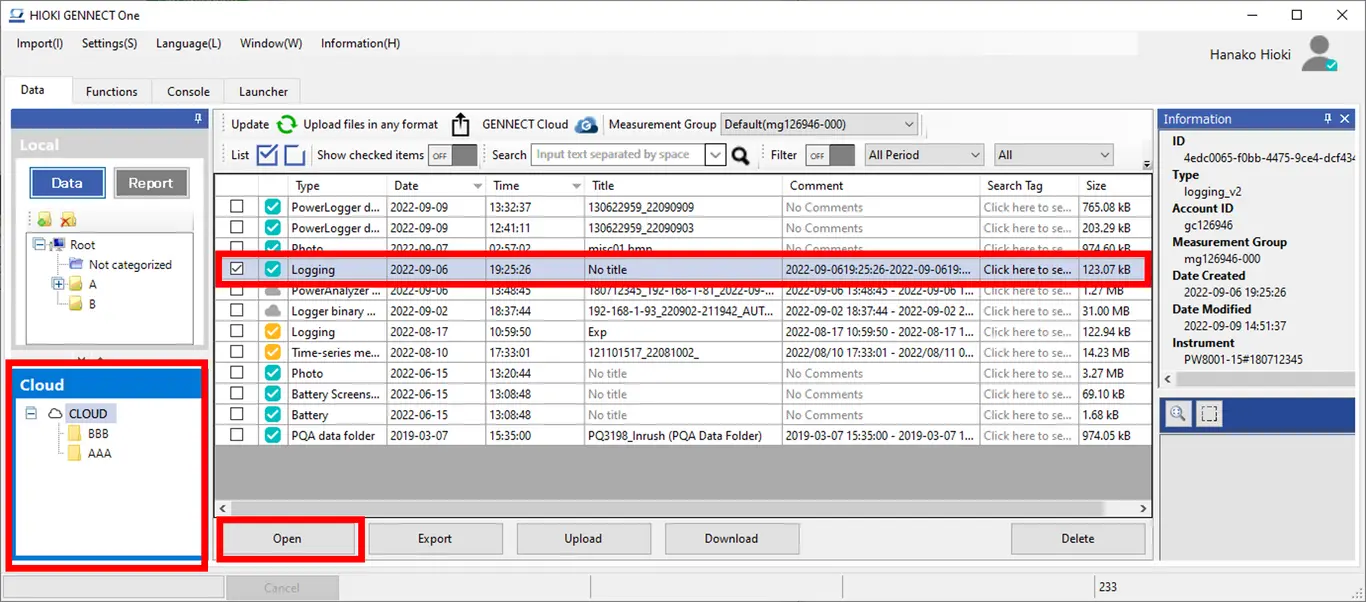
Select measurement data in the data list (cloud) and click the [Open] button.
-
A viewer suited to the type of measurement data that you selected will open, allowing you to view the measurement data.
If the measurement file does not exist on the local PC, it will be downloaded from GENNECT Cloud. (*1)(*2)
| Status | Description | |
|---|---|---|
 | [Full synchronization] | The measurement data saved in local storage will be opened in GENNECT One. |
 | [Partial synchronization] | A dialog box confirming whether you wish to download the measurement data from GENNECT Cloud to your local storage will be displayed. (*2) If you do not download the data: The measurement data saved in local storage will be opened in GENNECT One. If you download the data: The measurement data downloaded from GENNECT Cloud to your local storage will be opened in GENNECT One. |
 | [Not downloaded] | The measurement data downloaded from GENNECT Cloud to your local storage will be opened in GENNECT One. |
 | [Not uploaded] | The measurement data saved in local storage will be opened in GENNECT One. |
 | [Not uploaded (different terminal)] | The measurement data cannot be opened from GENNECT One. (*1) |
Note
*1: If the measurement file does not exist in GENNECT Cloud’s storage (if the status is either [Not uploaded] or [Not uploaded (different terminal)]), it will not be possible to download the measurement file. You can download the file by uploading it from either the GENNECT Cloud web application or a terminal that is linked to GENNECT Cloud.
*2: If you have selected measurement data for which measurement files with different content exist in GENNECT Cloud storage and on the local PC (if the status is [Partial synchronization]), a message confirming whether you wish to update the local PC file will be displayed. For more information about settings for changing this operation, see the following:
Outputting measurement data as a file
This section describes the procedure for outputting measurement data that has been shared within an account in the GENNECT One data list (cloud) as a file.
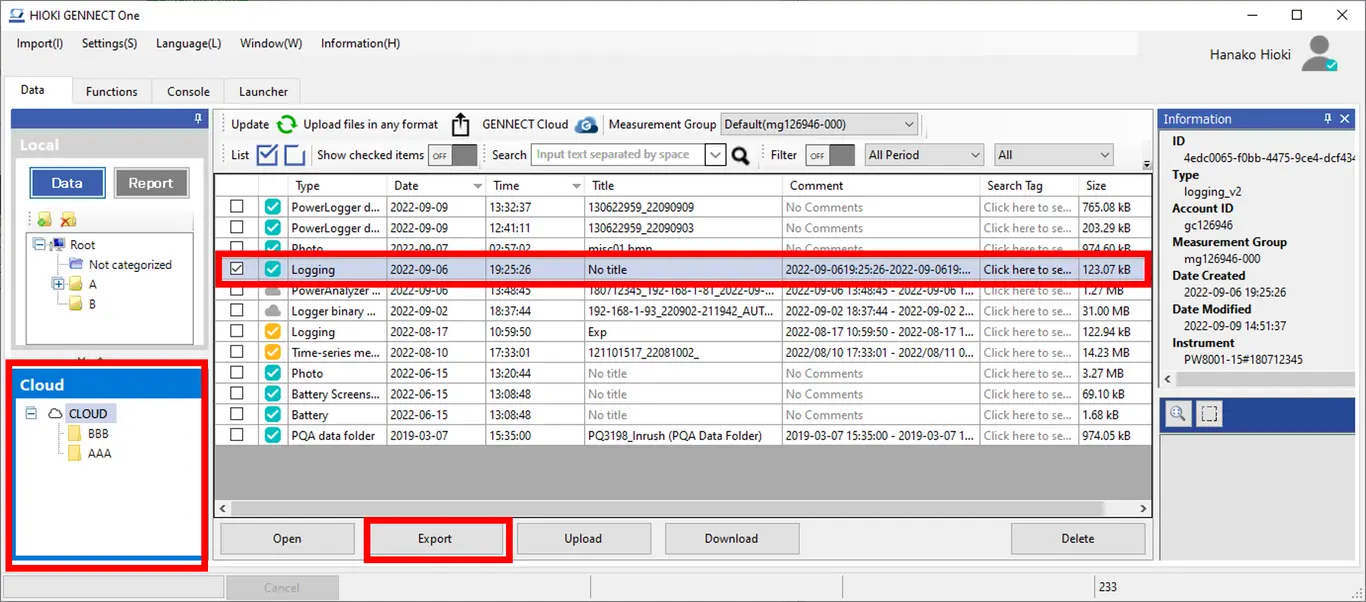
- Select measurement data in the data list (cloud) and click the [Open] button.
-
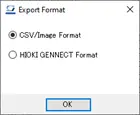
Select the output format and click the [OK] button. (*1)
-
Specify the save destination and click the [OK] button.
If the measurement file does not exist on the local PC, it will be downloaded from GENNECT Cloud. (*2)(*3) -
The measurement file will be saved to the specified save destination.
| Status | Description | |
|---|---|---|
| [Full synchronization] | The measurement data saved in local storage will be output from GENNECT One. |
| [Partial synchronization] | A dialog box confirming whether you wish to download the measurement data from GENNECT Cloud to your local storage will be displayed. (*3) If you do not download the data: The measurement data saved in local storage will be output from GENNECT One. If you download the data: The measurement data downloaded from GENNECT Cloud to your local storage will be output from GENNECT One. |
| [Not downloaded] | The measurement data downloaded from GENNECT Cloud to your local storage will be output from GENNECT One. |
| [Not uploaded] | The measurement data saved in local storage will be output from GENNECT One. |
| [Not uploaded (different terminal)] | The measurement data cannot be output from GENNECT One. (*2) |
Note
*1: The CSV and image formats cannot be selected for some data types. For more information about the data types for which outputting to the CSV format is supported, see the following:
*2: If the measurement file does not exist in GENNECT Cloud’s storage (if the status is either [Not uploaded] or [Not uploaded (different terminal)]), it will not be possible to download the measurement file.
*3: If you have selected measurement data for which measurement files with different content exist in GENNECT Cloud storage and on the local PC (if the status is [Partial synchronization]), a message confirming whether you wish to update the local PC file will be displayed. For more information about settings for changing this operation, see the following:
Uploading measurement data to GENNECT Cloud
This section describes the procedure for uploading measurement data in the GENNECT One data list (cloud) whose status is either [Not uploaded] or [Partial synchronization] to GENNECT Cloud.
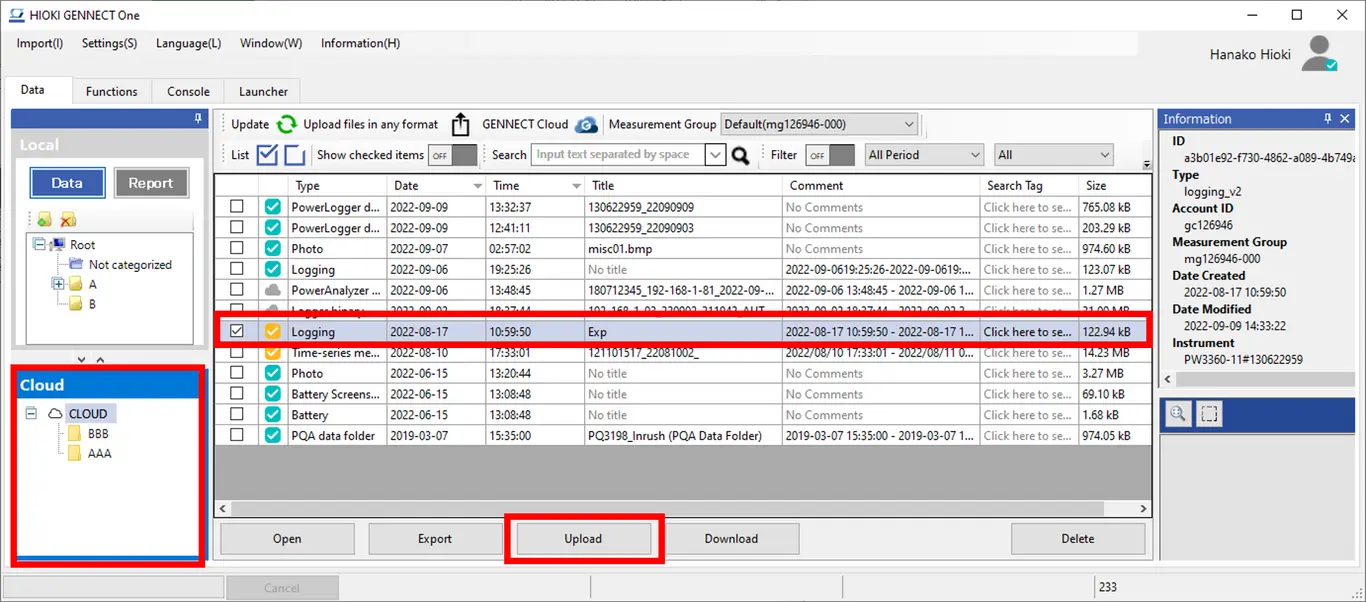
- Select measurement data whose status is either [Not uploaded] or [Partial synchronization] in the data list (cloud) and click the [Upload] button.
- Wait for the upload to complete. (*1)(*2)
When the upload completes, the status of the measurement data will change to [Full synchronization].
| Status | Description | |
|---|---|---|
| [Full synchronization] | The measurement data is up to date. The measurement data will not be uploaded. (*1) |
| [Partial synchronization] | A dialog box confirming whether you wish to upload measurement data from your local storage to GENNECT Cloud will be displayed. (*3) If you do not upload the data: The measurement data will not be uploaded to GENNECT Cloud. If you upload the data: The measurement data will be uploaded to GENNECT Cloud. |
| [Not downloaded] | The measurement data does not exist in your local storage. The measurement data will not be uploaded. (*2) |
| [Not uploaded] | The measurement data will be uploaded to GENNECT Cloud. |
| [Not uploaded (different terminal)] | The measurement data does not exist in your local storage. The measurement data will not be uploaded. (*2) |
Note
*1: Measurement data whose contents are identical to data files in GENNECT Cloud (with a status of [Full synchronization]) will not be uploaded.
*2: If the measurement file does not exist in local storage (if the status is either [Not uploaded] or [Not uploaded (different terminal)]), the measurement data will not be uploaded.
*3: If the measurement data consists of measurement files with different content in GENNECT Cloud storage and on the local PC (if the status is [Partial synchronization]), a message confirming whether you wish to update the GENNECT Cloud file will be displayed. For more information about settings for changing this operation, see the following:
Downloading measurement data from GENNECT Cloud
This section describes the procedure for downloading measurement data in the GENNECT One data list (cloud) whose status is either [Partial synchronization] or [Not downloaded] from GENNECT Cloud to GENNECT One.
-
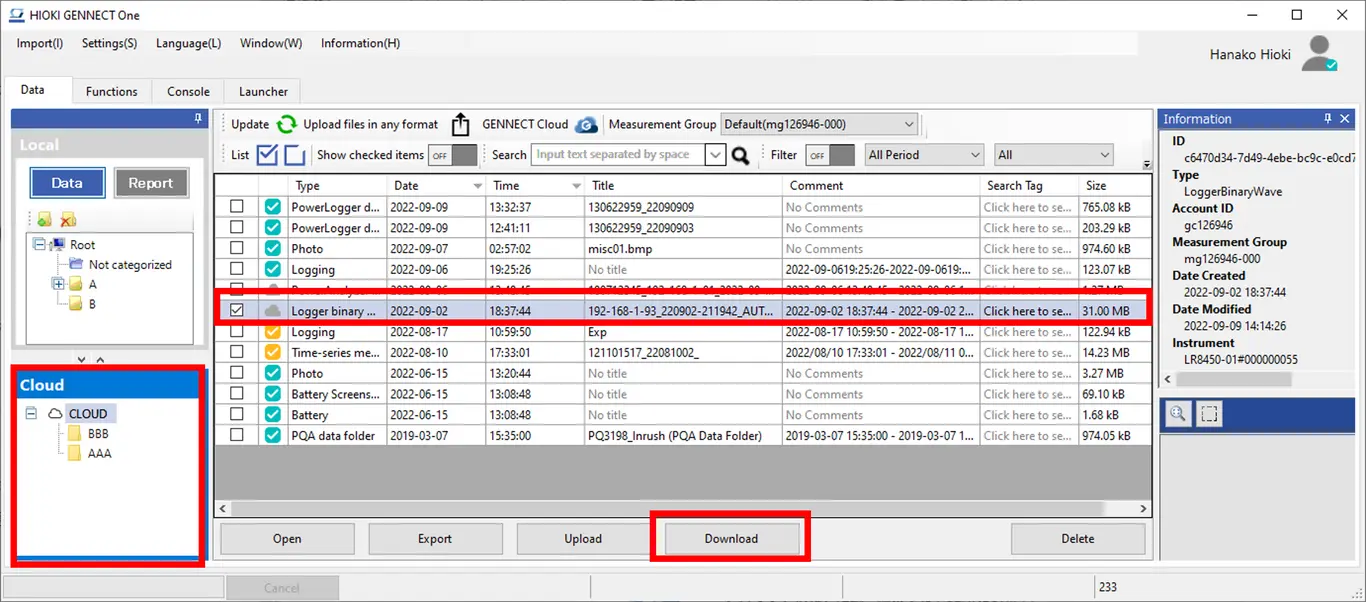
Select measurement data whose status is either [Partial synchronization] or [Not downloaded] in the data list (cloud) and click the [Download] button.
-
Wait for the download to complete. (*1)(*2)
When the download completes, the status of the measurement data will change to [Full synchronization].
| Status | Description | |
|---|---|---|
| [Full synchronization] | The measurement data is up to date. The measurement data will not be downloaded. (*1) |
| [Partial synchronization] | A dialog box confirming whether you wish to download the measurement data from GENNECT Cloud to your local storage will be displayed. (*3) If you do not download the data: The measurement data will not be downloaded. If you download the data: The measurement data will be downloaded from GENNECT Cloud to local storage. |
| [Not downloaded] | The measurement data will be downloaded from GENNECT Cloud to local storage. |
| [Not uploaded] | The measurement data does not exist in GENNECT Cloud storage. The measurement data will not be downloaded. (*2) |
| [Not uploaded (different terminal)] | The measurement data cannot be downloaded from GENNECT One. (*2) |
Note
*1: Measurement data whose contents are identical to data files in GENNECT Cloud (with a status of [Full synchronization]) will not be downloaded.
*2: If the measurement file does not exist in GENNECT Cloud’s storage (if the status is either [Not uploaded] or [Not uploaded (different terminal)]), it will not be possible to download the measurement file. You can download the file by uploading it from either the GENNECT Cloud web application or a terminal that is linked to GENNECT Cloud.
*3: If you have selected measurement data for which measurement files with different content exist in GENNECT Cloud storage and on the local PC (if the status is [Partial synchronization]), a message confirming whether you wish to update the local PC file will be displayed. For more information about settings for changing this operation, see the following:
Deleting measurement data
This section describes the procedure for deleting measurement data that has been shared within an account in the GENNECT One data list (cloud).
-
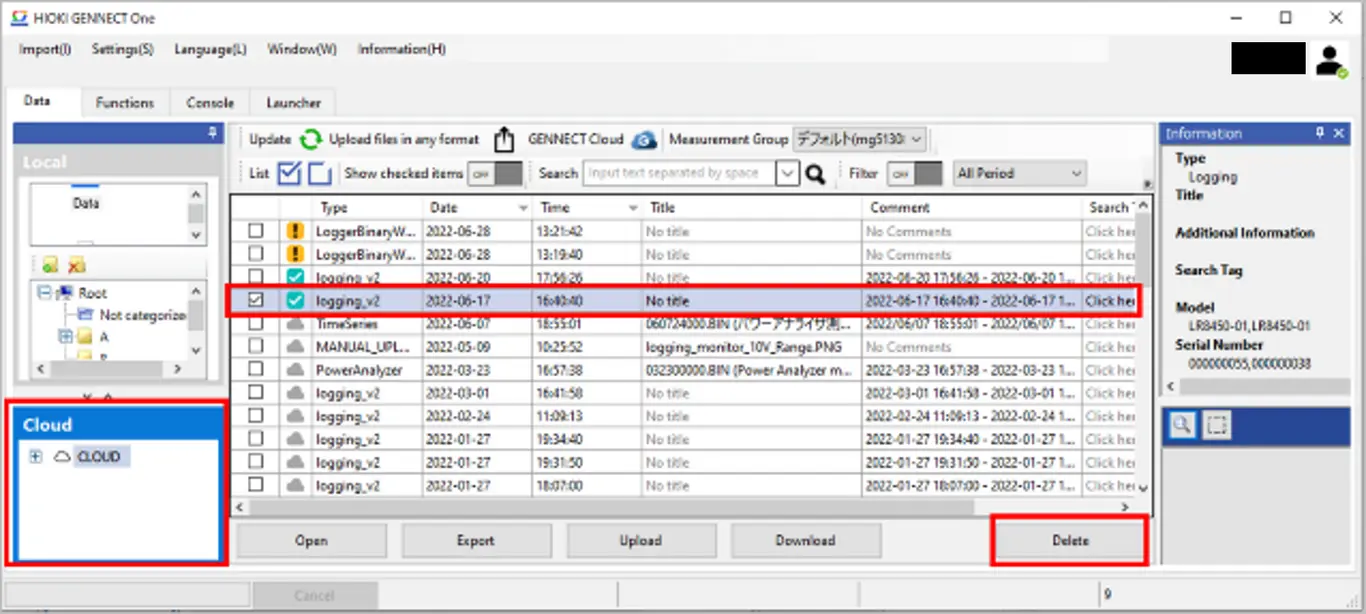
Select measurement data in the data list (cloud) and click the [Delete] button.
-
A dialog box asking you to confirm the method of deletion will be displayed(*1)(*2)(*3).
Select the desired method of deletion and click the [OK] button. -
The measurement data will be deleted.
| Status | Description | |
|---|---|---|
| [Full synchronization] [Partial synchronization] [Not downloaded] | A dialog box asking you to confirm the method of deletion will be displayed. (*1) Delete only local files: Deletes only measurement data stored on the local PC. This method can be used to save local storage, since deleted measurement data can be reacquired by downloading it again. Delete both local and cloud files: Completely deletes measurement data stored on the local PC as well as measurement data stored in GENNECT Cloud. |
| [Not uploaded] | Completely deletes measurement data stored on the local PC as well as measurement data stored in GENNECT Cloud. (*2) |
| [Not uploaded (different terminal)] | Measurement data cannot be deleted from GENNECT One. (*3) |
Note
*1: In the default state, a dialog box asking you to confirm the method of deletion will be displayed. For more information about settings for changing this operation, see the following:
*2: If the status of the selected measurement data is [Not uploaded], a dialog box asking you to confirm whether you wish to delete the data will be displayed. Deleting measurement data whose status is [Not uploaded] will cause links between GENNECT Cloud and the measurement data to be lost.
If you anticipate needing to download the measurement data again, upload it to GENNECT Cloud and delete only the local file.
*3: Measurement data whose status is [Not uploaded (different terminal)] cannot be deleted from GENNECT One. Such files must be deleted from either the GENNECT Cloud web application or another terminal that is linked to GENNECT Cloud.