

Selecting instruments
- The [Select instrument] window will be displayed.
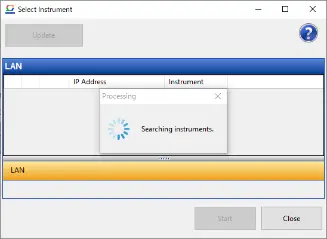
The application will display the [Searching instruments] message while searching for instruments that are connected to the computer via the LAN.
- A list of the instruments found during the search made in the previous step will be displayed.
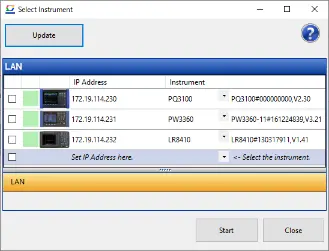
* You can search again by clicking the [Update] button.
* If the search results include an instrument that has never been connected to the application, it will be shown as follows:

To connect to this instrument, select the instrument’s model in the [Instrument] drop-down menu.

* To manually add an instrument that was not found by the search, specify the IP address directly in the [Set IP address here] field and select the corresponding instrument in the drop-down menu.

* You can check the connection by selecting [Check connection] in the context menu.

* If the application is unable to verify a connection with the instrument, for example because the LAN cable is disconnected, the instrument will be shown as follows:

* You can delete the instrument from the list by selecting [Delete] in the context menu.

- Select the checkbox for each instrument you wish to use in remote monitoring mode.
Click the [Start] button to continue.
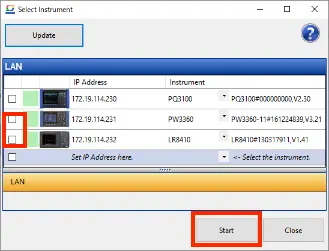
* A light-green connection status indicates the instrument was found but is not currently connected.
Double-click the status icon or click the [Start] button to connect to the instrument.
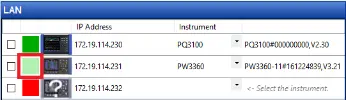
- Connected: Green
- Found: Light green
- Not found: Red