

Manage battery tester thresholds and battery tester profiles in the cloud (GENNECT Cloud Standard / Pro plans)
You can manage threshold tables and profile tables that are shared with another user in the same account. Threshold tables are managed on the [Cloud] screen of the [Mange Thresholds] screen. Profile tables are managed on the [Cloud] screen of the [Manage Profiles] screen.
- This feature requires a subscription to a GENNECT Cloud Standard or Pro plan.
- The battery tester profile information feature is only supported by BT3554-50.
See below for the file status icons that appear on the [Cloud] screen.
| Icon | Status | Description |
|---|---|---|
 | [Full synchronization] | Files exist both in the cloud and in local storage, and measurement data content is identical. |
 | [Partially synchronization] | Files exist both in the cloud and in local storage, and measurement data content differs. The status can be changed to [Full synchronization] by either downloading changes in the cloud to the [Data list (cloud)] or uploading changes in the [Data list (cloud)] to the cloud. |
 | [Not downloaded] | Files only exist in cloud storage. Files stored in the cloud can be downloaded from GENNECT One. |
For more information on the functionality of the [Cloud] screen, please see below.
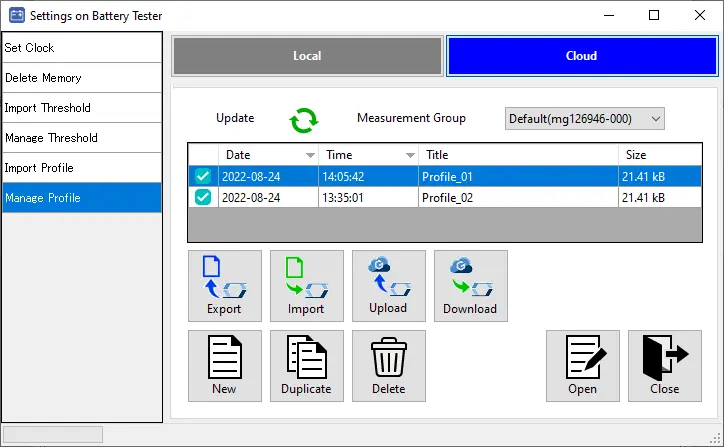
- Update
Update the [cloud] management screen with the latest information. - Measurement Group
Switches the measurement group, so that the information related to the measurement group will be displayed in [Cloud] screen.
Please refer to the GENNECT Cloud online manual for more information about measurement groups. - Export
Export the selected data to a file (hok format).
If the status is [Not Downloaded], the file is downloaded from GENNECT Cloud and exported. - Import
Import the selected datas from a file (hok format).
Imported datas are uploaded to the GENNECT Cloud. - Upload
Upload the data with status [Partial Synchronization] to GENNECT Cloud and overwite it.
Upload to the measurement group currently displayed in [Measurement group]. - Download
Download datas with status [Not Downloaded] or [Partial Synchronization] from GENNECT Cloud. - New
Create a new data.
The created data will be uploaded to GENNECT Cloud. - Duplicate
Duplicate the selected datas.
The replicated datas will be uploaded to GENNECT Cloud. - Delete
Delete the selected data. There are two methods of deletion.- Delete only local files
Deletes only measurement data stored on the local PC. This method can be used to save local storage, since deleted measurement data can be reacquired by downloading it again. - Delete both local and cloud files
Completely deletes measurement data stored on the local PC as well as measurement data stored in GENNECT Cloud.
- Delete only local files
- Open
Open the selected data. [Edit Threshold Table] / [Edit Profile Table] window opens.
In the window, you can edit the threshold / profile table.
You can also transfer the threshold / profile table to the battery tester with the [Transfer] button.(*1) - Close
Close the [Settings on Battery Tester] window.
(*1)The profile table can be transferred only to Battery Tester BT3554-50.
Want help or have questions?