

Window layout (overall)
Once Logging In to GENNECT Cloud, the [Data] tab will show the following information. This section describes the name and functionality of each part of the data list window.
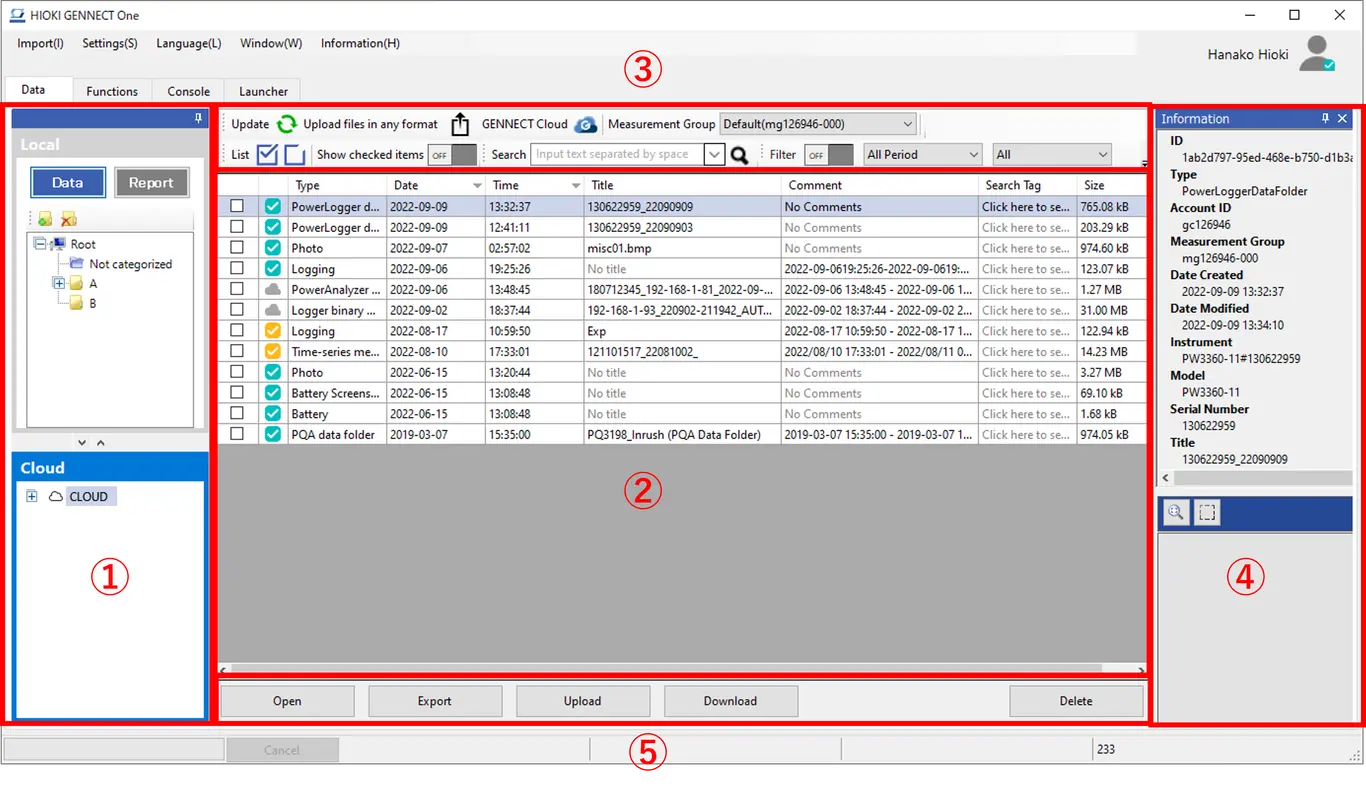
① Folder selection area
Selects the folder level for measurement data stored in GENNECT Cloud. Select a folder level to change the content shown in the data list display area.
② Data list display area
Displays a list of measurement data linked to GENNECT Cloud.
The data list includes the following information: status, which indicates the upload state; data type; file size; and instrument model.
You can also edit the data title, comment, and tags.
③ List controls area
Allows you to perform operations including updating the data list, changing the measurement group, and manipulating folders.
④ Information display area
Displays detailed information about the measurement data selected in the data list along with image file thumbnails.
⑤ Function button area
Provides operations for linking GENNECT Cloud with data, including uploading, downloading, and deleting measurement files.