

(Application) Enabling two-factor authentication for a user
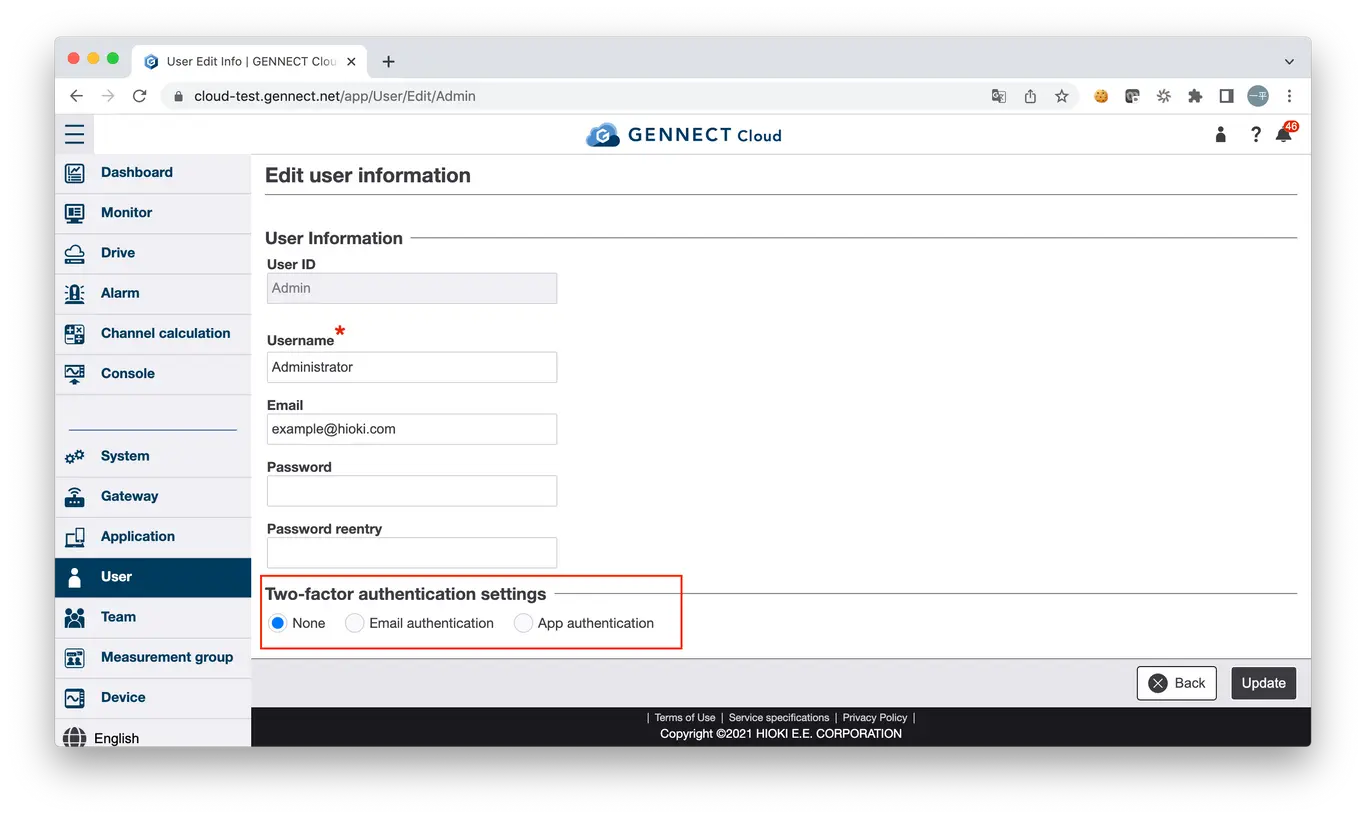
GENNECT Cloud allows you to enable two-factor authentication for individual users to ensure security. Two-factor authentication can be configured to use either email or an app. Both can be set on the user editing screen.
- Enabling two-factor authentication using email
Select the [Email authentication] checkbox and click [Update].
The next time the user logs in, they will need to enter a passcode sent to the registered email address after entering their username and password and clicking the login button.
To enable two-factor authentication using email, an email address must be set for the target user. - Enabling two-factor authentication using an app
Select the [App authentication] checkbox, and click [Update]. Enter the password and click [Confirm].
When the QR code is displayed, scan it with your two-factor authentication app (Authy, etc.), enter the authentication code, and click [Accept].
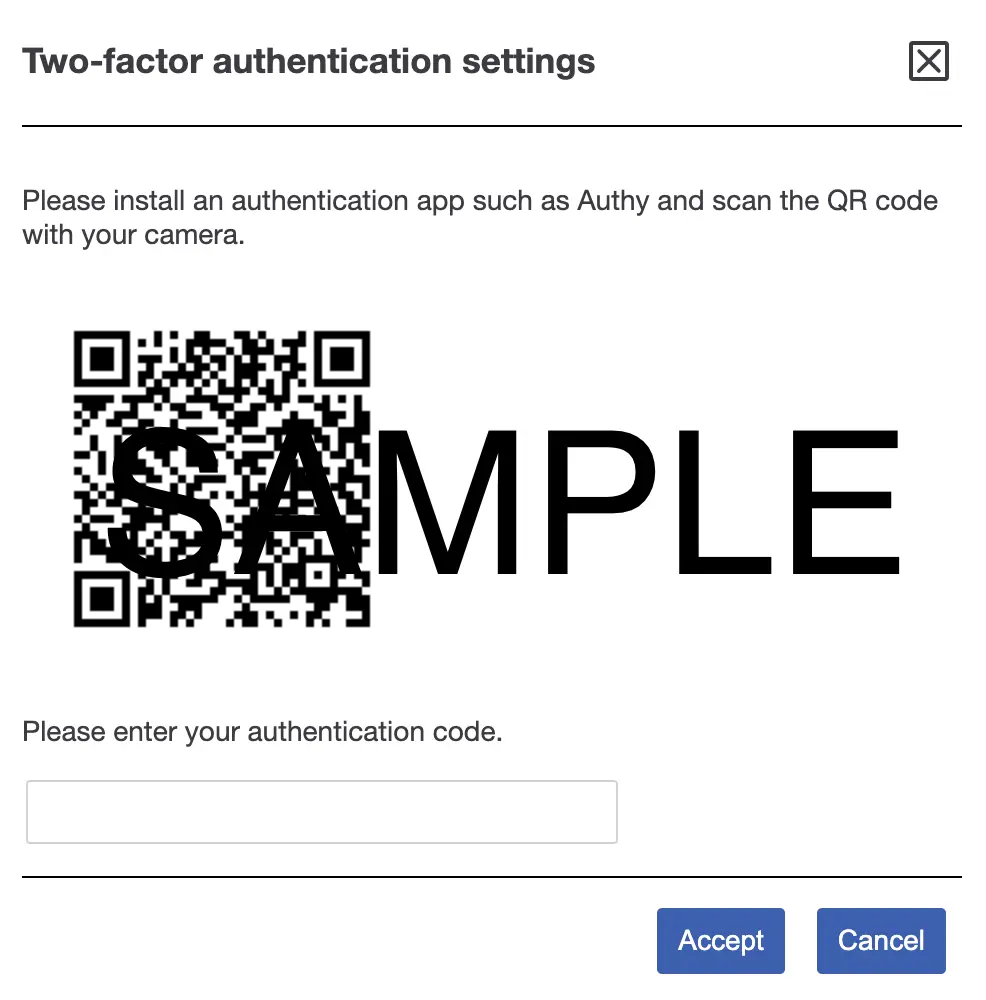
The next time the user logs in, they will need to enter the app’s authentication code, which is updated every 30 seconds, after entering their username and password and clicking the login button.
To enable two-factor authentication using an app, you must be logged in as the target user.
Want help or have questions?