

Edit threshold tables
1
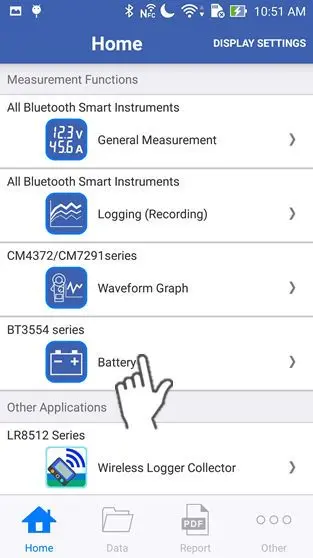
Tap "Battery" on the home screen.
If you cannot find an instrument which can utilize the "Battery" function, please refer to Add other measurement instruments to proceed with this function.
2
Wait up to 30 seconds until you find the instrument on the "Select Instrument" screen, then select the one which you would like to measure a battery with.
If the instrument hasn't connected after 1 minute, please refer to 「I can’t connect to GENNECT Cross」
If you tap "Start Procedure offline", the function starts without a bluetooth connection. In this mode, only the "Threshold Table" function in the maintenance menu and the setting menu are available.
If you tap "Start Procedure offline", the function starts without a bluetooth connection. In this mode, only the "Threshold Table" function in the maintenance menu and the setting menu are available.

3
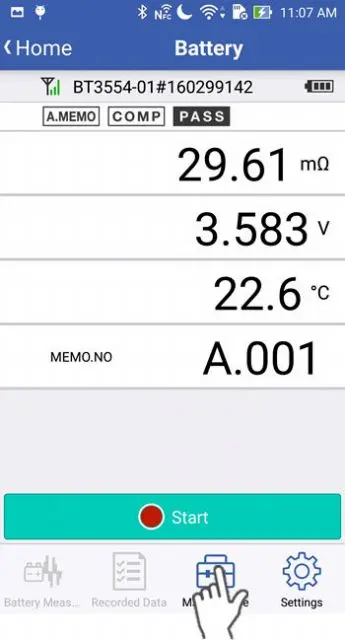
Tap the "Maintenance" icon on the screen.
4
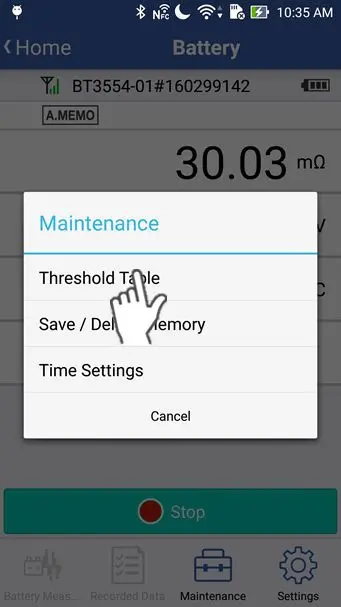
Tap "Threshold Table" in the maintenance menu.
5
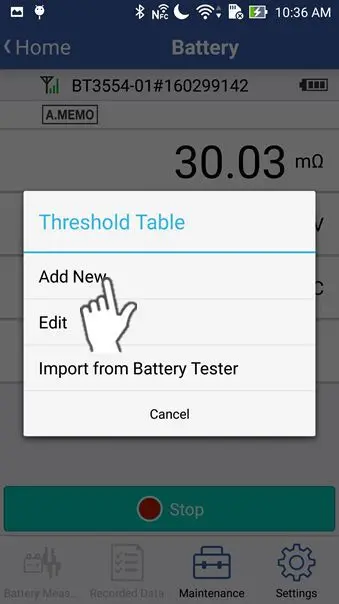
Tap "Add New", then a new threshold table will be created.
If you tap "Edit", you can edit existing threshold tables.
If you tap "Import from Battery Tester", you can download the threshold table that is stored in the battery tester.
If you tap "Import from Battery Tester", you can download the threshold table that is stored in the battery tester.
6
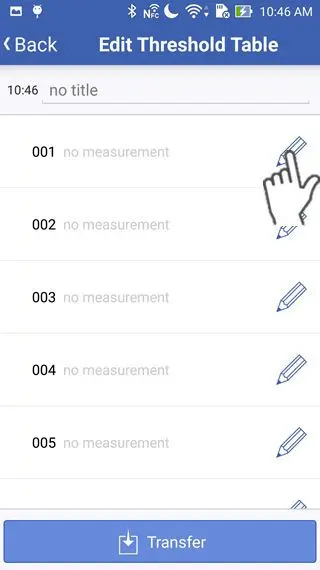
Tap the pencil icon to begin editting the threshold.
7
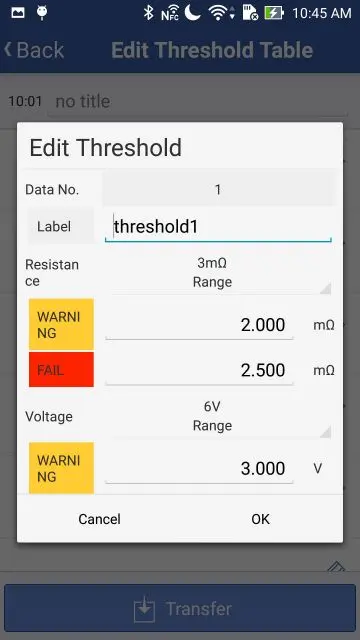
Set the label, the resistance range, the warning threshold for resistance, the fail threshold for resistance, the volatage range and the warning threshold for voltage, then tap "OK".
8
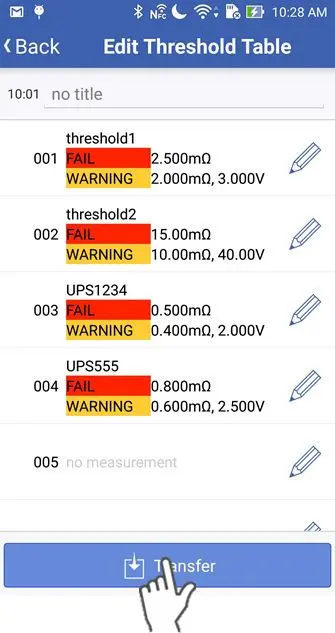
Tap the "Transfer" button to transfer the threshold table to the battery tester.
Want help or have questions?