

Updating instrument and Bluetooth dongle(Z3210) firmware
If the instrument supports firmware updates, you can update it to the latest firmware version via Bluetooth.
You can also update the Bluetooth dongle (Z3210) to the latest firmware version.
Update procedure
1
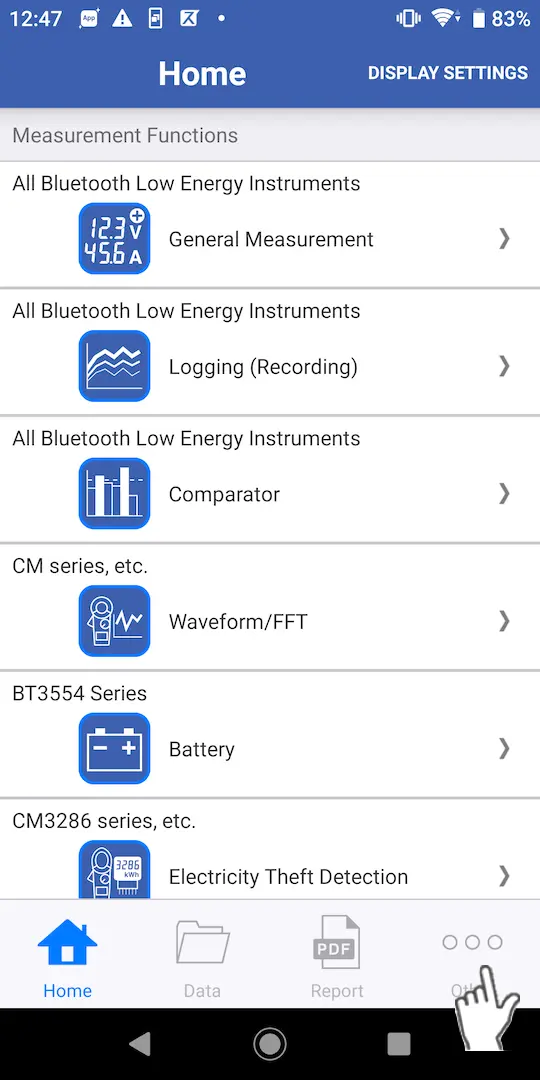
Tap "Other" on the bottom right of the screen to display the "Other" screen.
2
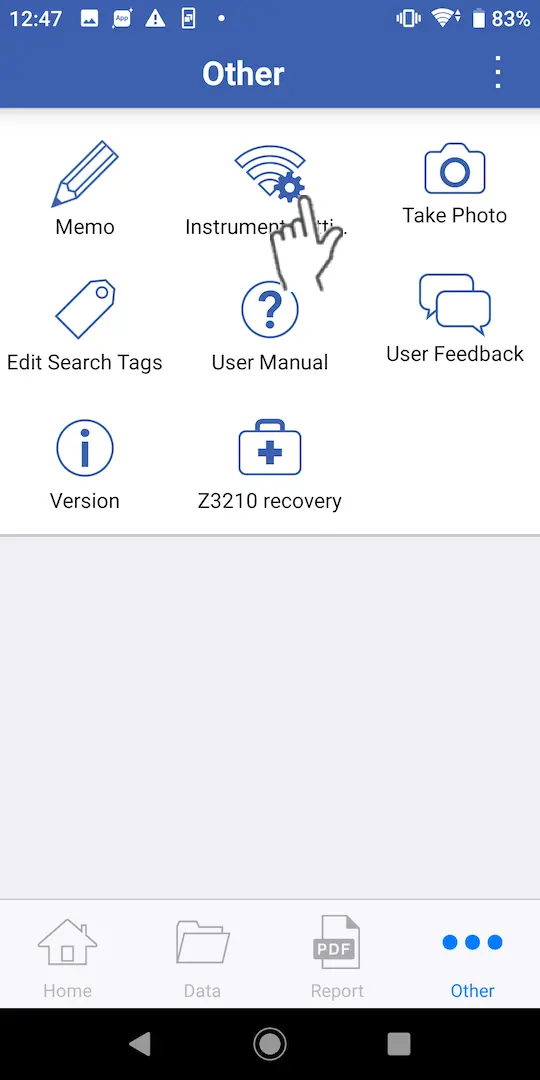
Tap "Instrument Settings" to display the device connection screen.
3
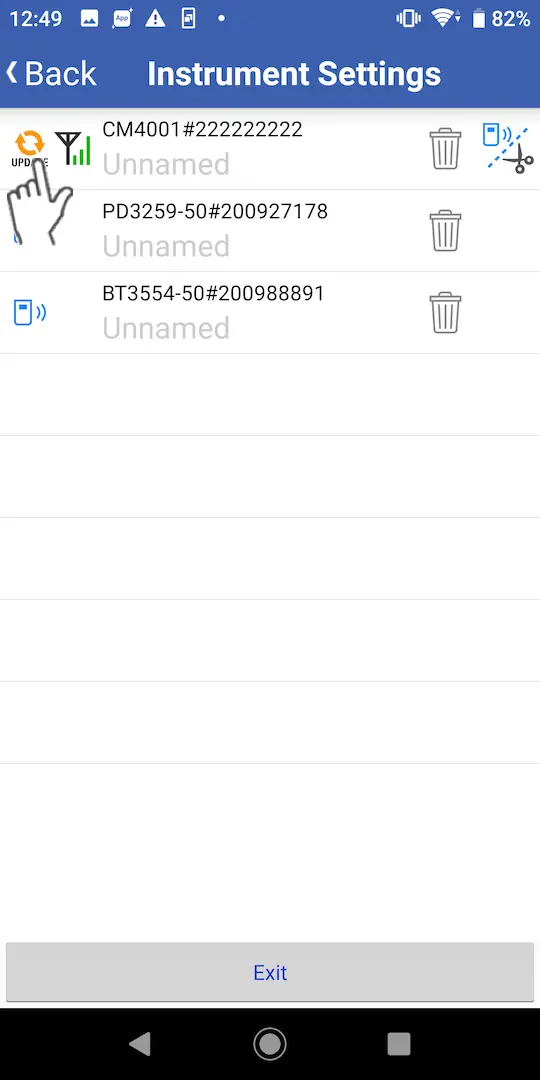
If an update is available, the "Connected" mark will change to the "Update" mark about 5 seconds after the connection is established.
4
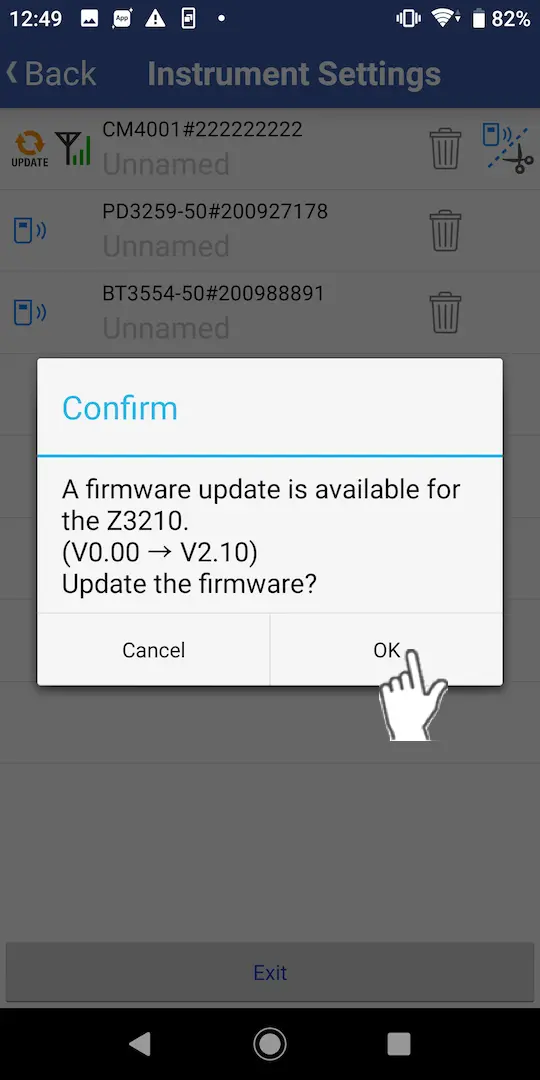
Tap the "UPDATE" mark and select "Yes" on the confirmation dialog box to start the update.
Do not turn off the instrument or exit the app while the update is in progress.
It may take 5 to 10 minutes to complete the update.
If an attempt to update the Bluetooth dongle (Z3210) fails (if the instrument display indicates [Err8])
If an update of the Bluetooth dongle fails, you won’t be able to connect to instruments on the "Connected Devices" screen.
(The instrument display will indicate [Err8].)
Write the firmware to the dongle again as described below.
1
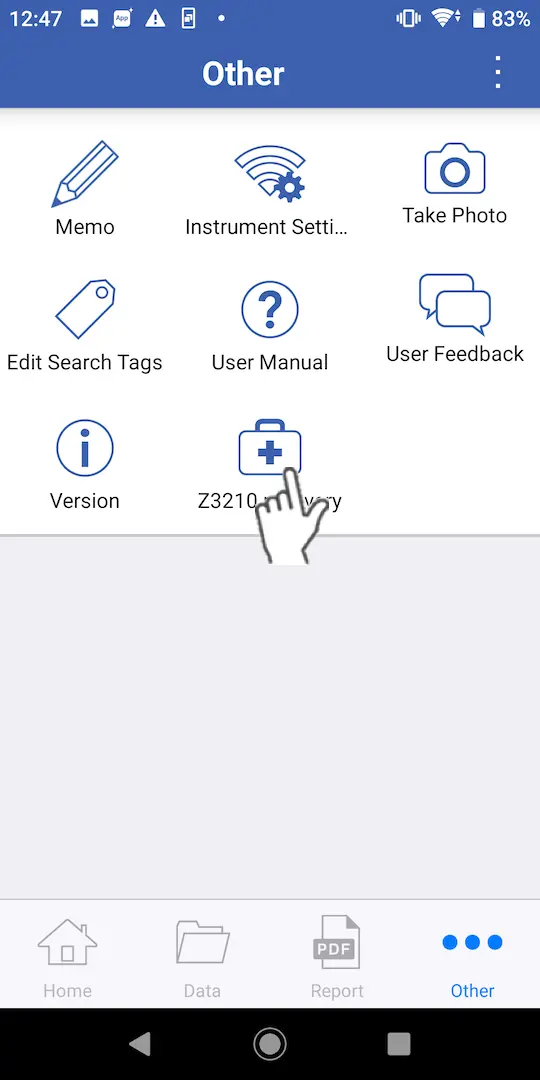
Tap "Other" at the bottom right of the screen to display other screens.
2
Tap "Z3210 recovery".
3
After the screen changes, turn on the instrument to which the Bluetooth dongle is connected.
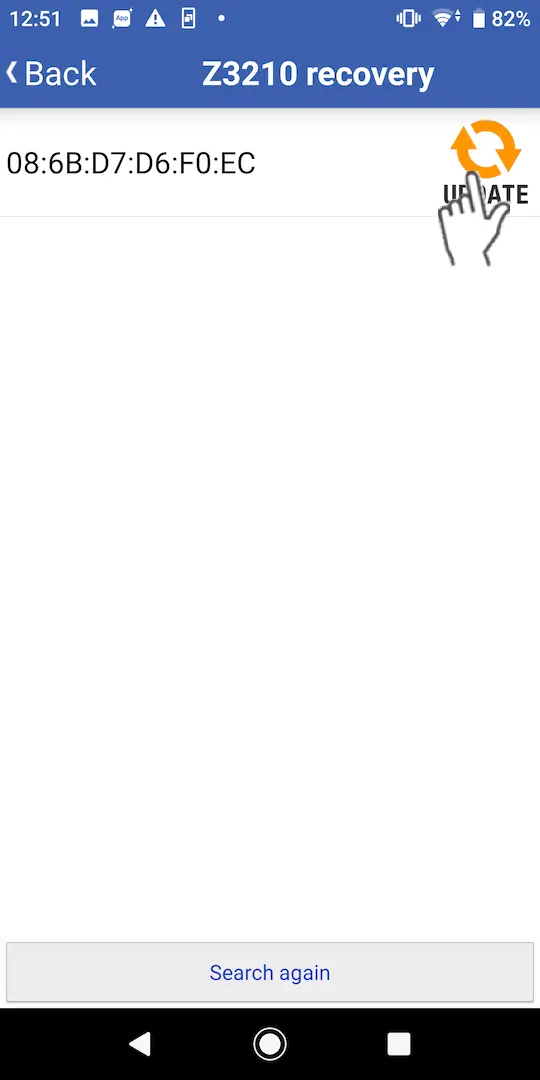
The device will be added to the list. (The Bluetooth dongle’s unique identifier will be displayed.)
4
Once the instrument’s display indicates "Err8", tap the "Update" mark.
5
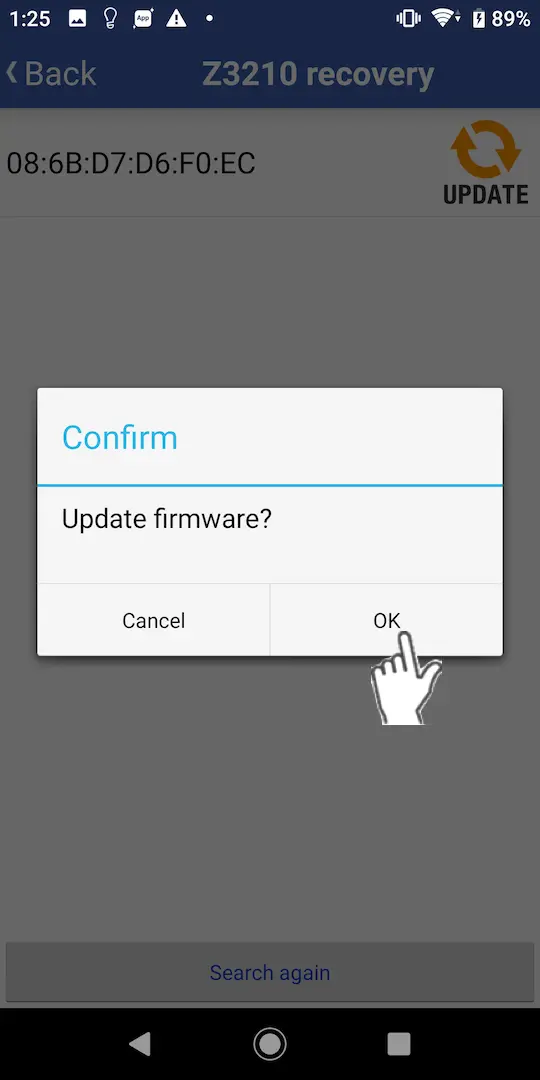
Select "Yes" on the confirmation dialog box to start writing the firmware.
The firmware will not be written properly if you start the write process before the instrument indicates "Err8".
Want help or have questions?