

Sharing files via GENNECT Cloud ([Cloud] tab)
You can upload measurement files to the cloud server to share them with GENNECT Cross installations on other devices and PCs (via a web browser).
[Data] tab: Lets you view data measured with the device being used.
[Cloud tab]: Lets you view files saved in the logged-in account’s cloud storage.
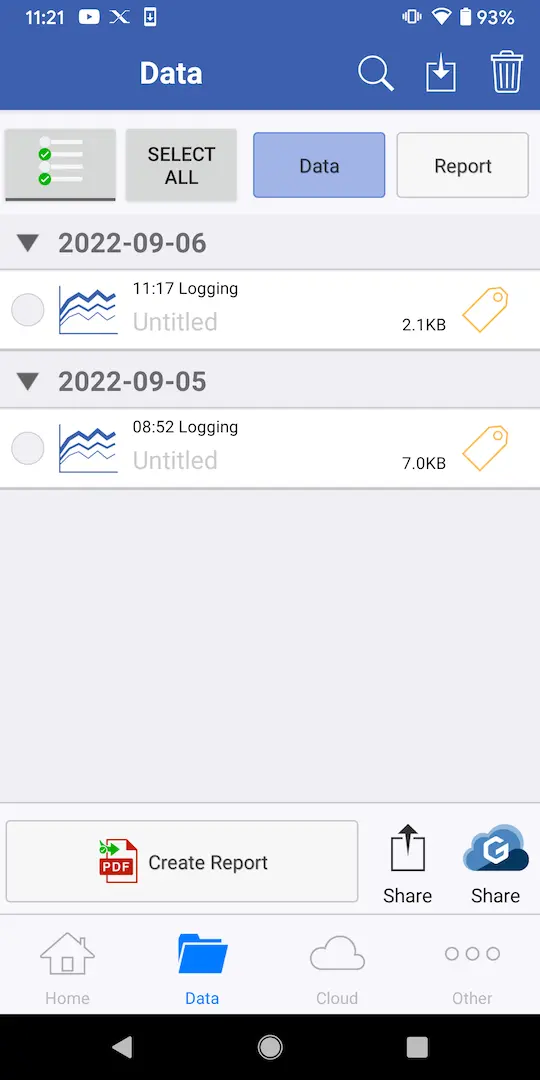
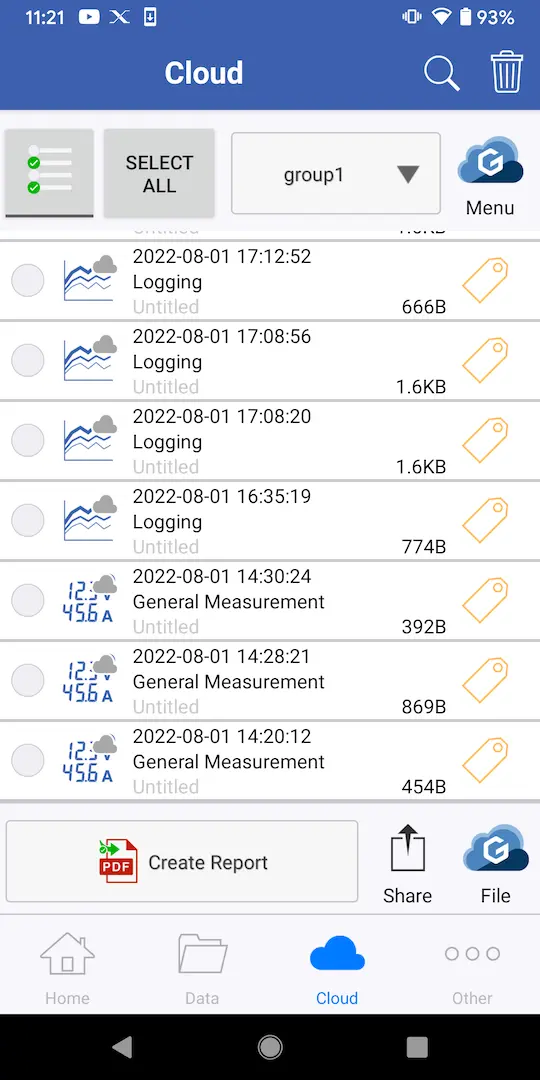
If you are not logged in to GENNECT Cloud, first log in.
You cannot use GENNECT Cross to download or view instrument files and other data measured with GENNECT One.
You can only view cloud server data while logged in.
Uploading local measurement files to the cloud server
1
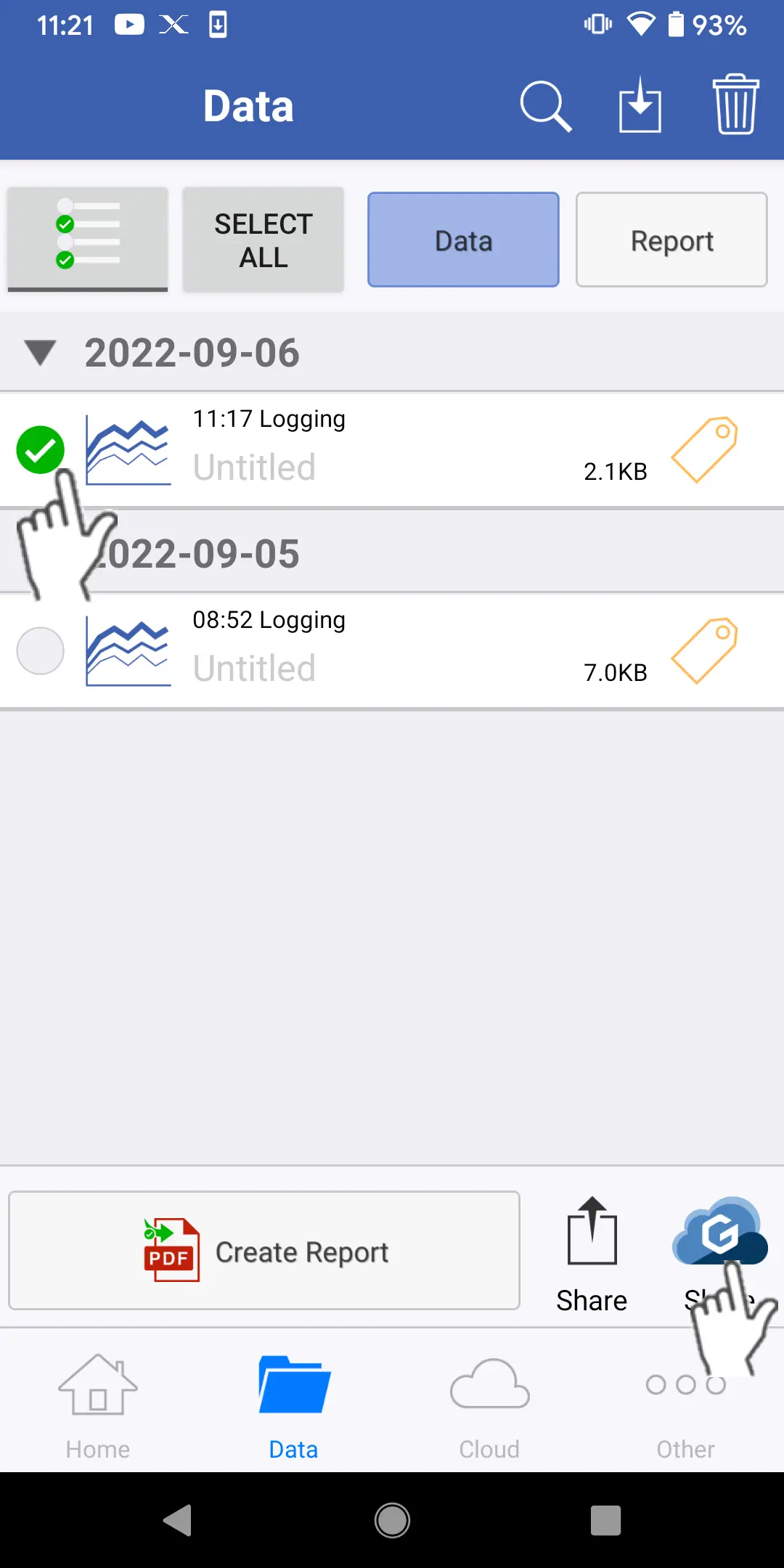
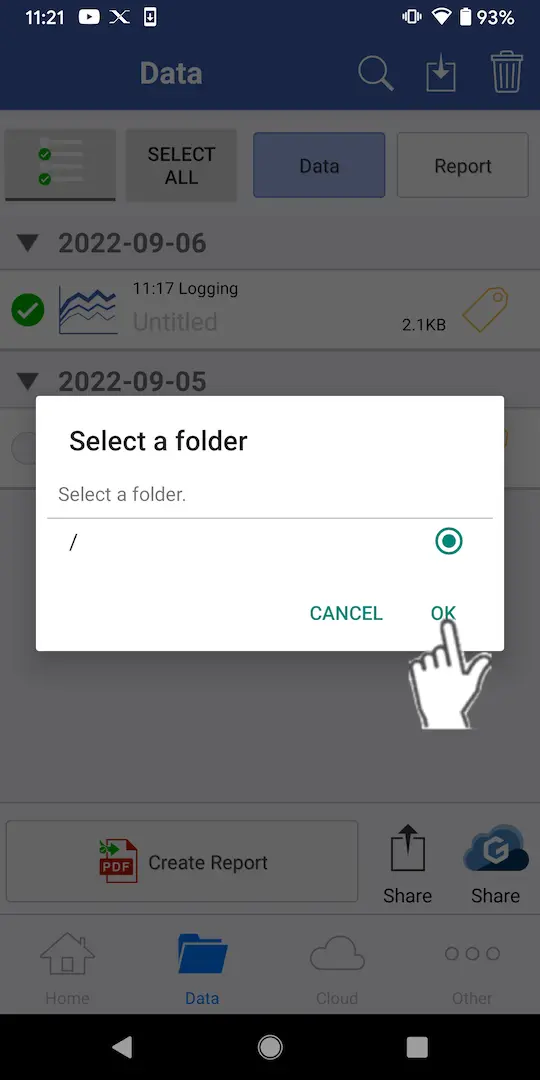
Select the [Data] tab, select the checkboxes for the files you wish to upload to the cloud server, and tap the [Send] button.
2
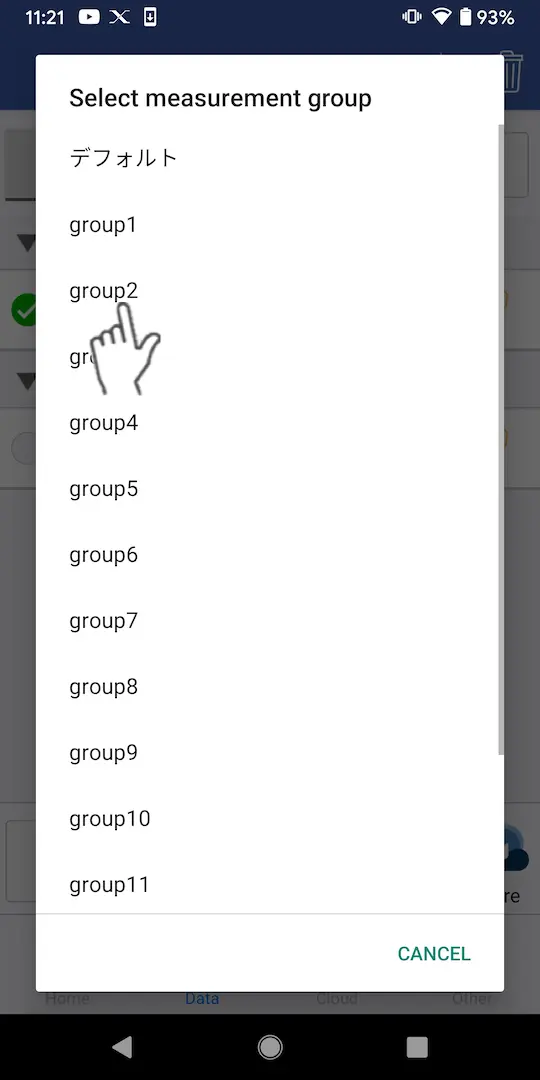
The files will be uploaded when you select the measurement group to which to upload them.
If the logged-in user does not have full access privileges, they will not be able to upload files.
Viewing measurement files on the cloud server
1
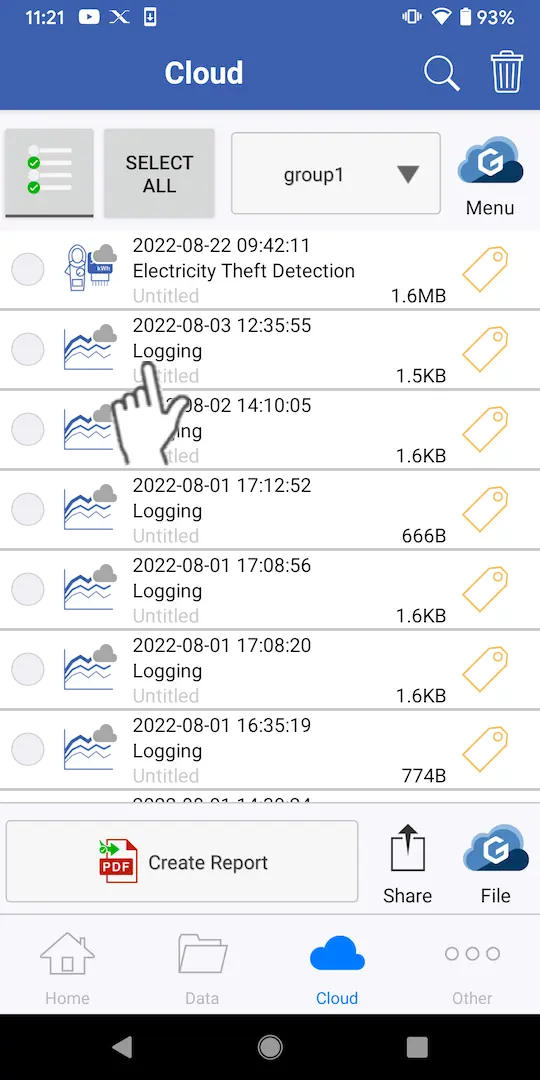
Select the [Cloud] tab, switch to the measurement group to which the file you wish to view belongs using the field for switching measurement groups at the top of the screen, and tap the file.
If the file has not been downloaded, or if the file has been updated, the most recent file will be downloaded.
Updating file information
1
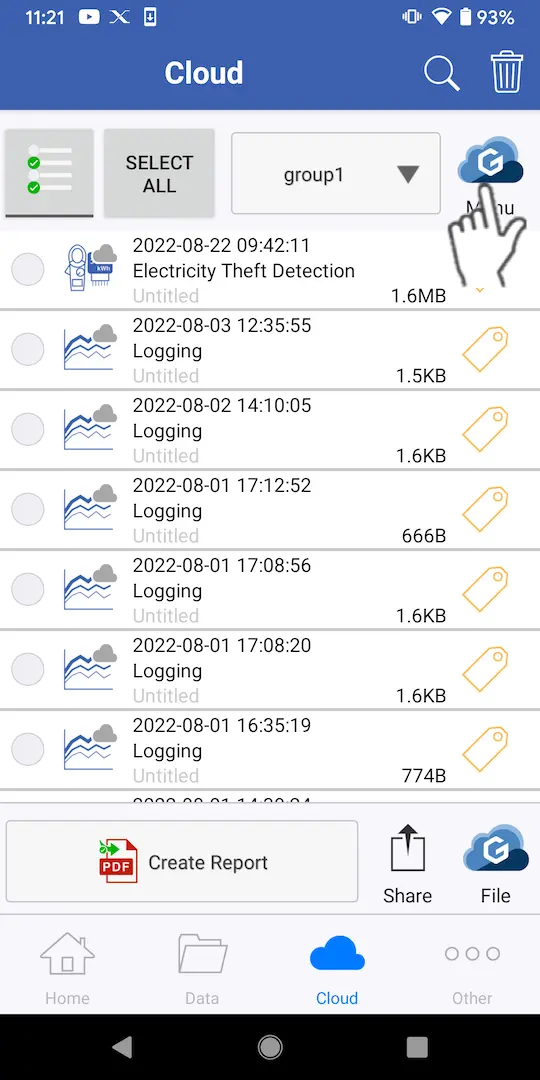
Select the [Cloud] tab and tap [Menu].
2
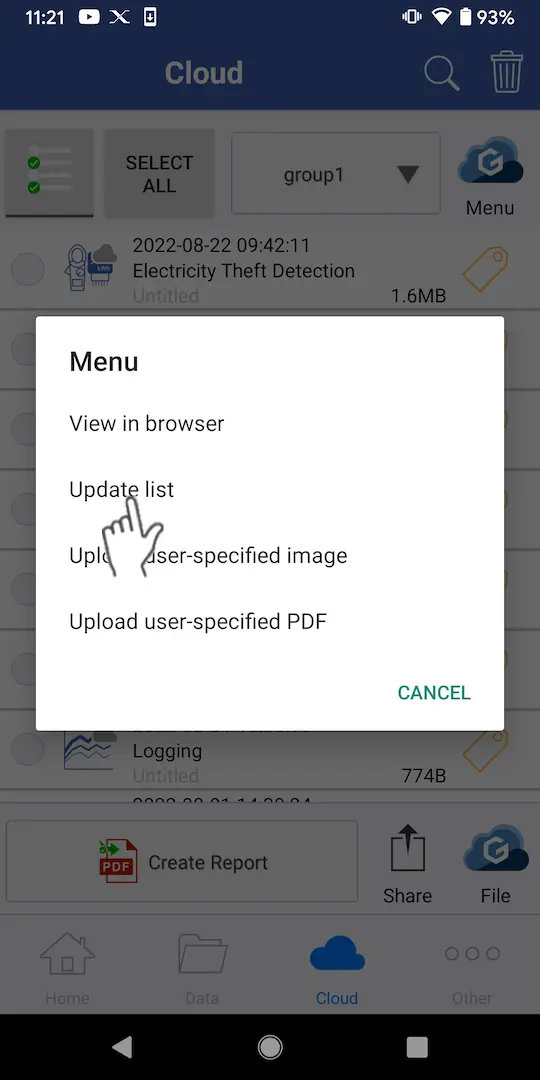
When you tap [Update list] in the menu, the displayed file information will be updated.
The file itself will not be updated. When you tap the file, the latest version will be downloaded.
Deleting files
1
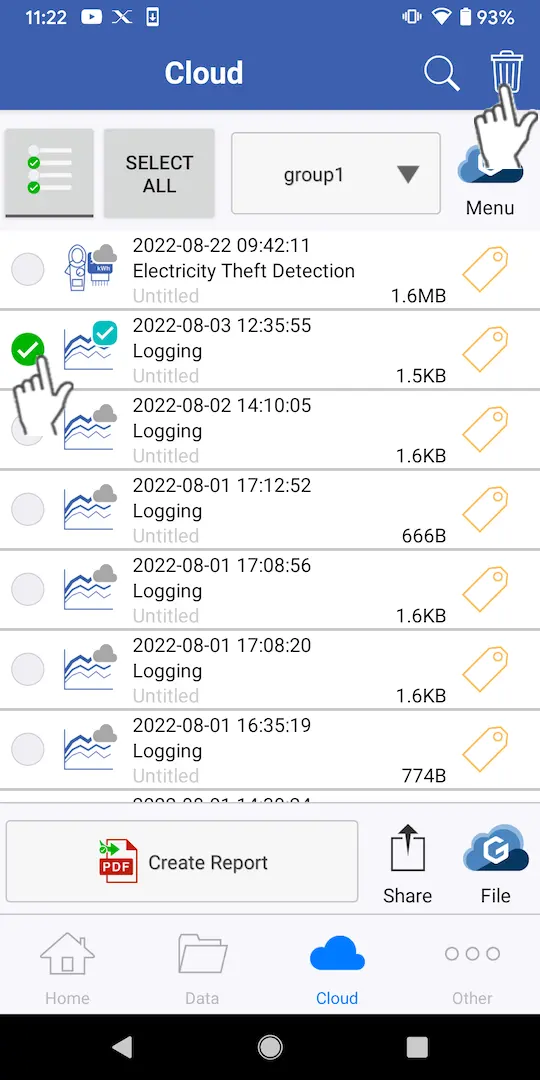
Select the [Cloud] tab, select the checkboxes of the files you wish to delete, and tap the garbage can icon at the top right of the screen.
If the logged-in user’s access privileges for the measurement group are “viewing only,” they will only be able to delete uploaded local files.
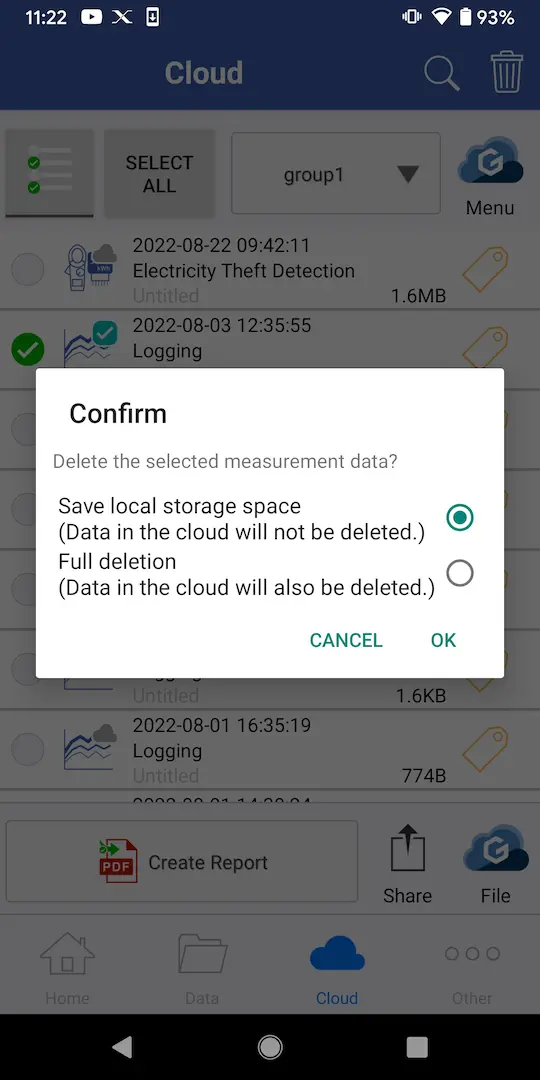
If the user has full access privileges, they will be able to choose between deleting local files only (Save local storage space) and deleting both local and cloud files (Full deletion).
If the user has full access privileges, they will be able to choose between deleting local files only (Save local storage space) and deleting both local and cloud files (Full deletion).
Uploading user-specified images and PDF files
1
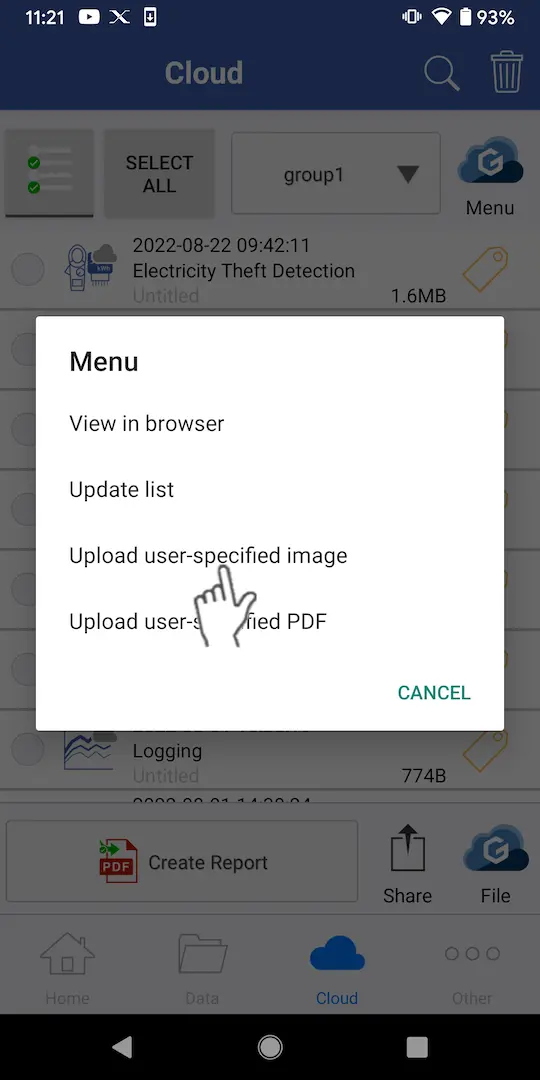
Select the [Cloud] tab and tap either [Upload user-specified image] or [Upload user-specified PDF] from the [Menu] at the top of the screen.
Select an image file (.PNG, .JPG, .BMP, .GIF) or a PDF file (.PDF) to upload it.
Viewing files in a browser
1
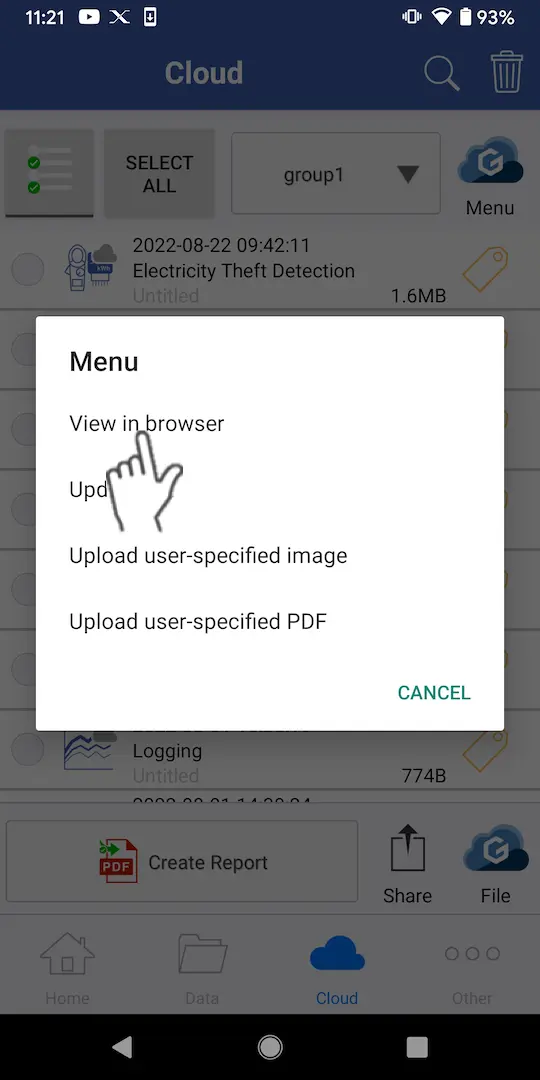
Select the [Cloud] tab and tap [View in browser] from the [Menu] at the top of the screen to open the GENNECT Cloud web page.
About file status
Files on the [Cloud] tab display a status icon indicating the status of their integration with GENNECT Cloud.
| Status | Description | |
|---|---|---|
 | [Full synchronization] | Files exist both in the cloud and in local storage, and measurement data content is identical. |
 | [Partial synchronization] | Files exist both in the cloud and in local storage, and measurement data content differs. |
 | [Not downloaded] | Files only exist in cloud storage. Files stored in the cloud can be downloaded from GENNECT Cross. |
 | [Not uploaded] | Files only exist in local storage. Files from another user in the same account can be downloaded by uploading files from GENNECT Cross. |
Want help or have questions?