

Using templates
If you need to repeatedly make measurements using the same drawing, you can create a template that specifies the measurement locations in advance.
You can save up to 10 templates.
Creating a template
1
Tap [Template] on the image selection screen.
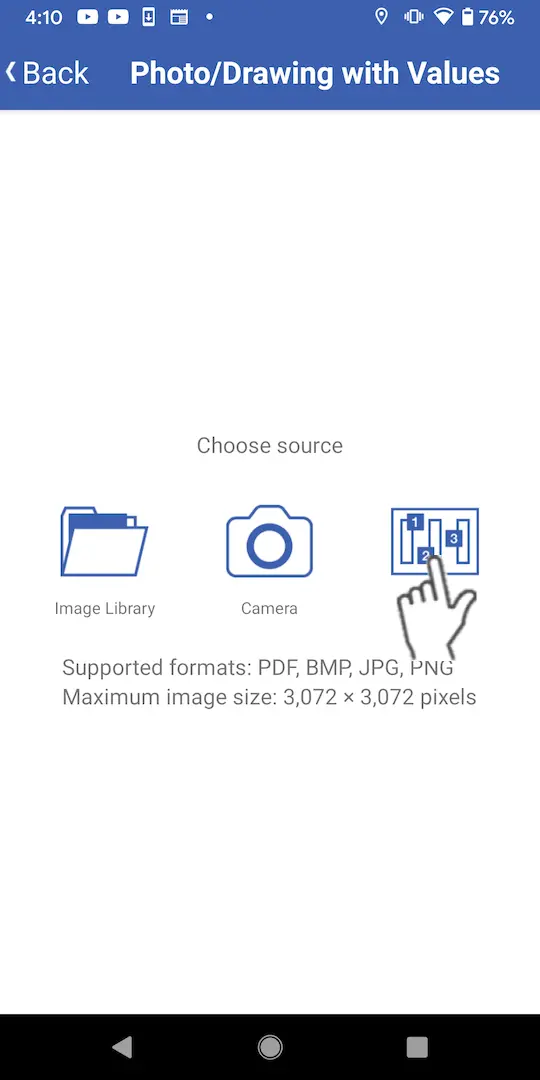
2
Tap 「+」 when the template list screen appears.
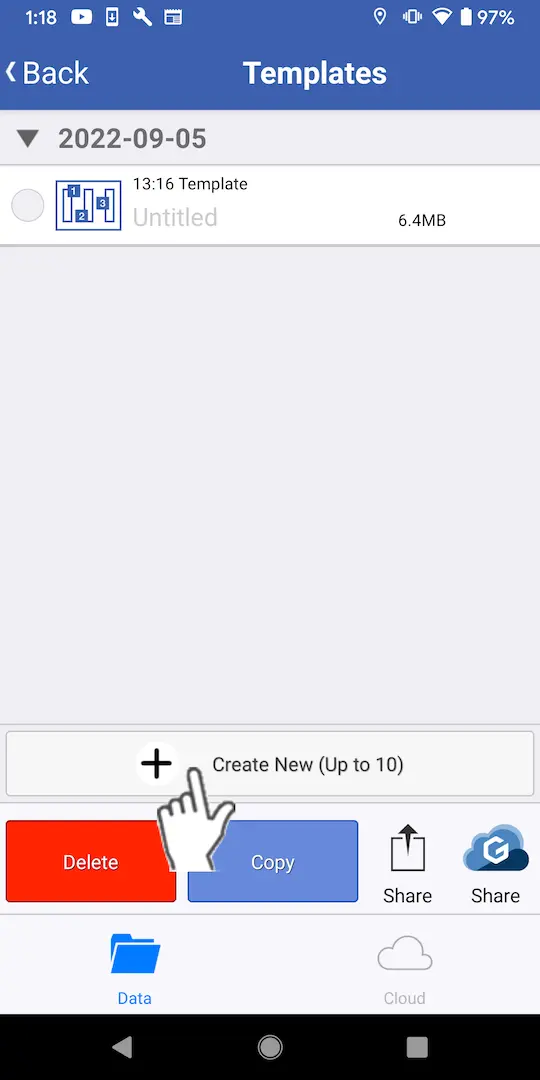
3
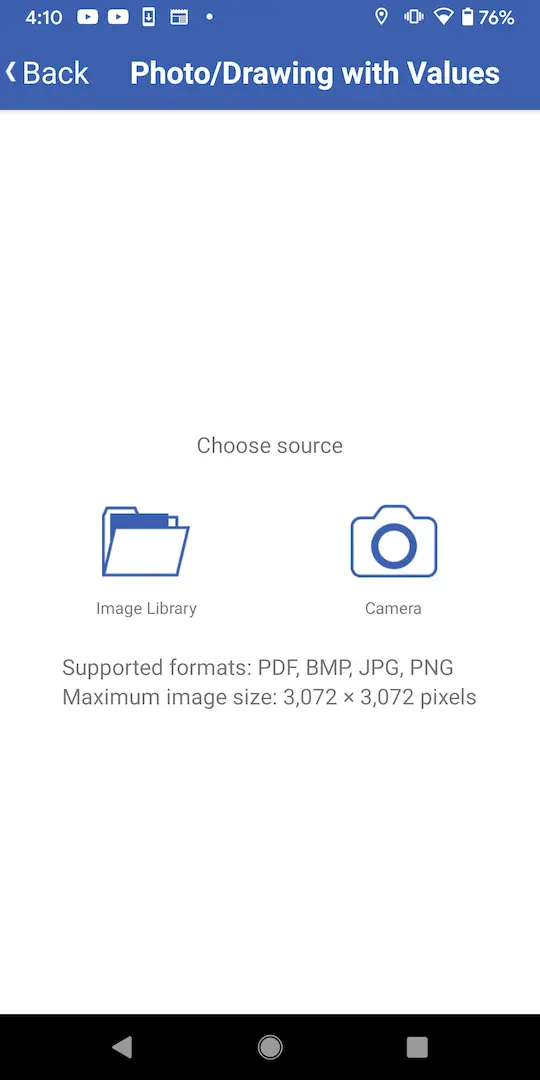
Choose the image you wish to use.
・Images saved on your device ([Image Library])
・An image taken with the camera ([Camera])
・An image taken with the camera ([Camera])
4
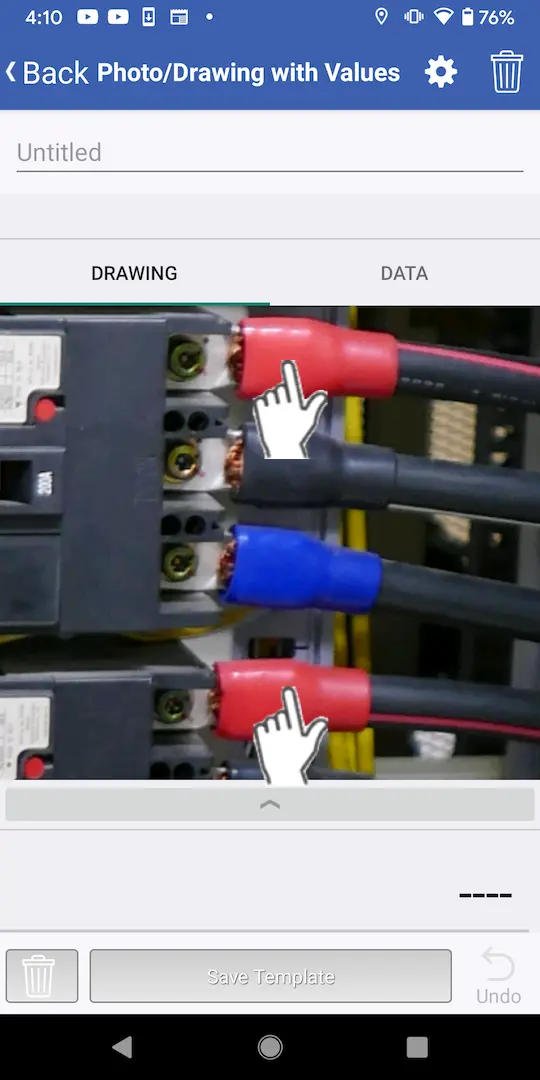
The chosen image will be displayed. Tap the locations at which you wish to make measurements to create measurement locations.
5
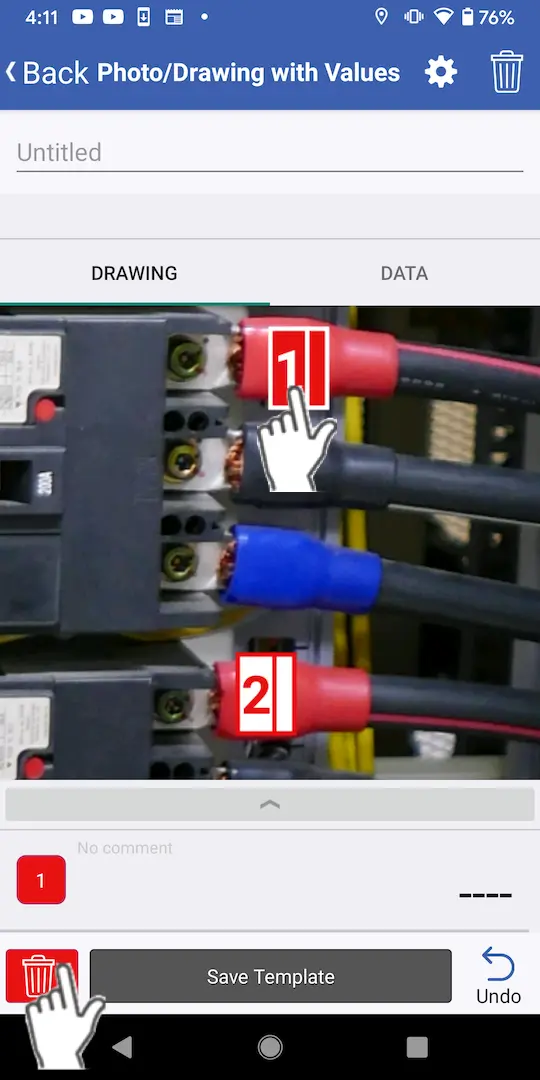
To delete a measurement location, select it and tap the delete button (trash can icon).
6
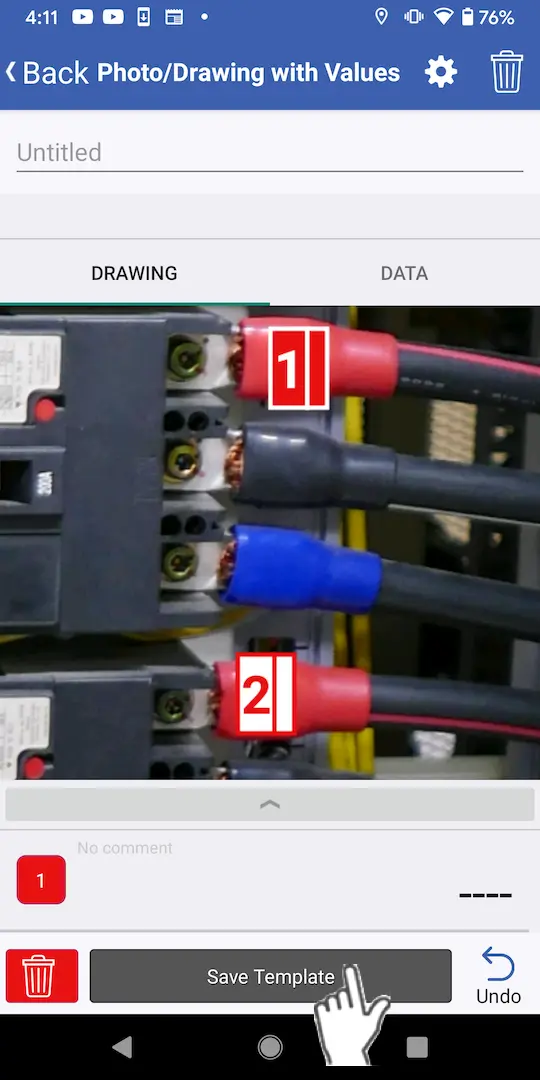
To save the template, tap [Save Template].
Loading a template
1
Tap [Template] on the image selection screen.
2
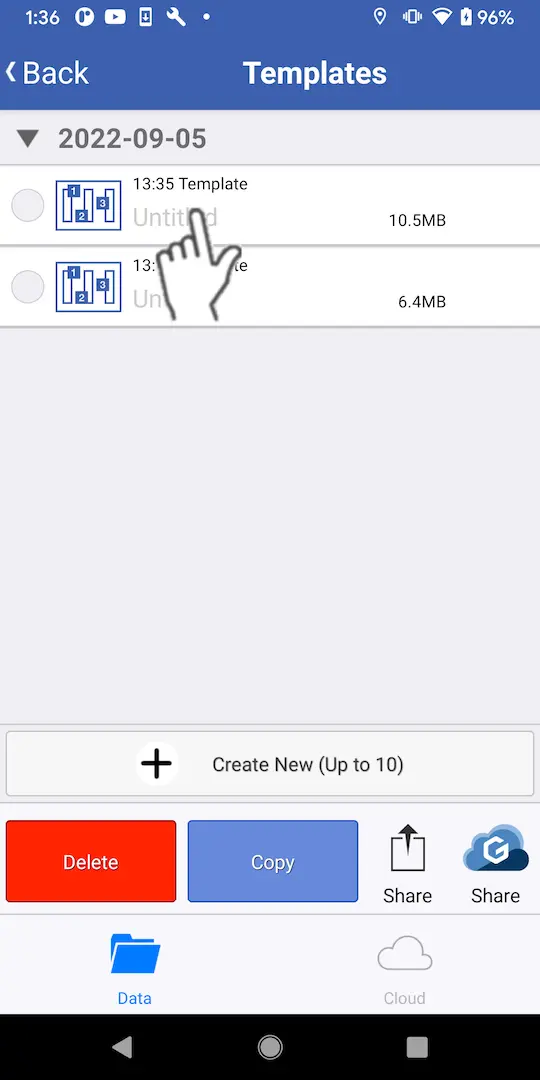
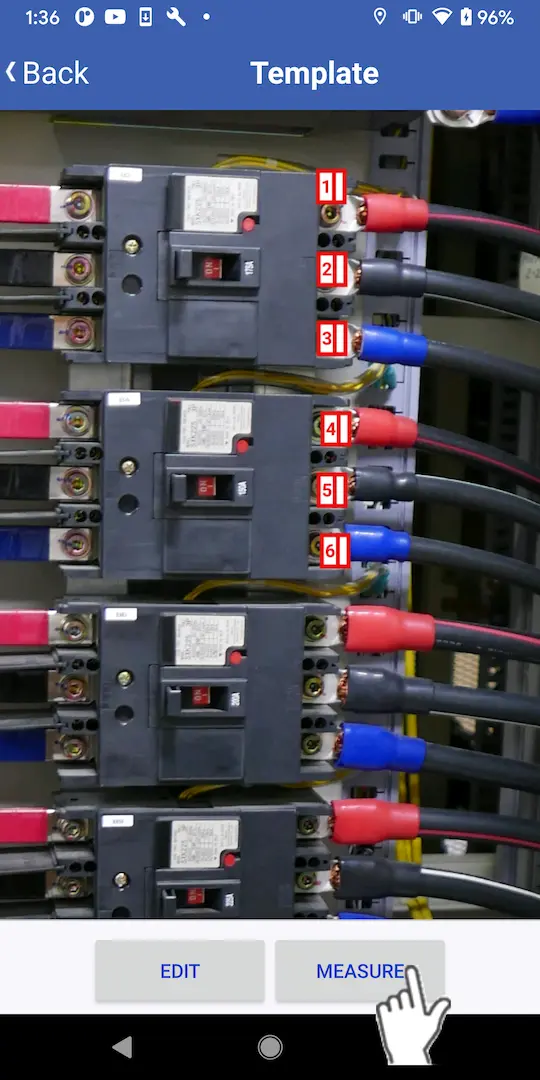
When the template list screen appears, tap the template to be used and tap "Measure".
3
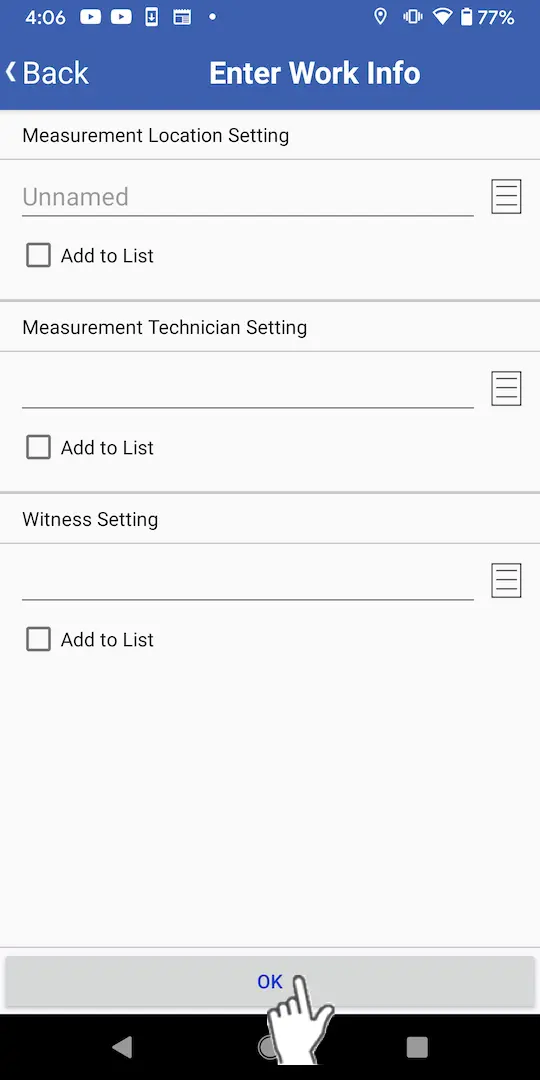
Enter the work information and tap [OK].
If you loaded a template, you will not be able to add, move, or delete measurement locations.
Want help or have questions?