

Changing display settings for measured values
You can change how measured values are shown on the image.
Changing the display method
1
Tap the settings button at the top right of the screen.
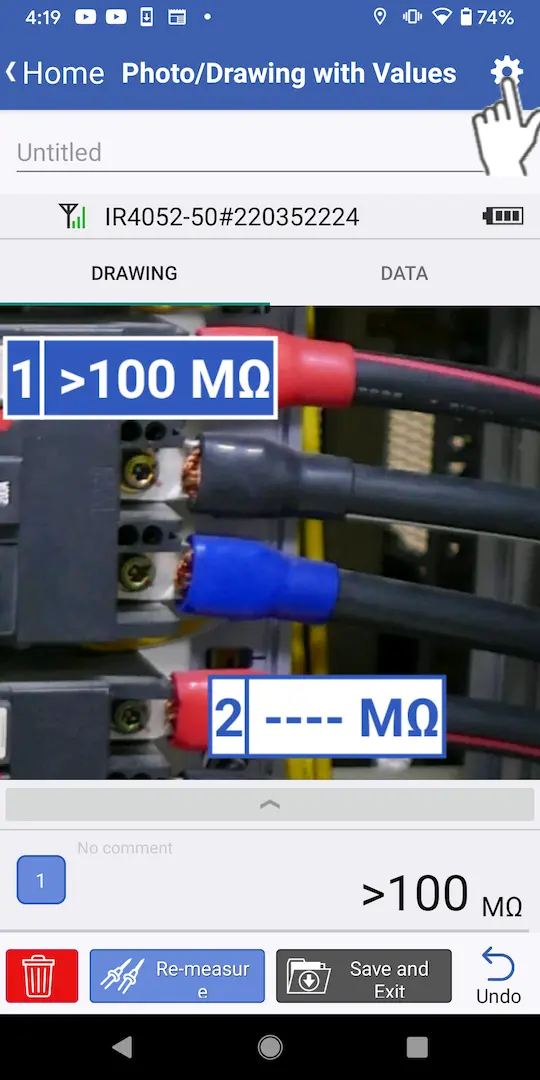
2
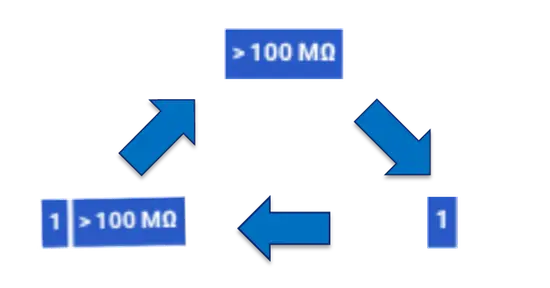
Tap [Toggle display of measured values] to cycle through the following methods for displaying measured values on the image: Number + measured value → Measured value → Number.
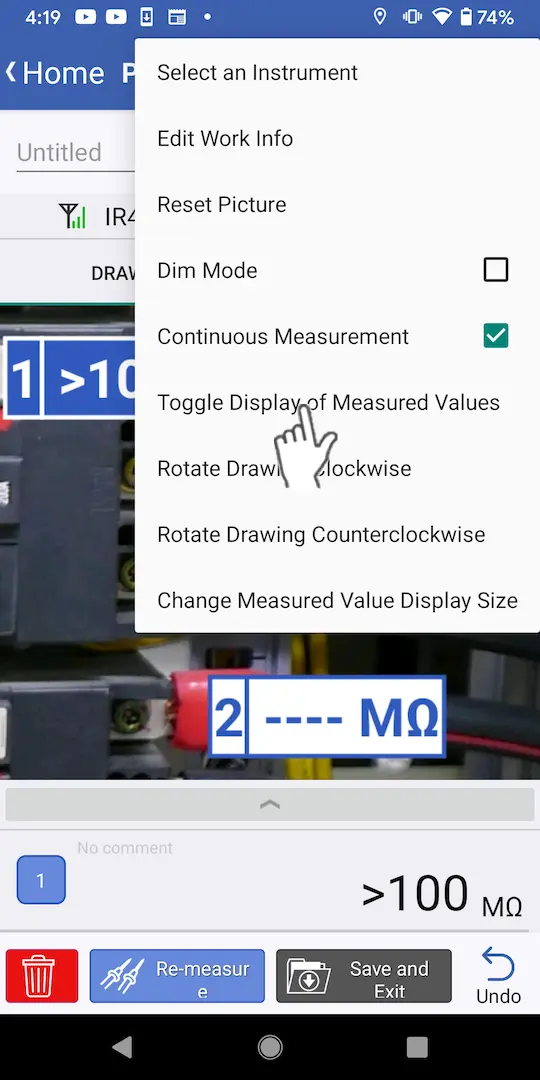
Changing the display size
1
Tap the settings button at the top right of the screen.
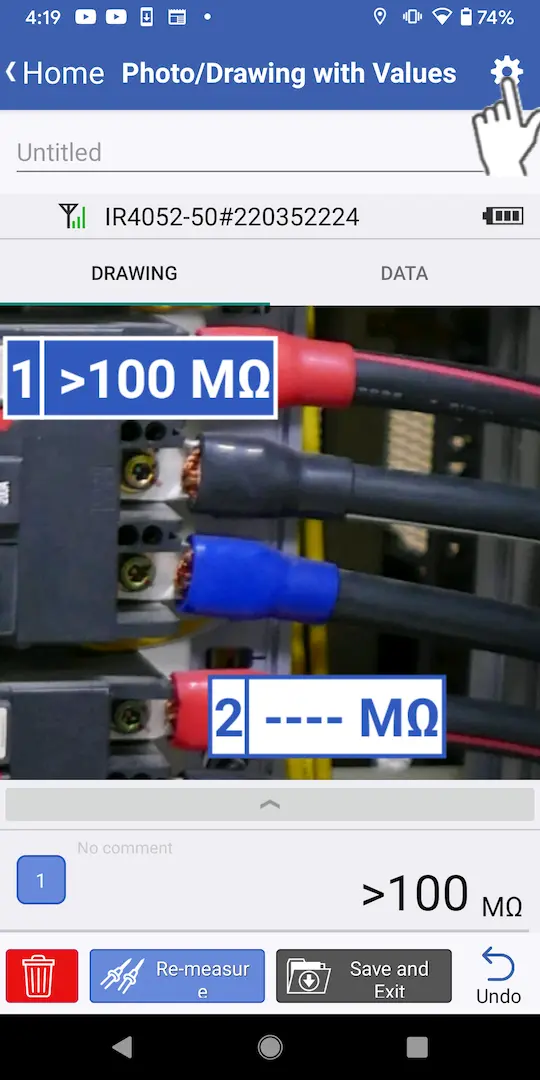
2
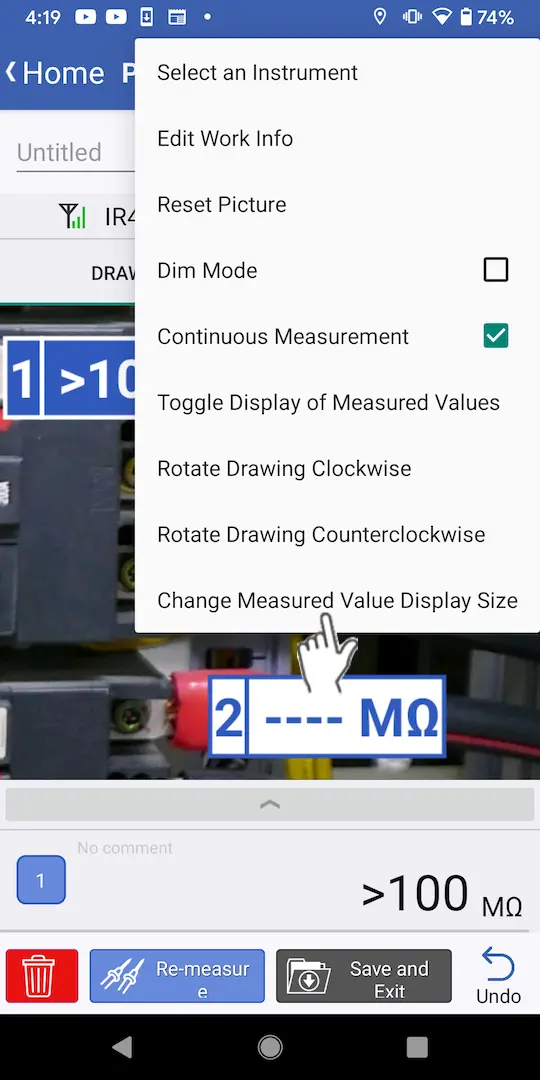
Tap [Change Measured Value Display Size].
3
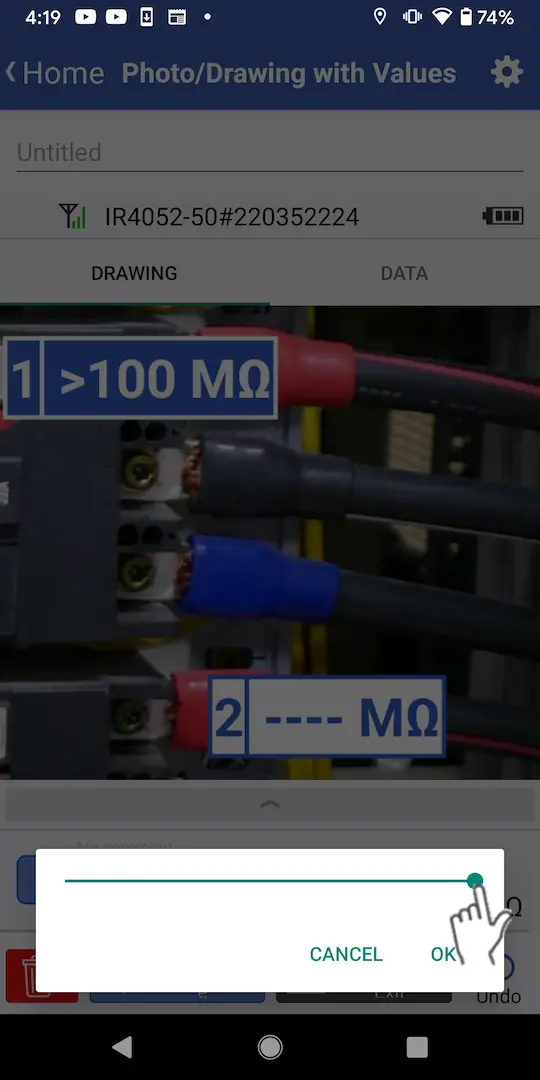
When the adjustment slider is displayed, use it to change the size and then tap [OK].
Depending on the image size, changing the adjustment slider may not change the size of measured values.
Changing which measured values are displayed
If you used multiple instruments, you can change which instruments measured values are displayed on the drawing.
1
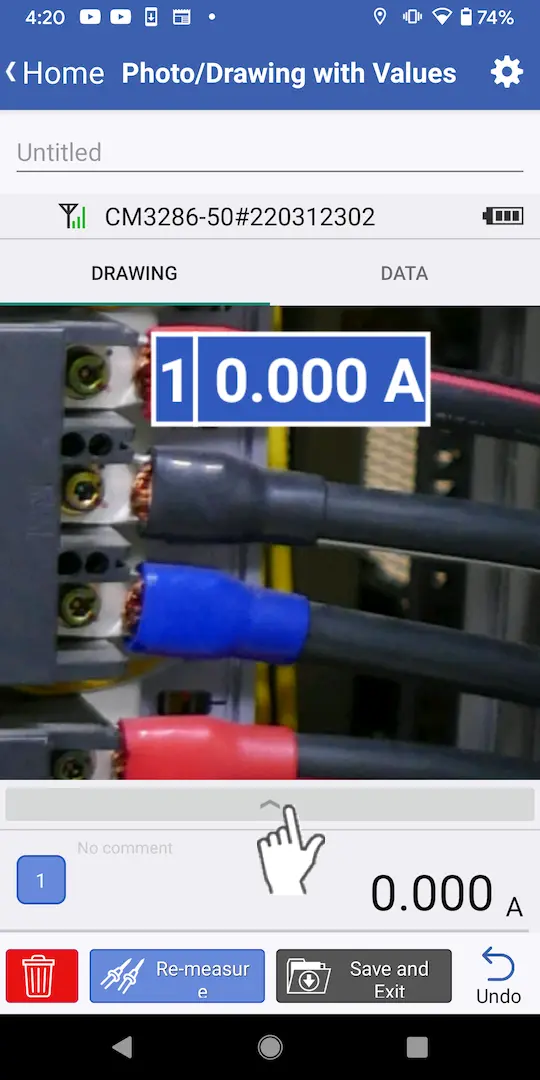
Tap the [Drawing] tab on the measurement screen and then tap the expand icon above the measured value display area.
2
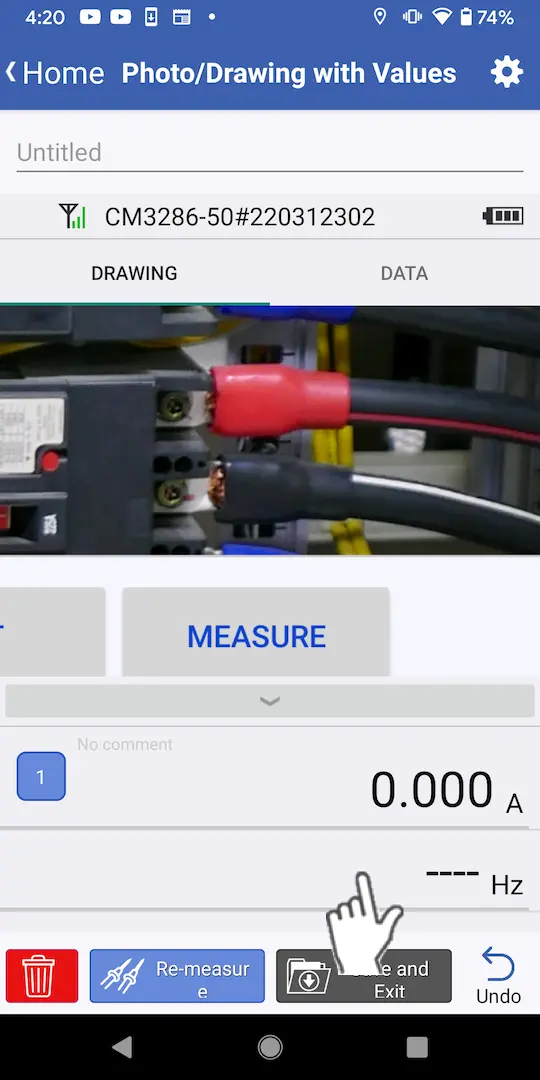
If there is more than one measured value, the display will expand to include the other values. Tap the measured value you wish to display.
You will be able to scroll the display if there are three or more measured values.
If you are performing continuous measurement with the same instrument, changing one measured value display will automatically change the displayed measured value for the next measurement.
If you are performing continuous measurement with the same instrument, changing one measured value display will automatically change the displayed measured value for the next measurement.
Want help or have questions?