

Using location information to create a map
The standard measurement function allows you to use location information.
Location information can be saved with measured values and used to create a map.
Saving location information together with measured values
1
When you’ve enabled use of location information, location information will be saved with corresponding measured values.
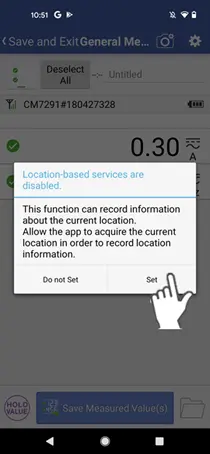
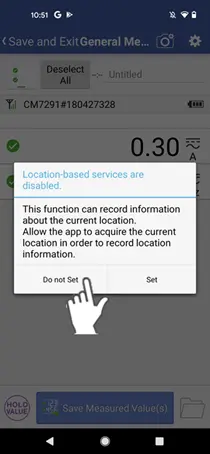
If you’ve disabled use of location information, a dialog box will be displayed.
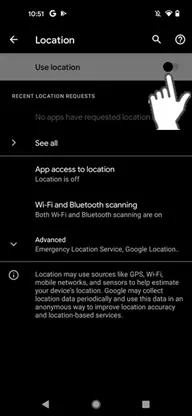
If you wish to use location information, tap the [Settings] button and enable use of location information.
If you wish to use location information, tap the [Settings] button and enable use of location information.
Creating a map when stopping measurement
1
When location information is being saved along with measured values, you can create a map when stopping measurement.
Requires mobile data service.
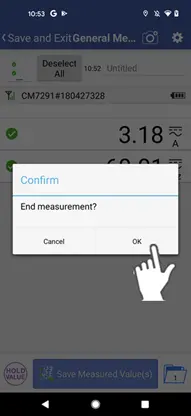
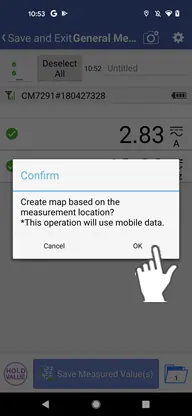
2
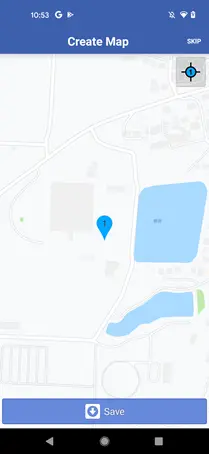
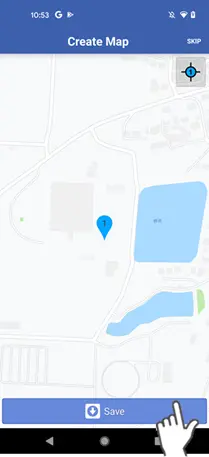
A pin indicating where each measured value was saved will be displayed on the map creation screen.
The number of the pin will correspond to the measured value number.
3
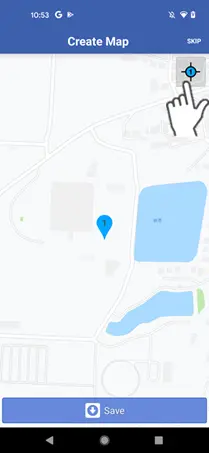
The icon at the top right centers the display on the pin.
4
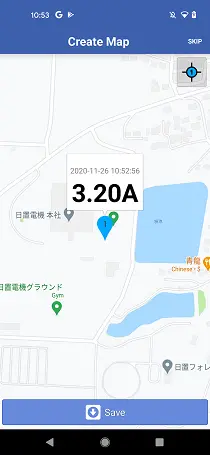
Tap the pin to display a representative value (the topmost measured value) for the location.
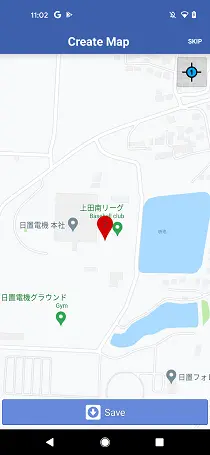
Normal measured values are indicated by a blue-green pin, while measured values with errors (excessive input, etc.) are indicated by a red pin.
5
The [Save] button allows you to save an image of the displayed map.
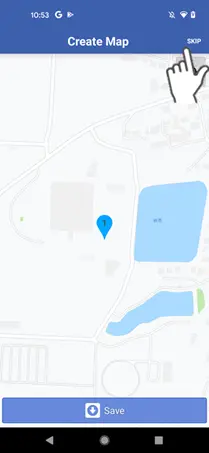
You can skip that step if you do not wish to create a map.
Configuring map creation settings (to skip confirmation or disable map creation)
1
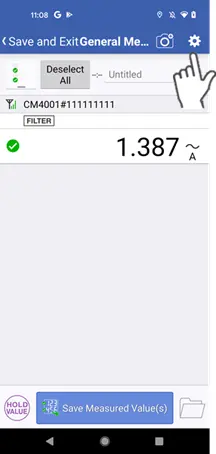
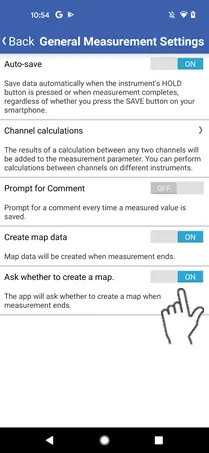
By tapping the gear mark at the top right of the measurement screen,you can configure whether to skip the confirmation dialog box and whether to create a map.
Disabling use of location information
1
If you wish to disable use of location information, tap the [Do not set] button while use of location information is disabled.
Measurement will start without saving location information data.
Viewing previously created maps
1
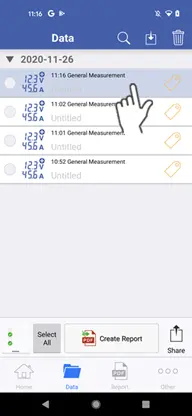
Select a set of standard measurement data on the data list.
2
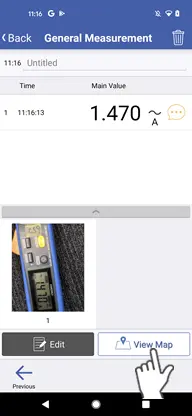
If you previously created a map image, the [View Map] button will appear at the bottom right of the screen.
You can tap the [View Map] button to view the previously created map.
Creating a map from saved location information
1
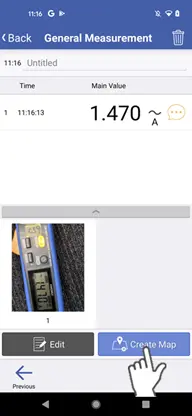
You can create a map from standard measurement data for which location information was saved.
2
You can tap the [Create Map] button at the bottom right of the screen to create a map image from the saved location information.
If no information was saved, you will not be able to create a map.
Want help or have questions?