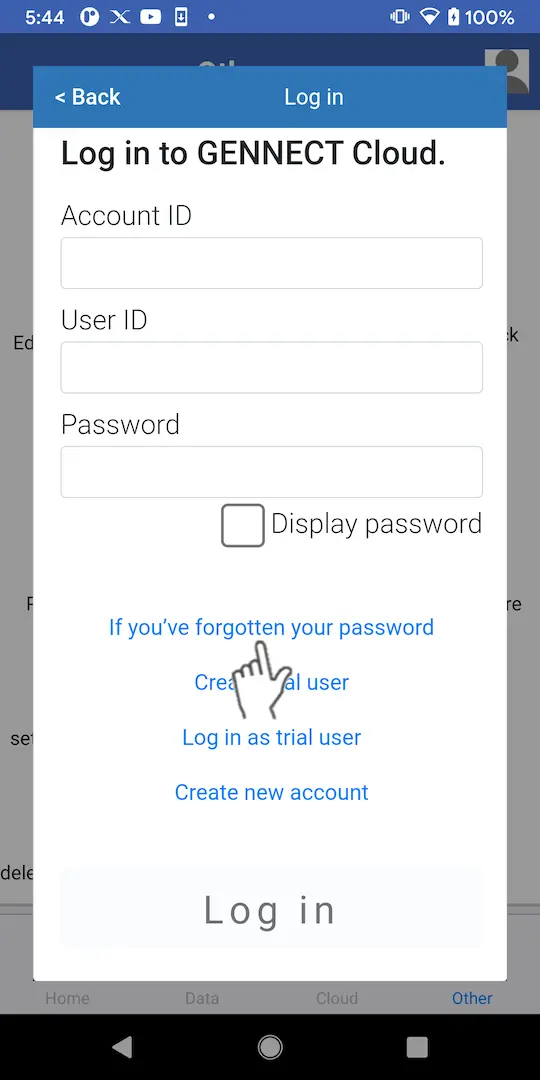
Logging in to GENNECT Cloud
If you don’t have a GENNECT Cloud account, please create one first.
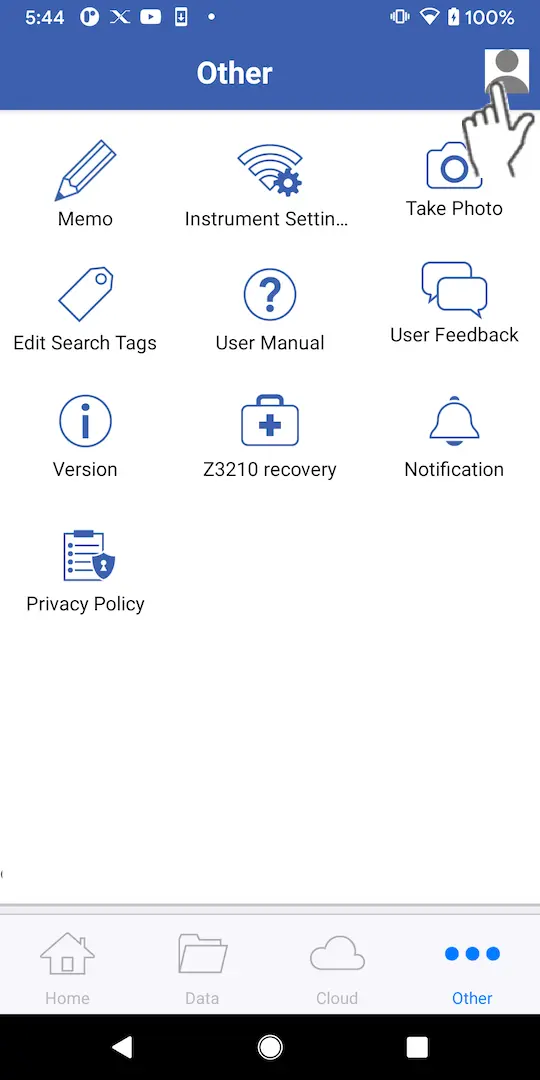
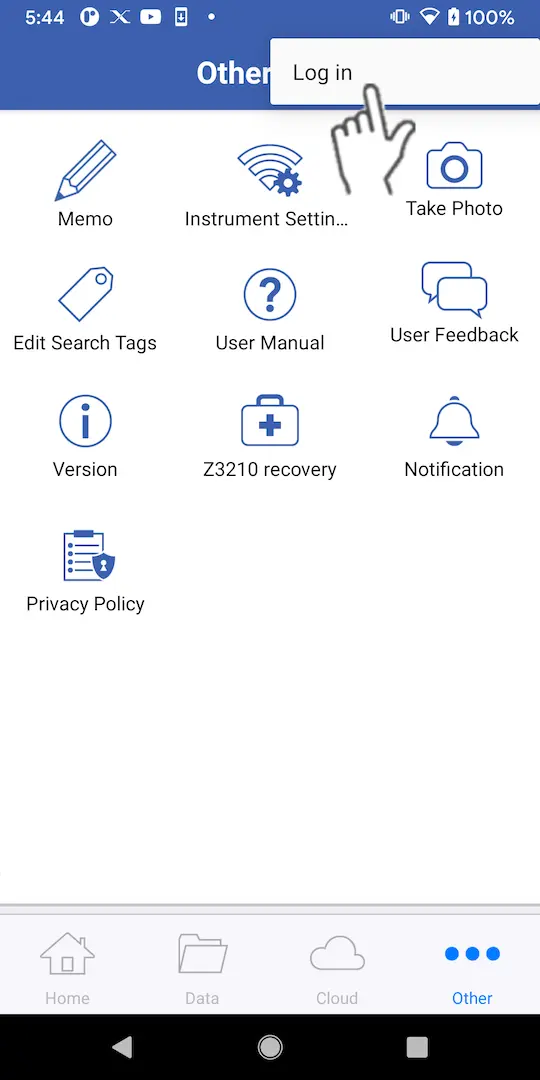
If you’re using a GENNECT Cloud Free, Standard, or Pro plan
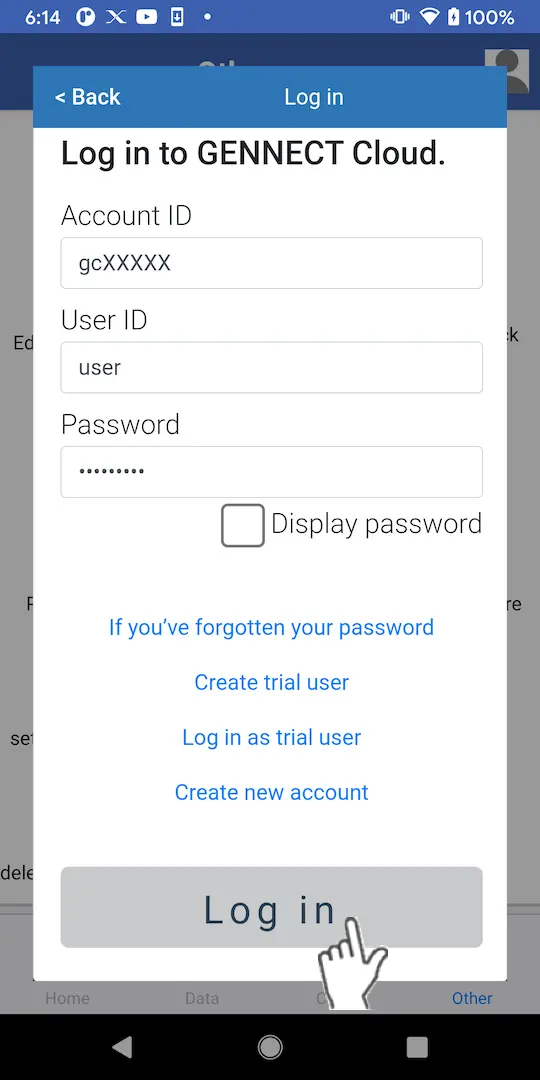
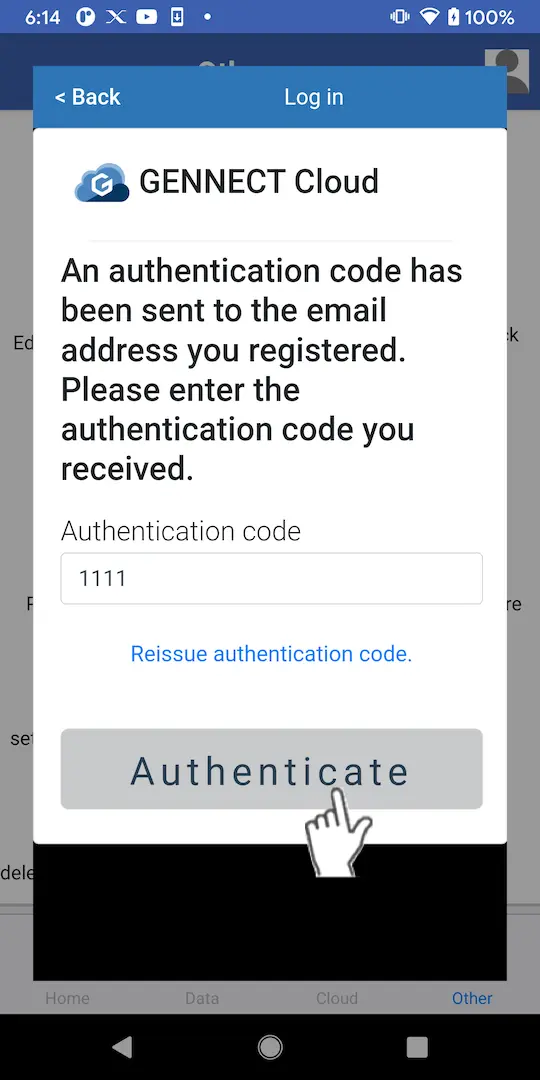
If you’ve enabled two-factor authentication, a window asking you to enter an authentication code will be displayed.
・If you’ve enabled two-factor authentication using email:
Enter the authentication code that was sent to the email address you registered and click [Authenticate].
・If you’ve enabled two-factor authentication using an app:
Enter the authentication code displayed by the two-factor authentication app you're using (Authy, etc.) and click [Authenticate].
For more information about how to enable two-factor authentication, please see the GENNECT Cloud online help
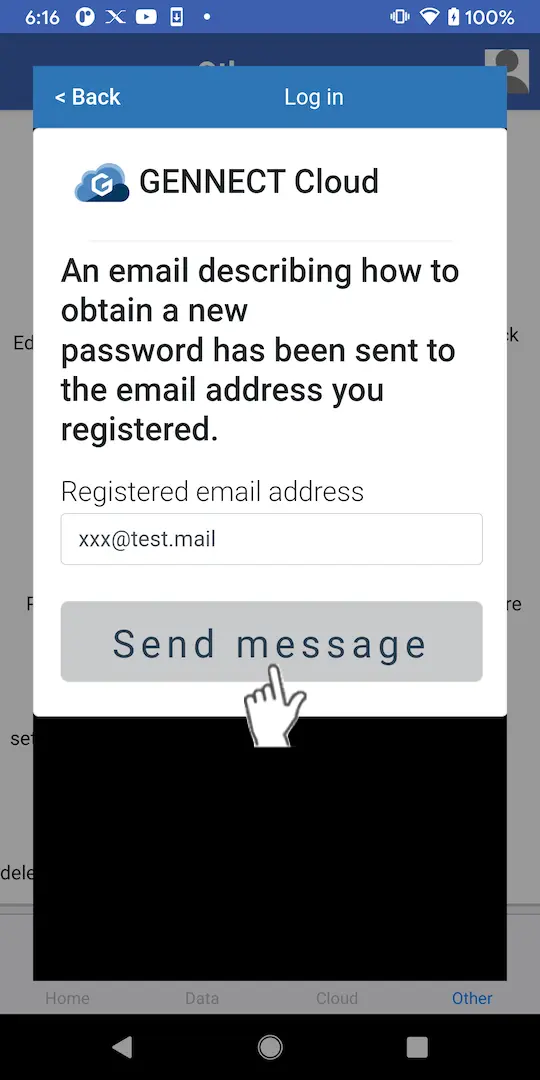
Obtaining a New Password
An email including a link for obtaining a new password will be sent to the email address you registered with GENNECT Cloud. You can set a new password by following the URL for obtaining a new password.
To obtain a new password for a user who has not registered an email address, please contact your account administrator.