

Editing data (adding or deleting data, etc.)
1
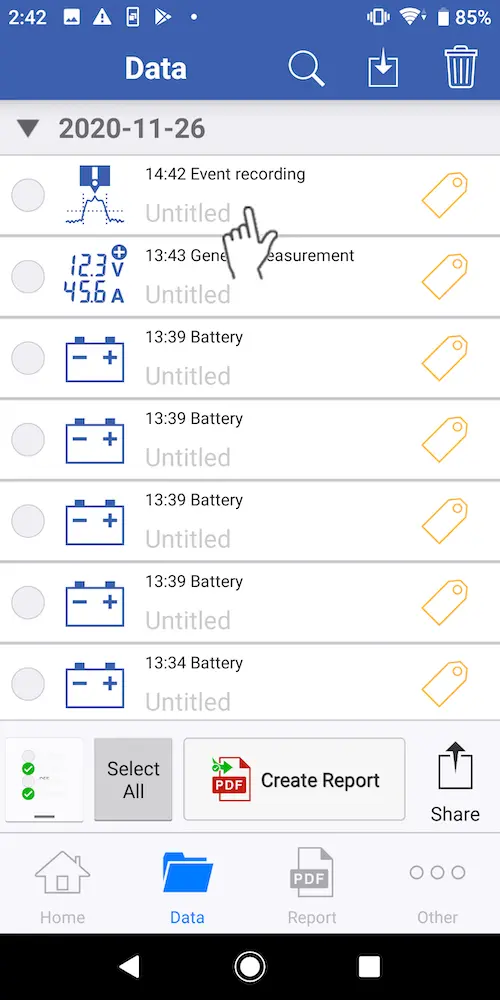
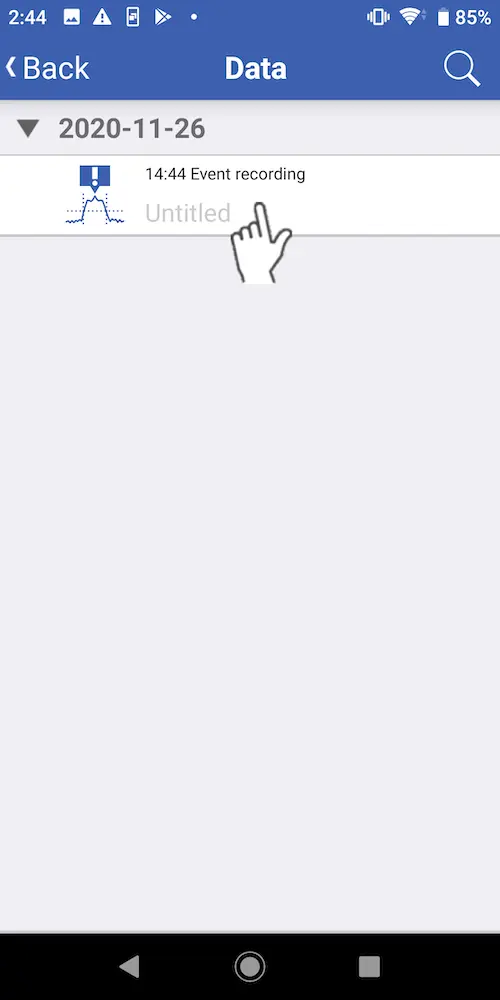
Select the data you wish to edit on the [Data] screen.
2
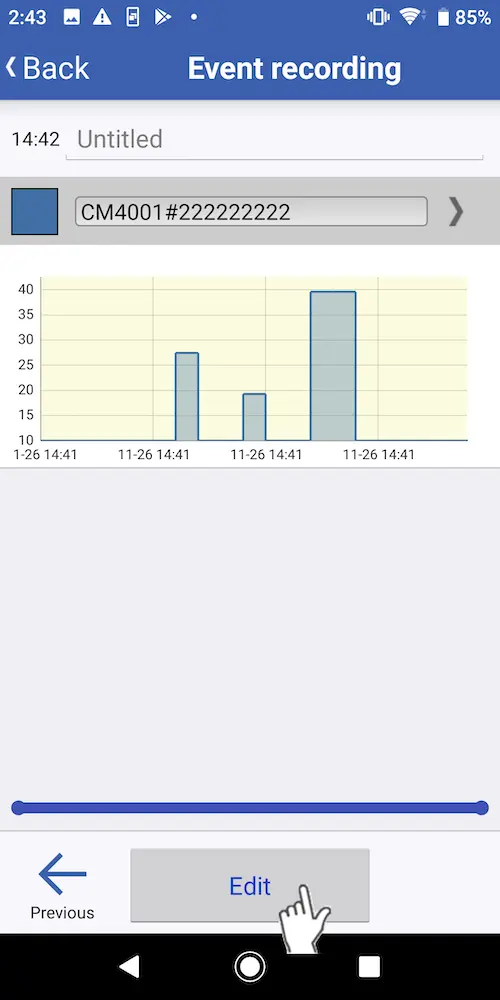
Tap [Edit].
3
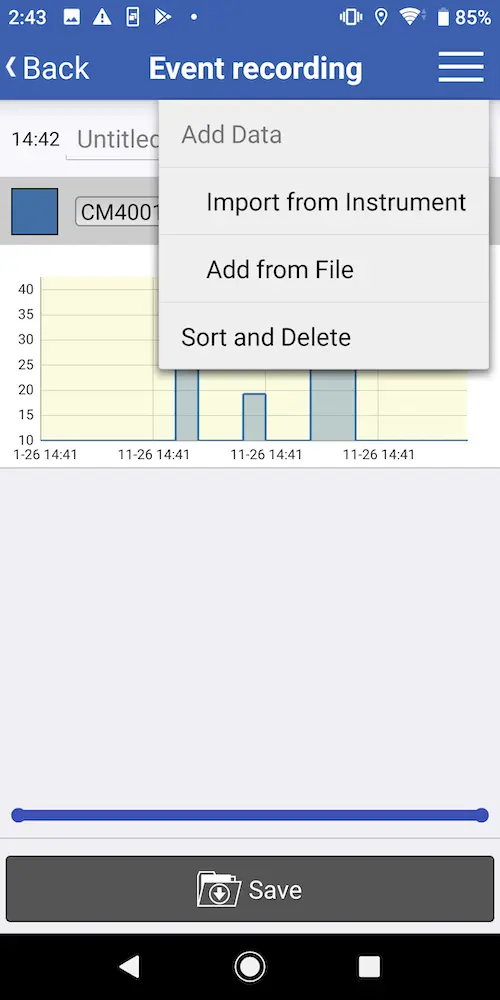
You can tap the settings button at the top right to add data (from an instrument or file), sort data, or delete data.
Add data from an instrument
1
Tap [Import from instrument].
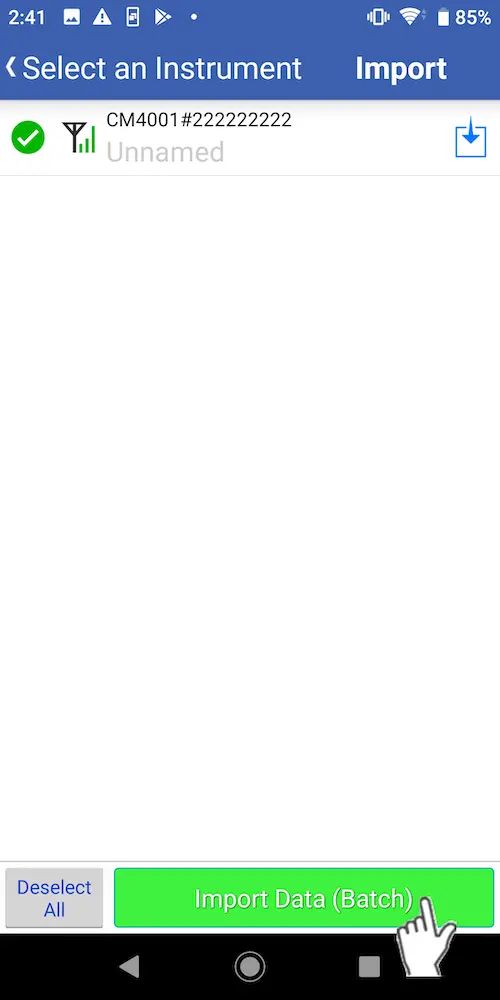
To add data from an instrument, first connect the instrument to the app.
2
Choose the instrument whose data you wish to add and tap [Import Data(Batch)].
Add data from the data list
1
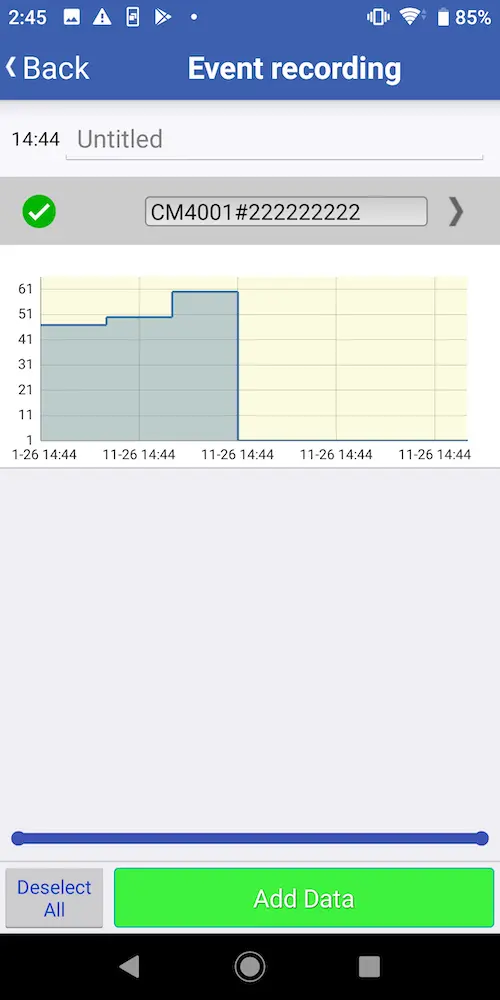
To add data from the data list, tap [Add from File].
2
Tap the file containing the data you wish to add on the data list. Select the data set you wish to add from that file and tap the [Add Data] button.
Sort or delete data
1
To sort or delete data, tap [Sort and Delete].
2
To sort data, tap the data set whose position in the list you wish to change.
3
To delete data, tap the trash can mark to the right of the data set.
4
To change the data set’s name, tap name.
5
To change the data set’s color, tap the color panel to the left of the data set.
6
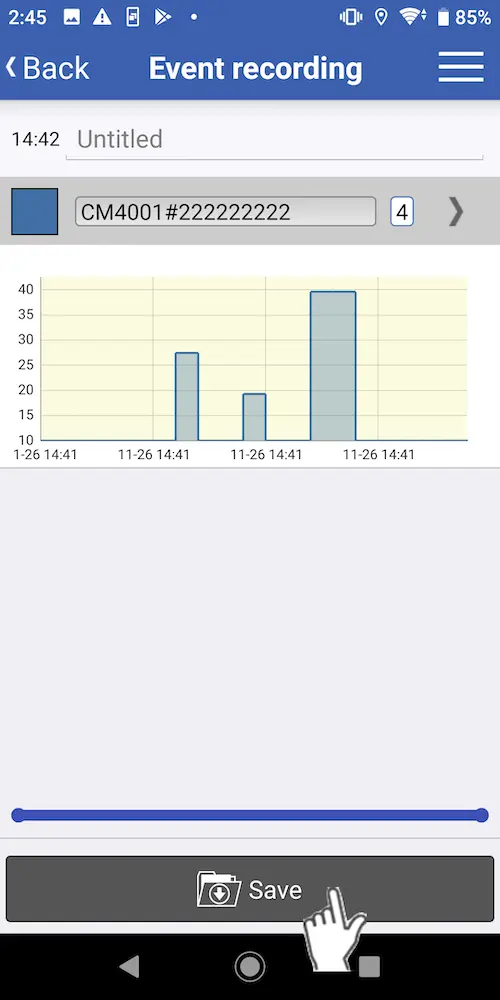
Once you’ve finished sorting and deleting data, tap the [Save] button.
7
Once you’ve finished all editing, tap the [Save] button to exit.
Want help or have questions?