

Linking measured values with an image
The "Photo/Drawing with Values" function allows you to link measured values with locations on a photograph or image (in the BMP, JPG, or PNG format). You can also register measurement locations on a drawing or other image in advance as a template.
Preparing for measurement
1
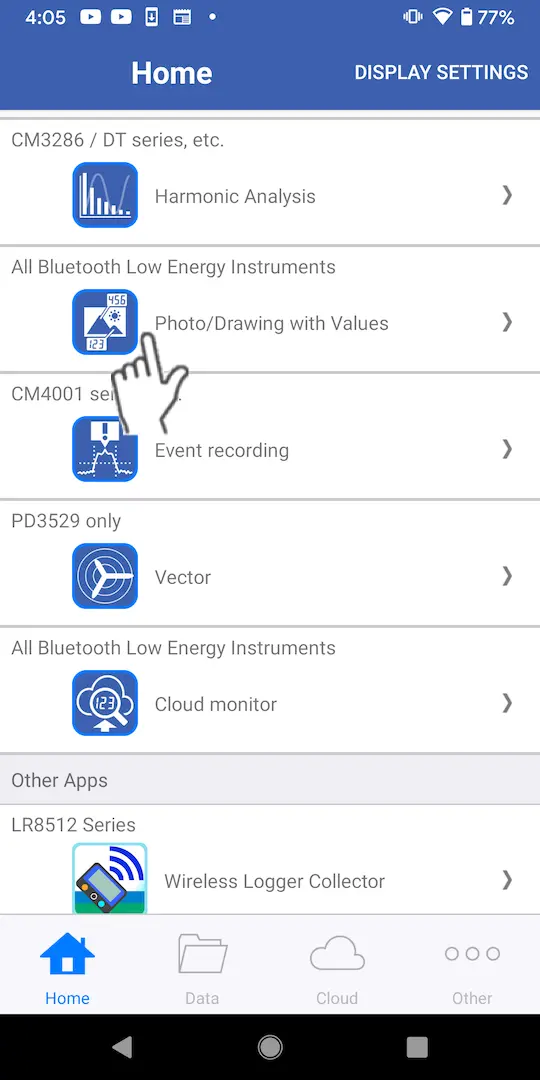
Tap [Photo/Drawing with Values] on the home screen.
2
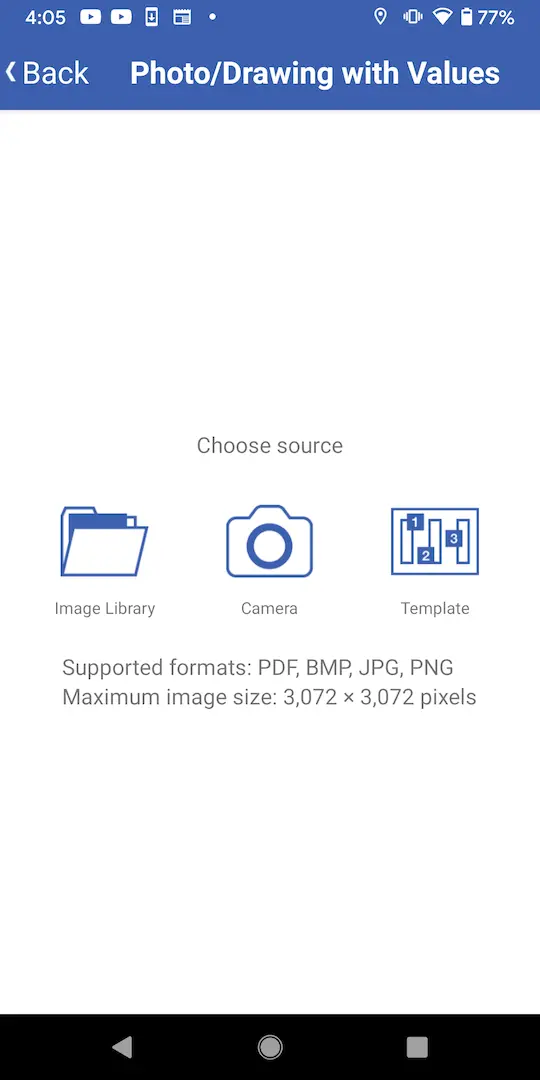
Choose the image you wish to use.
・Images saved on your device ([Image Library])
・An image taken with the camera ([Camera])
・A previously registered template ([Template])
For more information about templates, see "Using Templates."
・An image taken with the camera ([Camera])
・A previously registered template ([Template])
For more information about templates, see "Using Templates."
3
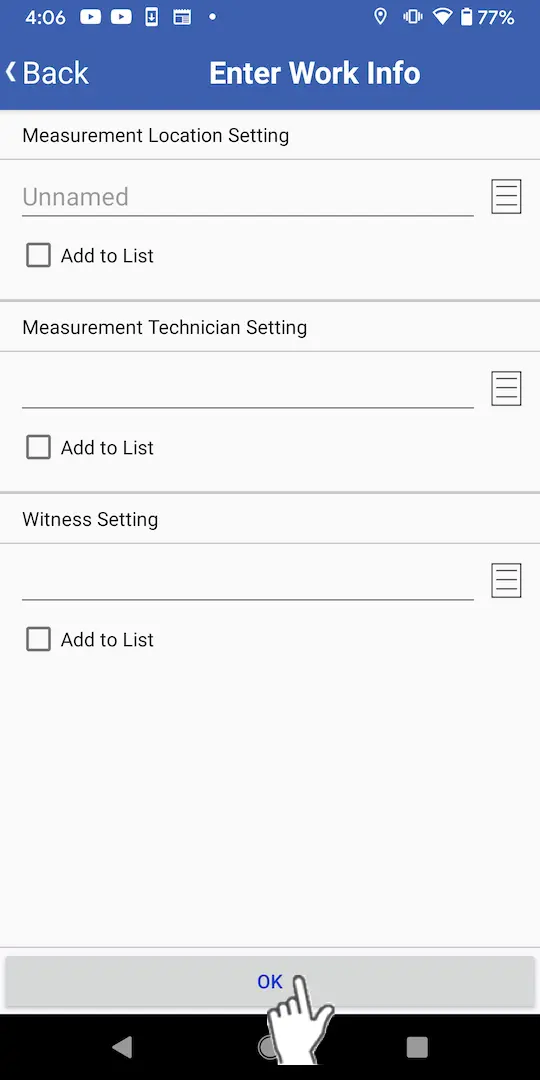
Enter the work information and tap [OK].
Making measurements
1
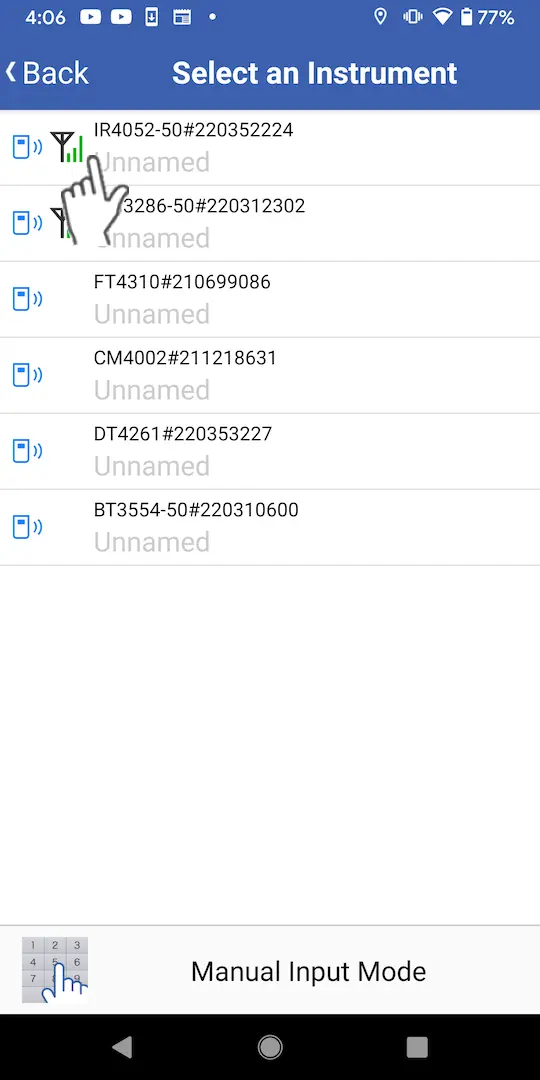
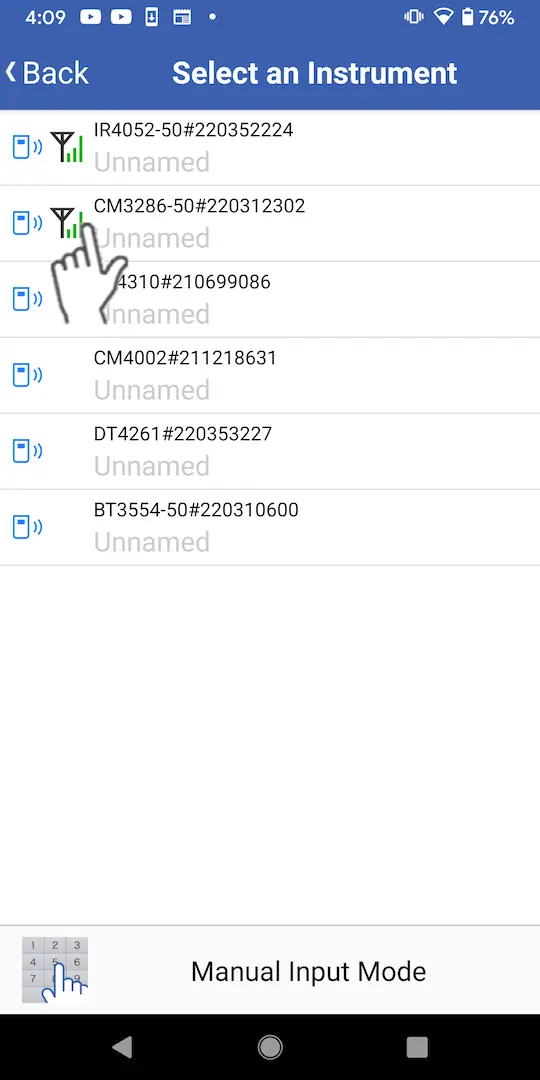
Choose either an instrument or [Manual Input Mode] on the [Select an Instrument] screen.
2
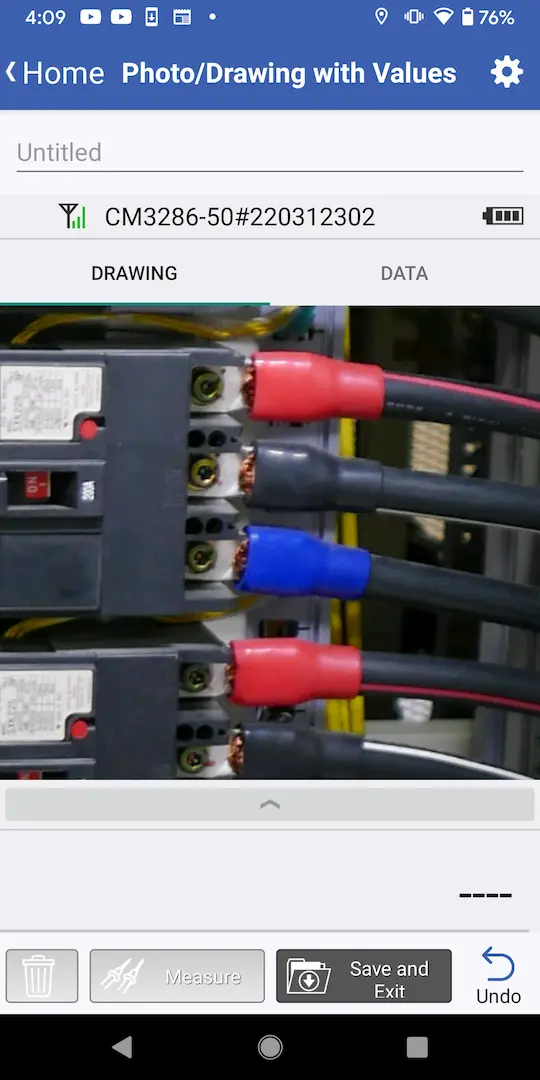
When the chosen image is displayed, tap the measurement location.
If you loaded a template, you will not be able to add measurement locations.
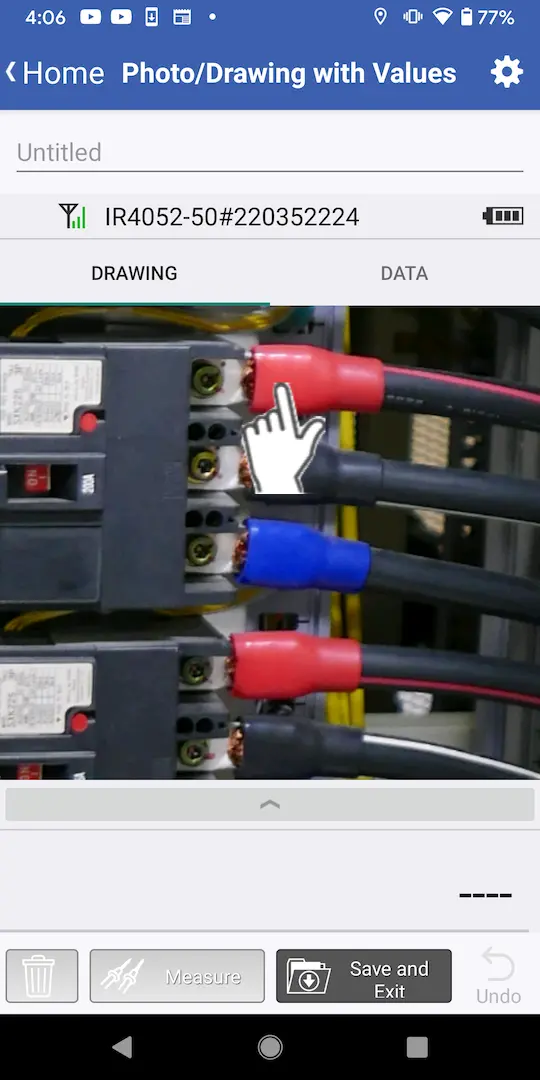
If you chose an instrument
2-1
Measured values will be displayed. Either tap the [Measure] button or press the instrument’s HOLD button to save a measured value.
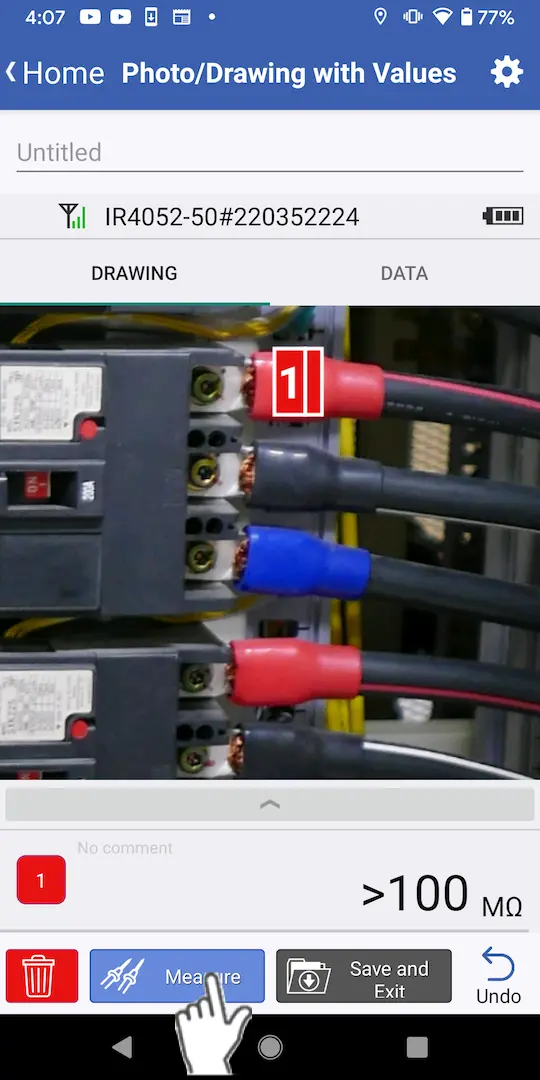
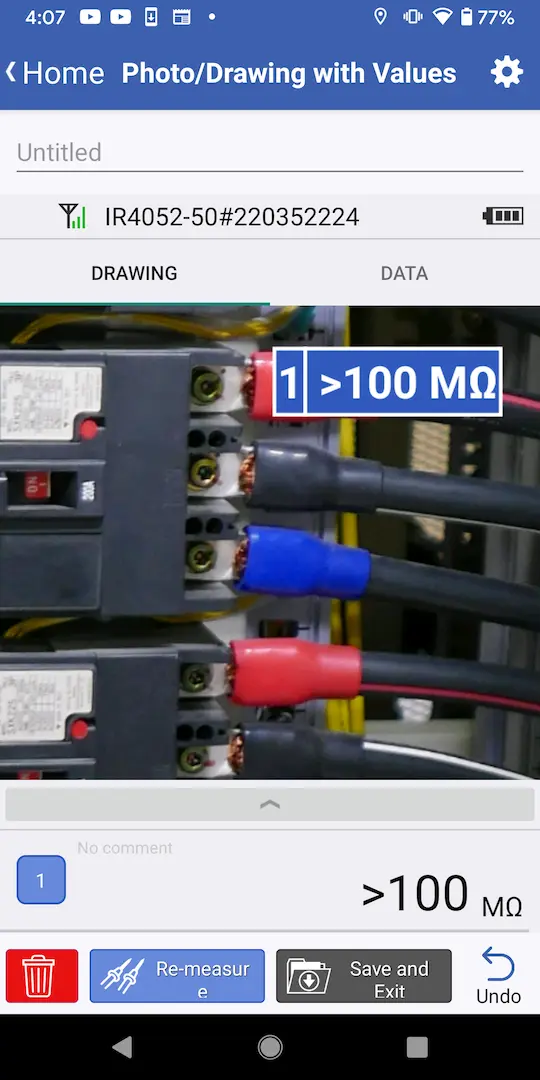
If you chose manual measurement
2-1
Tap the [Enter Value ] button.
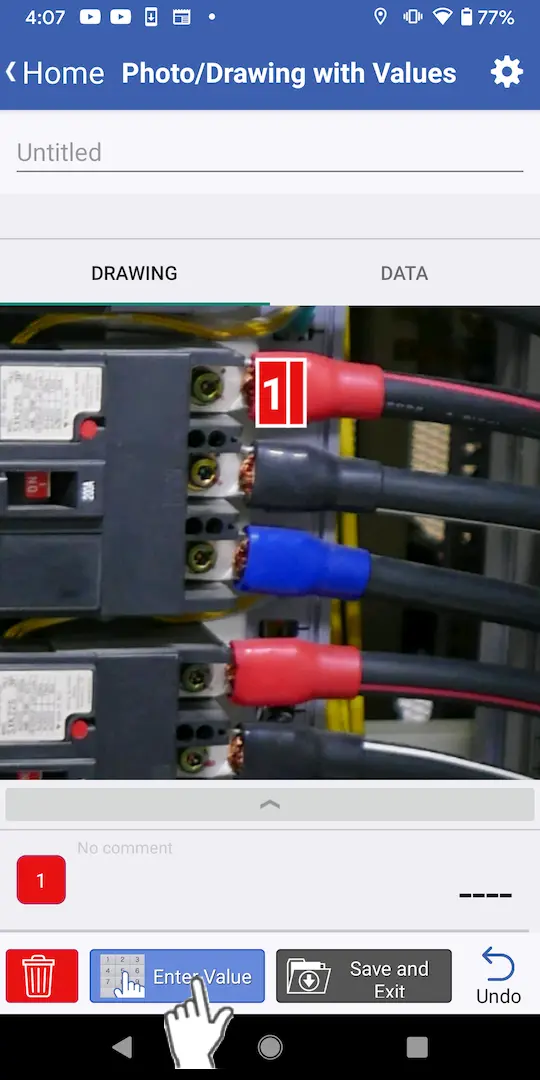
2-2
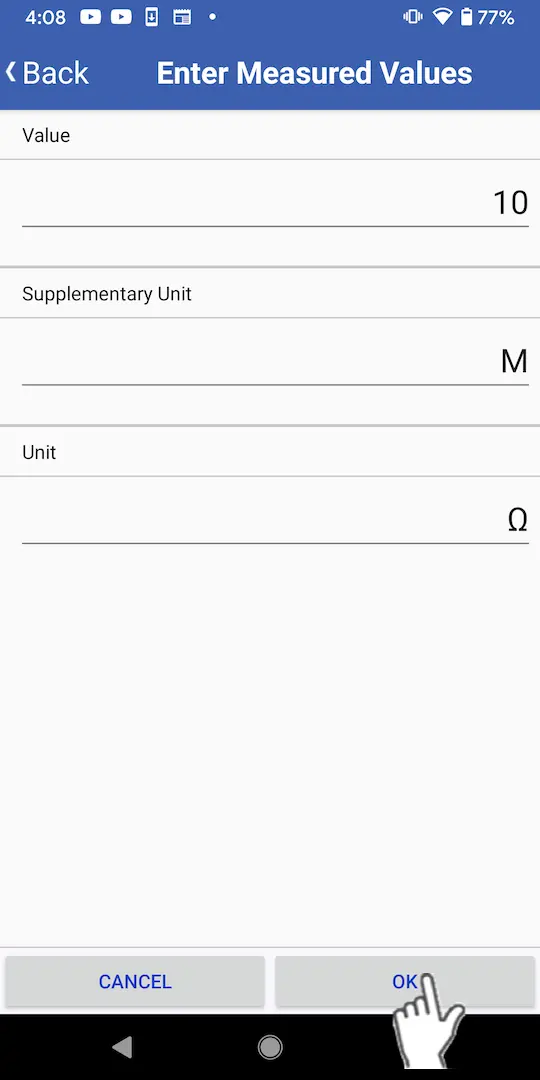
Tap the value and unit fields and enter the desired values.
You can choose the supplementary unit from the list.
2-3
After you have entered the desired values, tap [OK].
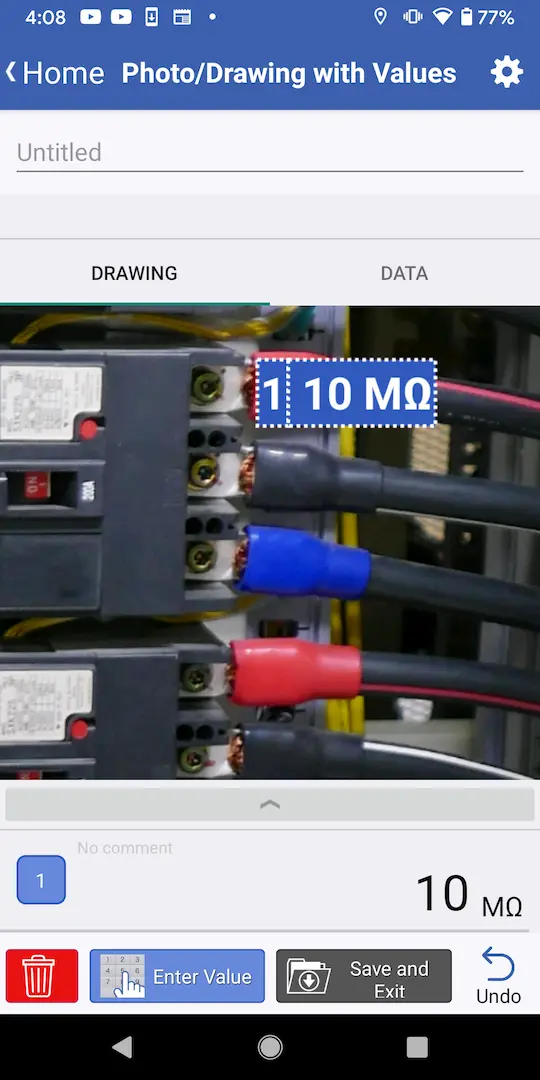
The measured value will be saved.
Deleting data
1
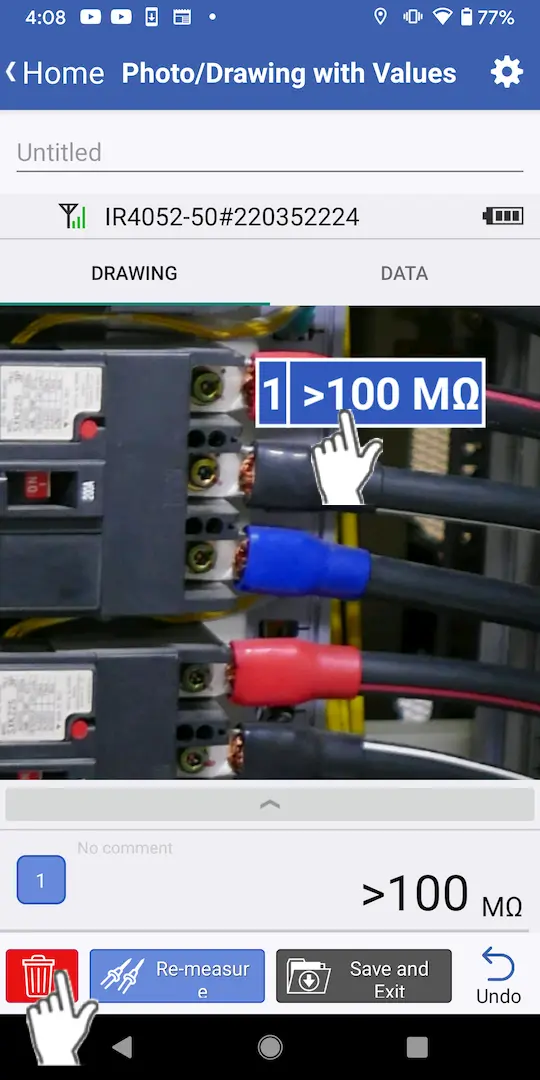
Select the measurement data you wish to delete and tap the [Delete] button.
If you loaded a template, you will not be able to delete measurement locations.
You can tap the [Undo] button to undo the last operation.
You can tap the [Undo] button to undo the last operation.
Remeasuring values
1
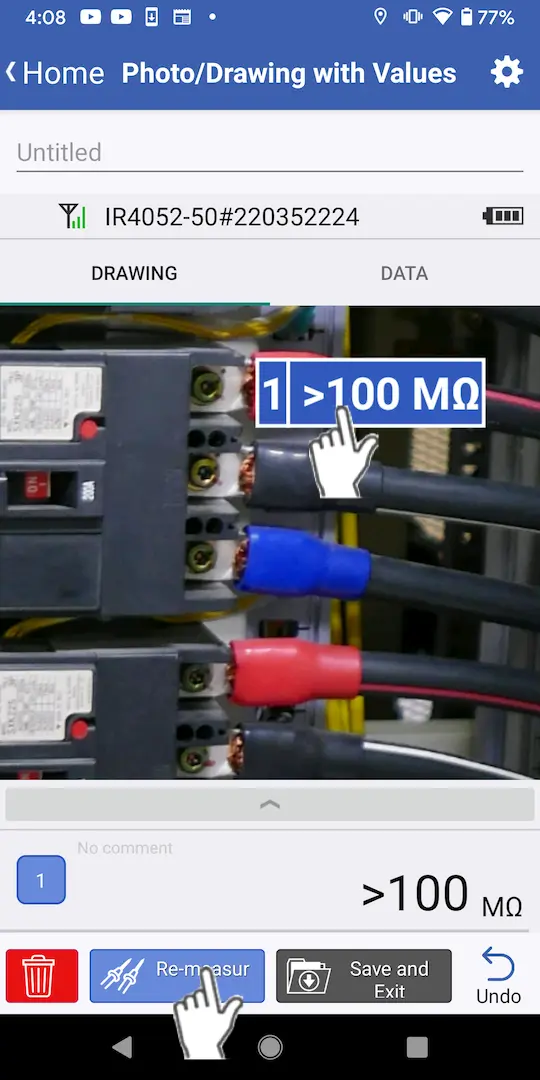
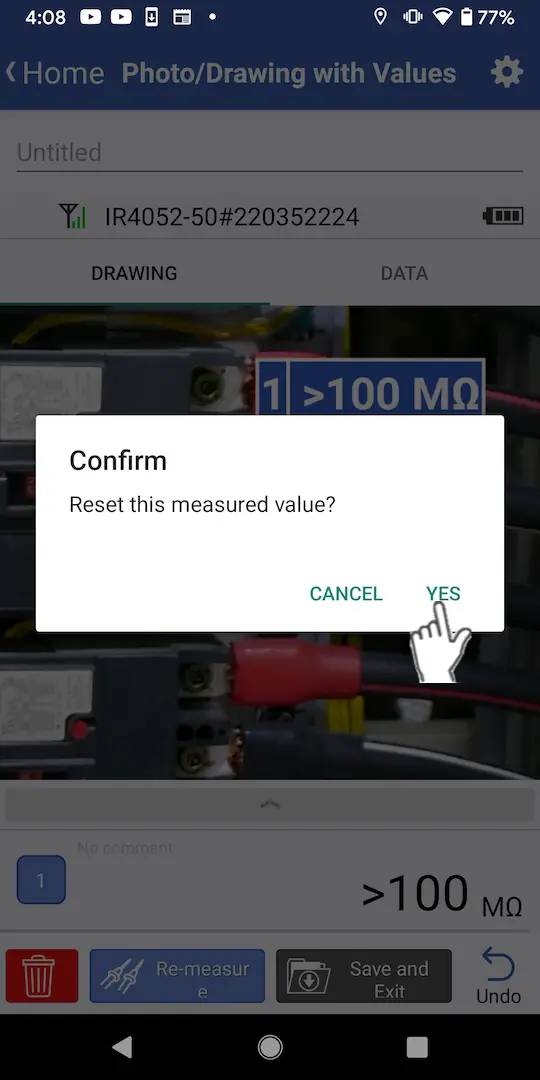
Select the measurement data you wish to remeasure and tap the [Re-measure] button.
2
When the confirmation dialog box is displayed, tap [Yes].
Saving measurement
1
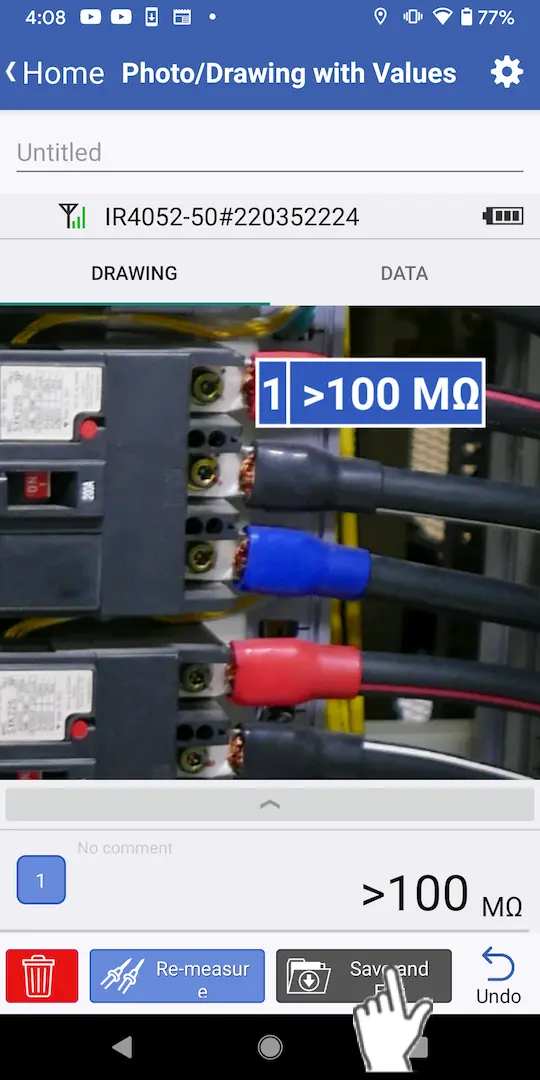
To save the values, tap the [Save and Exit] button.
Switching instruments
1
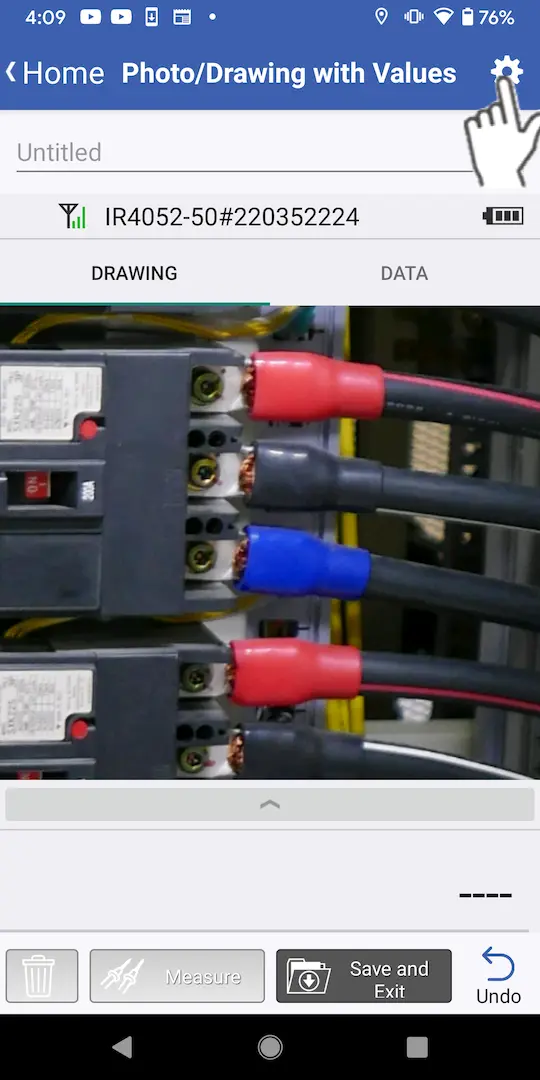
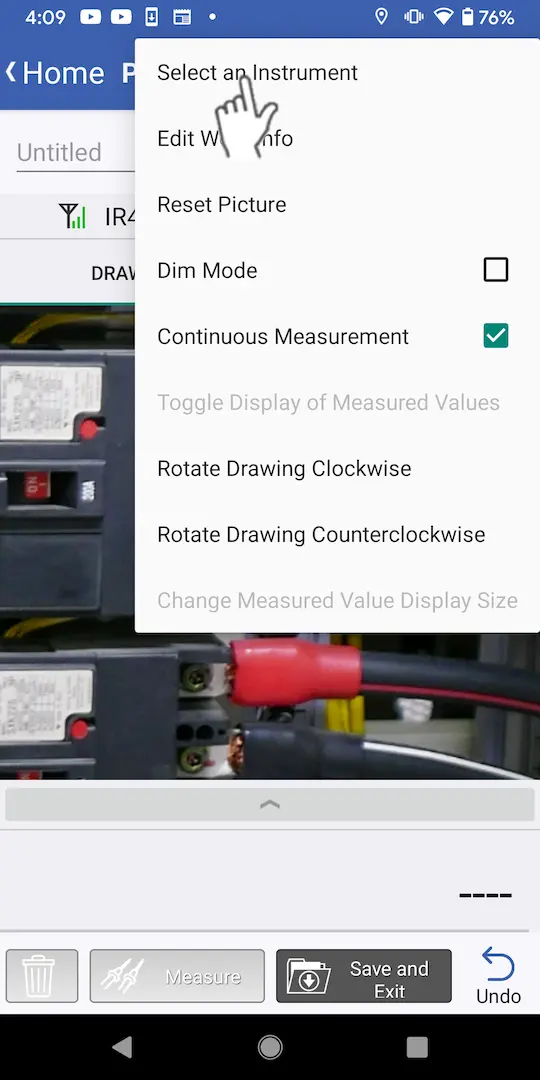
If you wish to switch instruments while measurement is underway, tap the settings button at the top right of the measurement screen.
2
When the [Select a Device] screen is displayed, choose an instrument or [Manual Input Mode].
The app will return to the measurement screen, and you can continue measurement.
Want help or have questions?