

Measuring and Saving
Measure while connected via Bluetooth(FT3425)
1
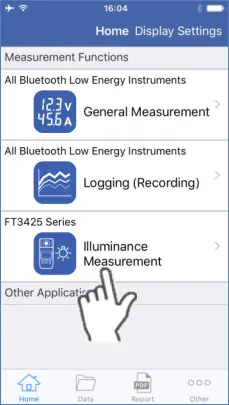
Tap “Illuminance Measurement” on the Home screen.
2
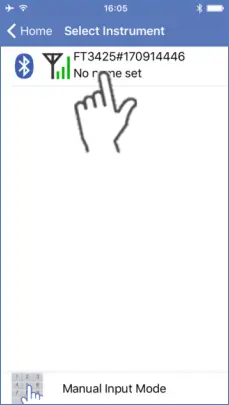
Select the device
3
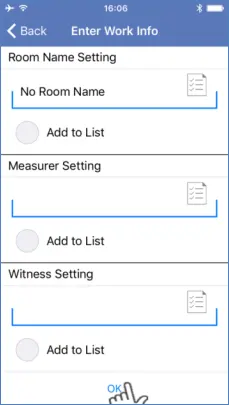
Enter the Work Information and tap OK.
4
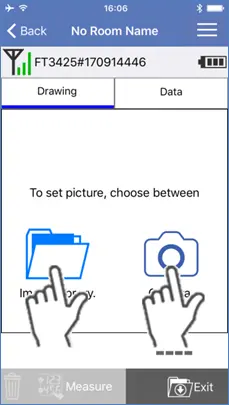
Load the image.
5
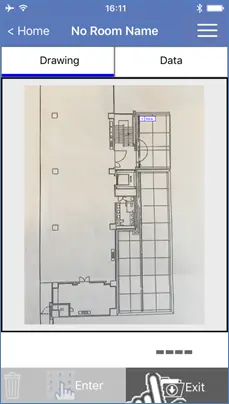
Tap the location on the image that represents the measurement point.
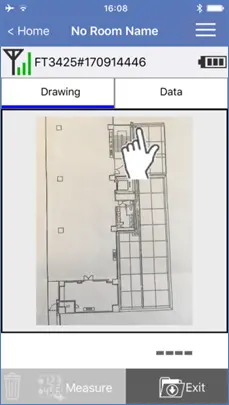
6
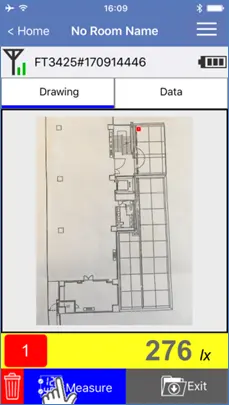
Tap “Measure” or the HOLD button on the measuring instrument.
The measurement value will be saved automatically.
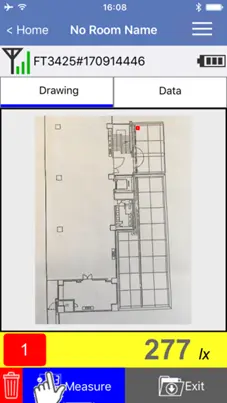
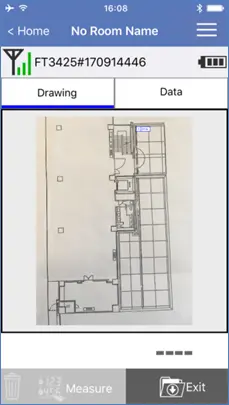
If a previously measured point is selected, you can measure again by tapping “Re-measure”.
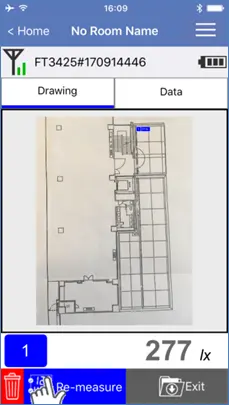
If “Re-measure” is tapped, a dialog window as shown below will appear.
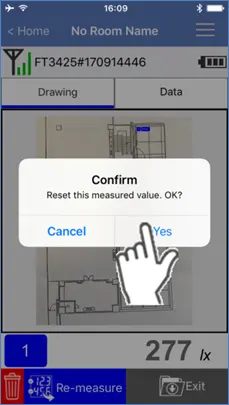
Tap “Yes” to confirm and the “Re-measure” button will change to “Measure”.
7
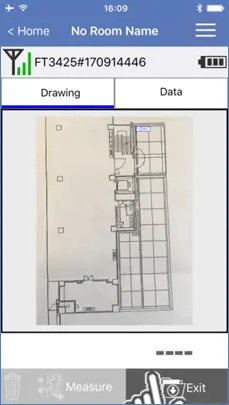
Tap “Exit” after all measurements have been taken.
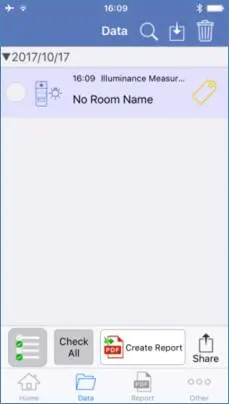
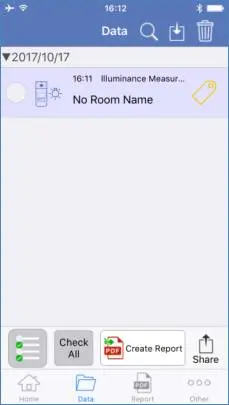
A data list screen containing the measurement data will appear as shown below.
Measure using Manual Input Mode(FT3424, FT3425)
1
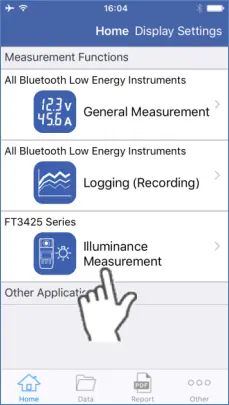
Tap “Illuminance Measurement” on the Home screen.
2
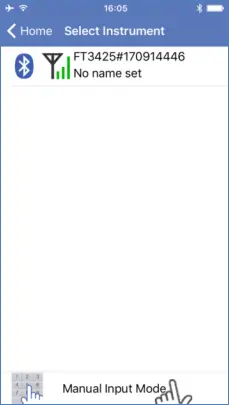
Select “Manual Input Mode”.
3
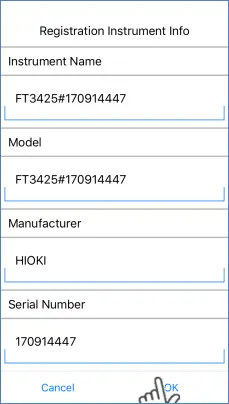
Register the instrument and tap “OK” to confirm.
4
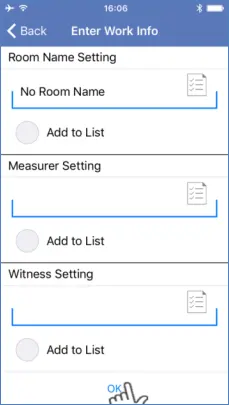
Enter the Work Information and tap OK.
5
Load the image.
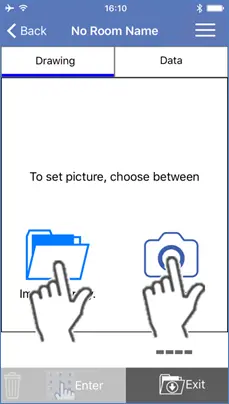
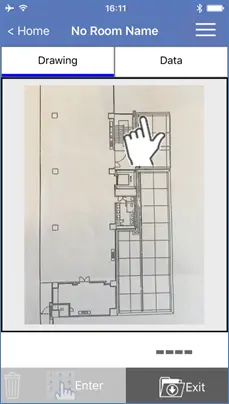
6
Tap the location on the image that represents the measurement point to create a data icon.
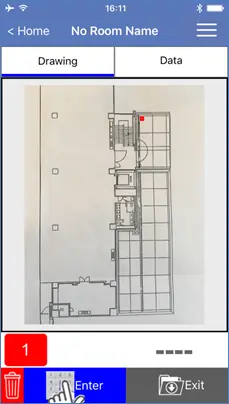
7
Tap “Enter” and input the measured value.
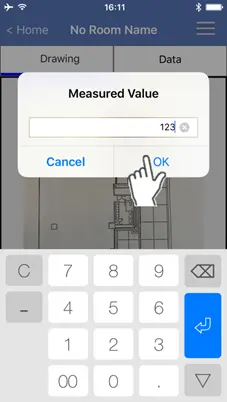
8
Tap “OK” to save the value.
9
Tap “Exit” after all measurements have been taken.
A data list screen containing the measurement data will appear as shown below.
Want help or have questions?