

Sharing template files via GENNECT Cloud (GENNECT Cloud Standard and Pro plans only)
You can upload the template files you create to the service’s cloud server to share them with GENNECT Cross installations on other devices.
This function requires a subscription to the GENNECT Cloud Standard or Pro plan.
If you are not logged in to GENNECT Cloud, first log in.
1
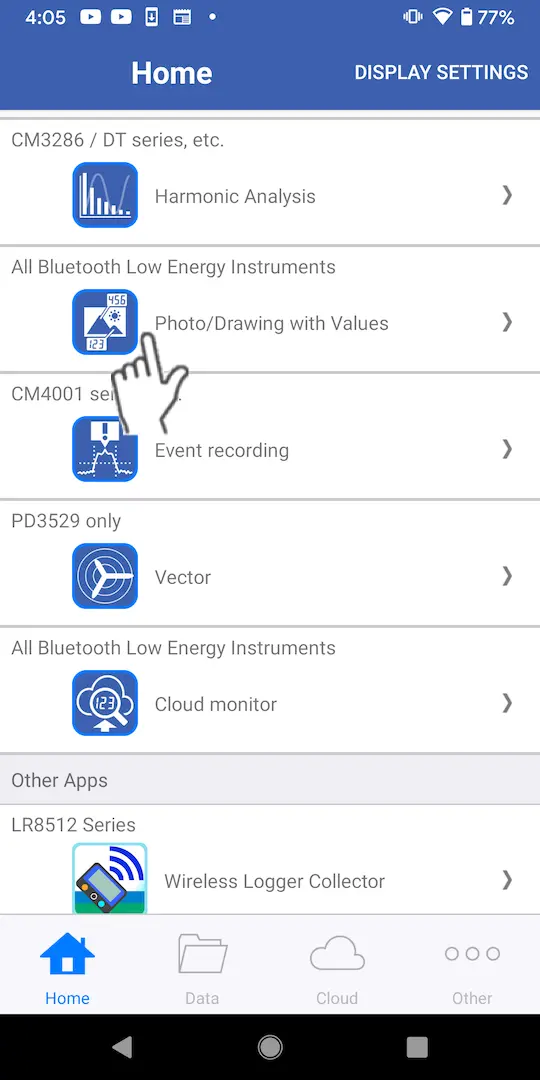
Tap [Photo/Drawing with Values] on the home screen.
2
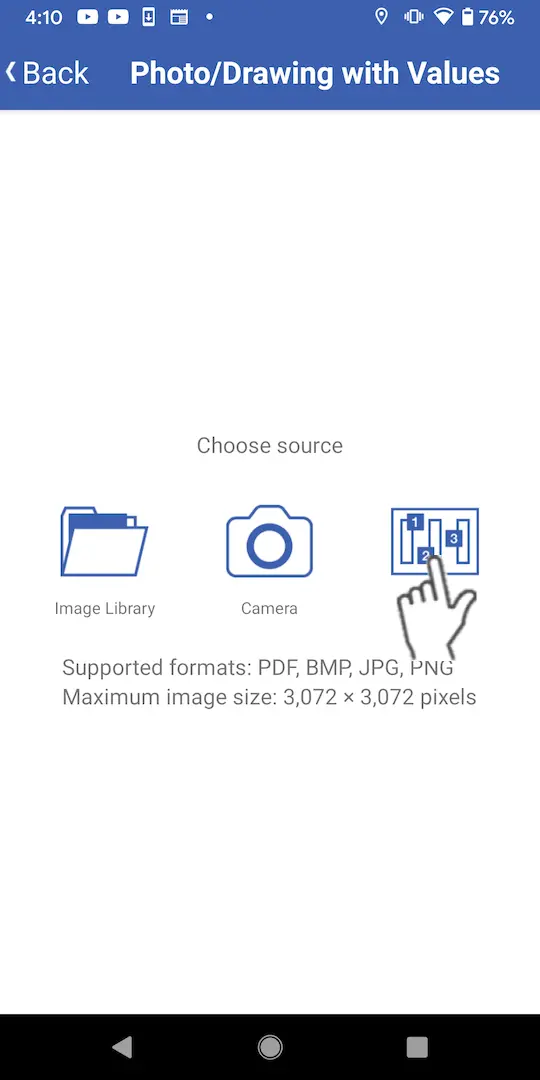
Tap [Template] on the image selection screen.
Uploading to the cloud server (locally saved data)
1
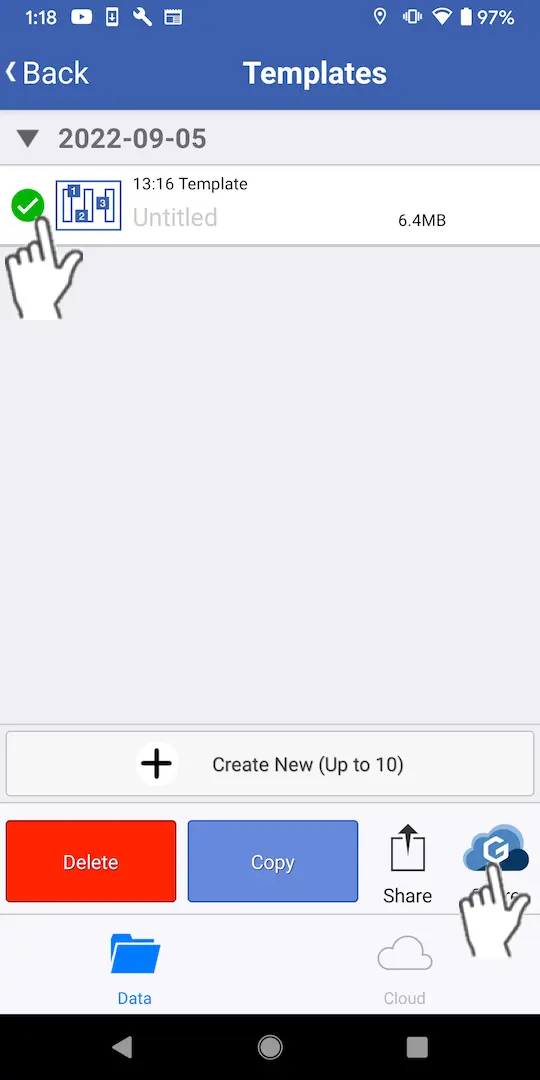
Select the [Data] tab, select the checkboxes for the files you wish to upload to the cloud server, and tap the [Send] button.
2
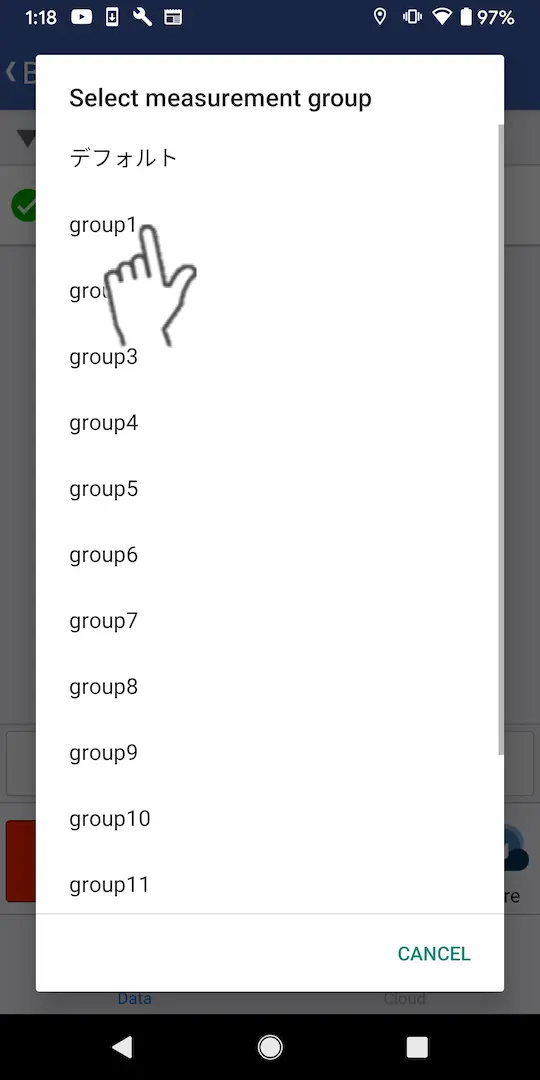
The files will be uploaded when you select the measurement group to which to upload them.
Uploading to the cloud server (adding new data)
1
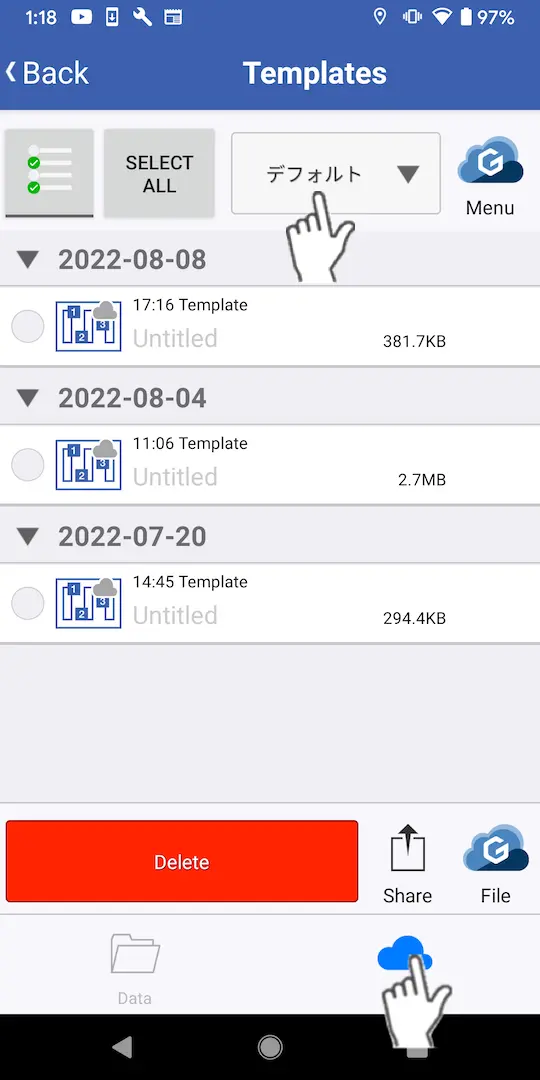
Select the [Cloud] tab and switch to the measurement group for which you wish to upload files using the field for switching measurement groups at the top of the screen.
2
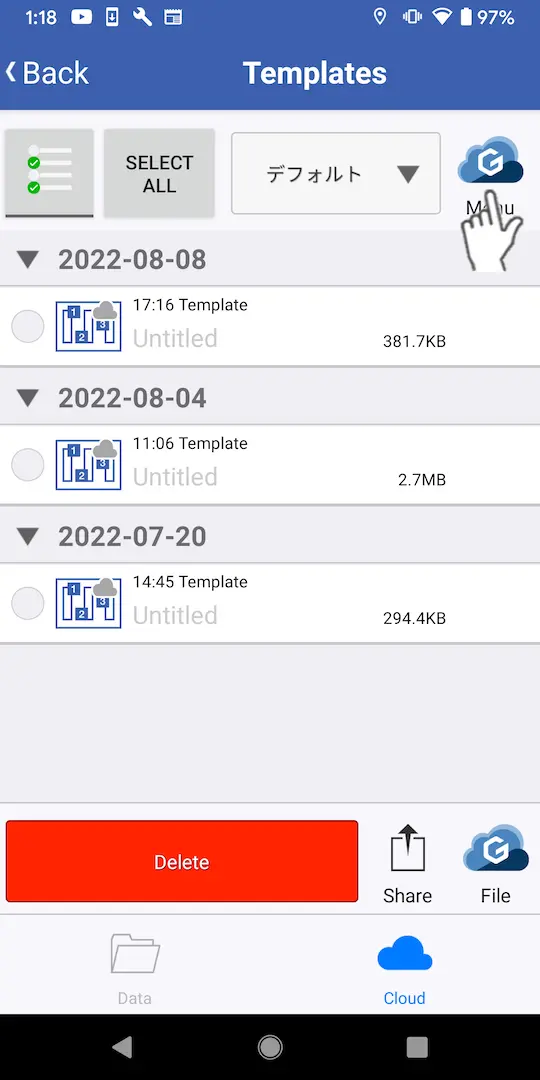
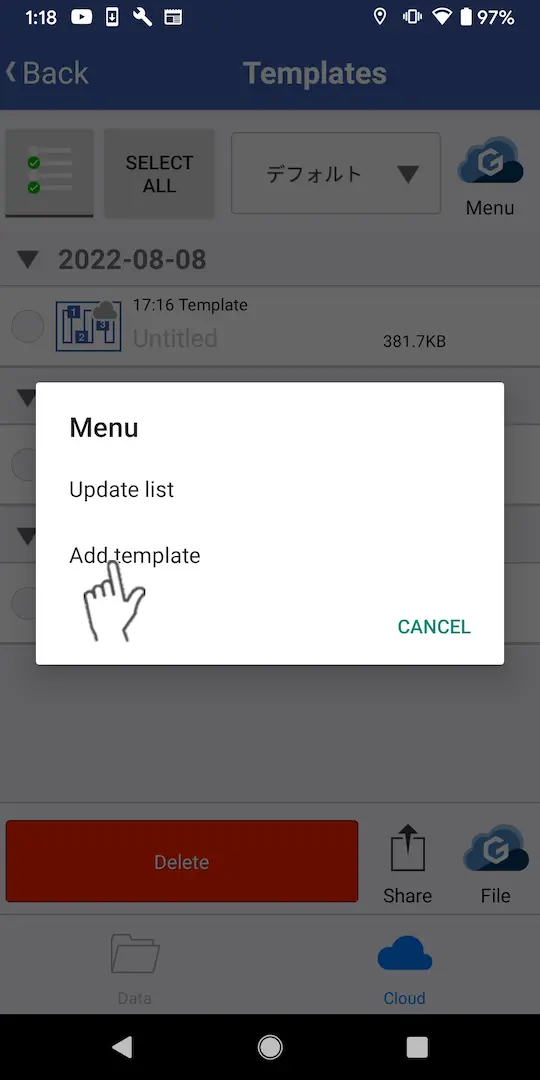
Tap [Menu] and then tap either [Add template].
3
When you create a template on the editing screen and tap [Save], the file will be saved and uploaded.
Downloading data from the cloud server
1
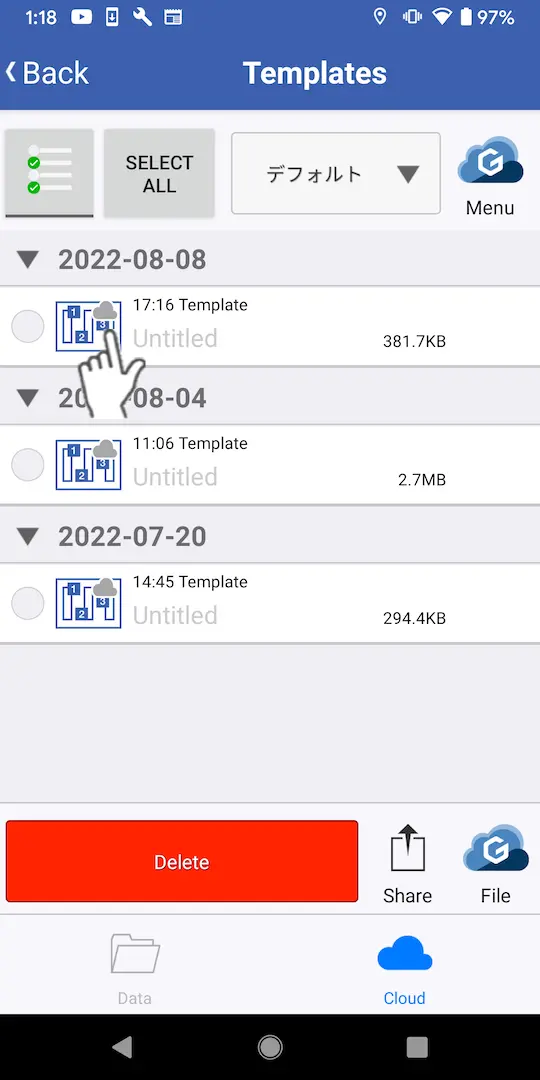
Select the [Cloud] tab, switch to the measurement group to which the file you wish to download belongs using the field for switching measurement groups at the top of the screen, and tap the file.
If the file has not been downloaded, or if the file has been updated, the most recent file will be downloaded.
Updating file information
1
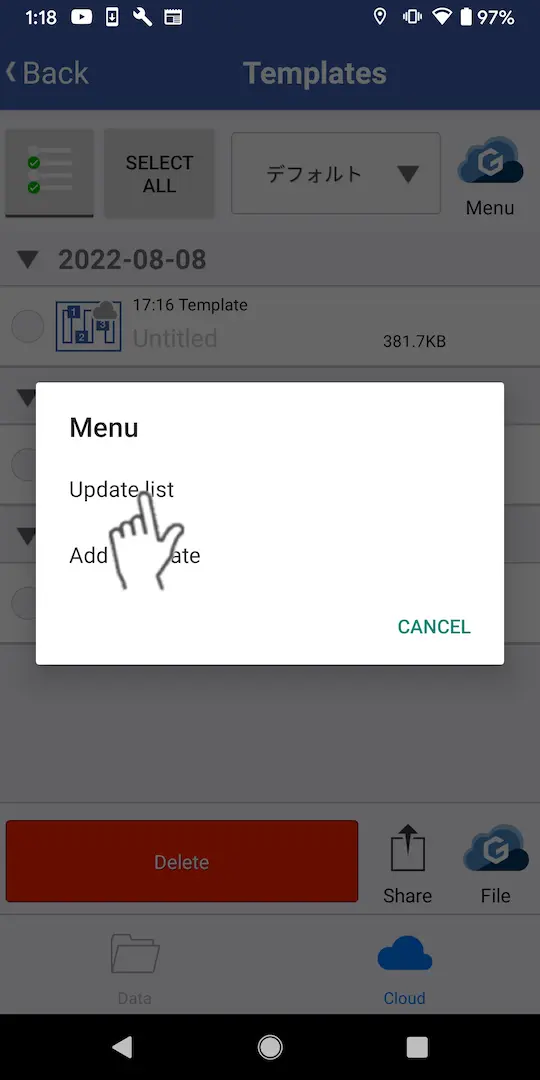
Select the [Cloud] tab and tap [Menu].
2
When you tap [Update list] in the menu, the displayed file information will be updated.
The file itself will not be updated. When you tap the file, the latest version will be downloaded.
Want help or have questions?