

Performing a self-check
It’s recommended to perform a self-check after connecting an instrument to a gateway/application. You can start this process by clicking [Self-check] to the right of the gateway’s name.
The self-check will check the following four items:
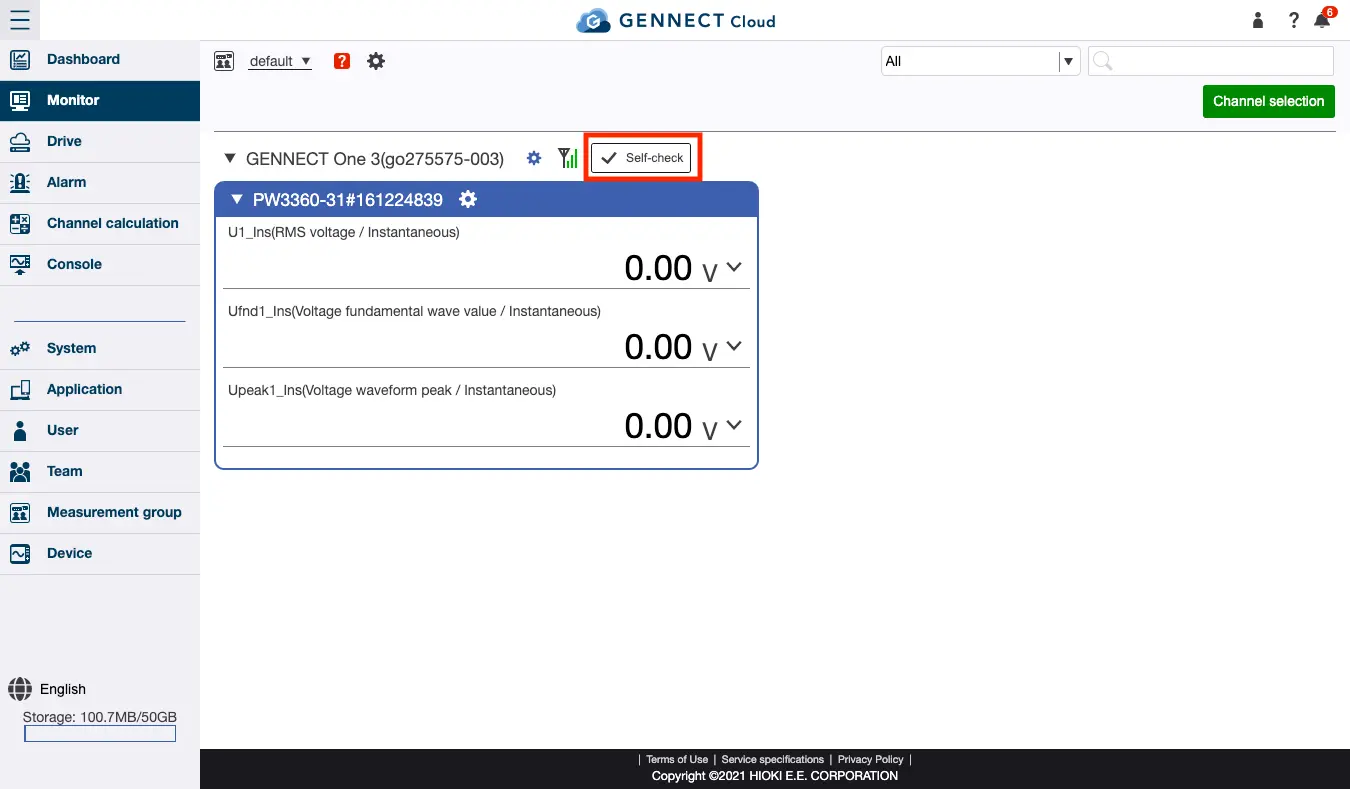
If you’re using GENNECT One
- Whether the instrument is connected
GENNECT One communicates with instruments via a LAN. Use the service after connecting the devices with a LAN cable. - Whether an instrument channel has been selected
To review GENNECT polled data, you must first select a channel to poll. Select the GENNECT polled channel after connecting the instrument. - Whether the instrument’s firmware version supports GENNECT One
Some instruments with older firmware versions may not support GENNECT One. Update your instrument to the latest firmware version.
For more information about supported firmware versions, see “Instrument-specific notes when connecting to GENNECT One.” - Whether there’s any storage space available
Files created by instruments will be uploaded to cloud storage via the PC’s storage.
Files will remain on the PC even after being uploaded to cloud storage.
You will not be able to generate instrument files if the PC’s storage is full. Delete any unnecessary files to free up storage space on the PC.
If you’re using GENNECT Remote (In Japan only)
- Whether the instrument is connected
GENNECT Remote communicates with instruments via a LAN. Use the service after connecting the devices with a LAN cable.
If a camera but no instrument is connected, this self-check will fail, but you will be able to use the camera. - Whether an instrument channel has been selected
To review GENNECT polled data, you must first select a channel to poll. Select the GENNECT polled channel after connecting the instrument. - Whether the instrument’s firmware version supports GENNECT Remote
Some instruments with older firmware versions may not support GENNECT Remote. Update your instrument to the latest firmware version.
For more information about supported firmware versions, see “Instrument-specific notes when connecting to the SF4111/ SF4112.” - Whether there’s any gateway storage available
Files created by instruments will be uploaded to cloud storage via gateway storage.
Once files are uploaded to cloud storage, they will be deleted from gateway storage.
If you’re uploading files manually, or if the file size exceeds 128 MB, files will not be uploaded automatically to cloud storage and will instead remain on gateway storage. You will not be able to generate instrument files if gateway storage is full. Either manually upload any files that have not been uploaded or delete any unnecessary files to free up storage space on the gateway.
If you’re using GENNECT Cross
Self-checks cannot be performed for GENNECT Cross.
Want help or have questions?