

Purchase a license with a credit card
Some software can be purchased using a credit card.
You must register your credit card in advance.
Users accessing the portal from China are unable to make credit card payments.
Register a credit card
If you have not registered a credit card, you cannot proceed with a purchase from [New license purchase] on the software details screen (the [Confirm] button cannot be clicked).
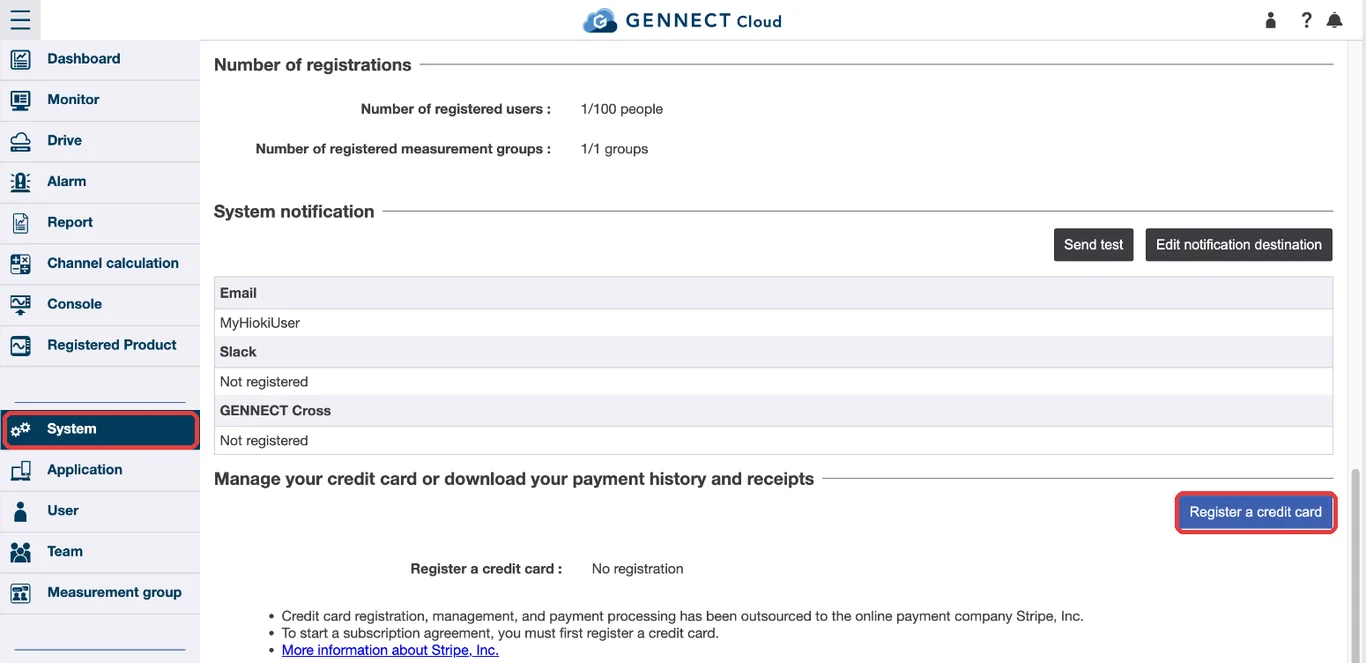
Register your credit card on the System screen of GENNECT Cloud. Only administrators can use the System screen.
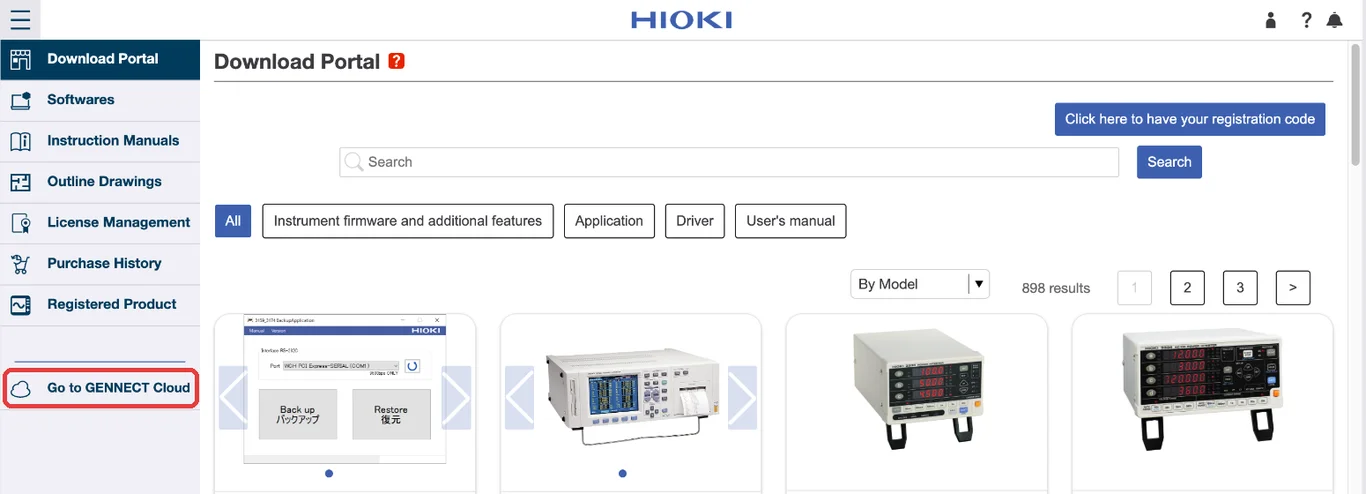
If you are using the Download Portal, click [Go to GENNECT Cloud] in the menu to go to GENNECT Cloud.
Click [System] in the menu, and then click [Register a credit card] under “Manage your credit card or download your payment history and receipts”.
When the “Visit Stripe’s website” screen appears, click [To Stripe’s website] to go to the Stripe page.
Credit card registration, management, and payment processing have been outsourced to the online payment company Stripe, Inc.
Please register your credit card on the System screen of GENNECT Cloud (https://cloud.gennect.net/app/System).
Learn more about Stripe, Inc.
If your browser is configured to block pop-up windows, you may not be able to access Stripe’s website.
Please disable pop-up blocking in your browser’s settings.
Purchase software
From the software details screen, click [New license purchase].
Select the purchase plan and quantity and then click [Confirm].
If you have not registered a credit card, the [Confirm] button cannot be clicked and you cannot make a purchase. Please register your credit card first by following the steps in “Register a credit card”.
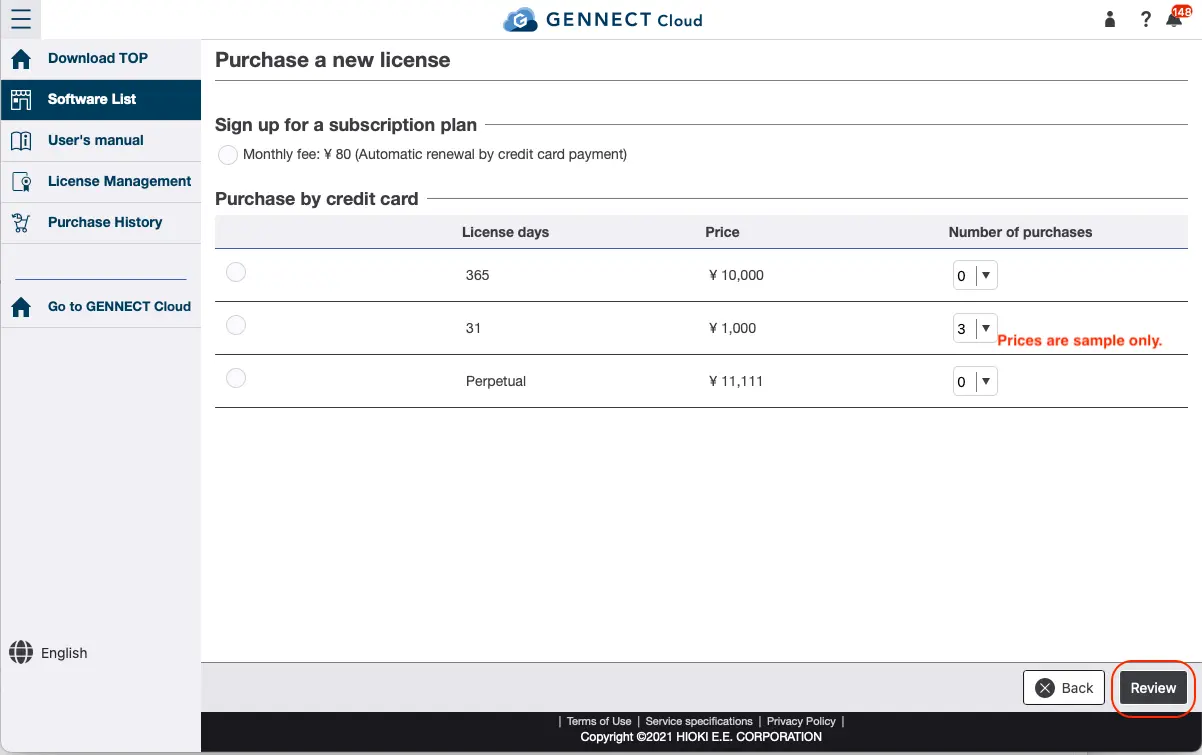
Next, the purchase details will be displayed. After confirming there are no issues, click [Purchase].
Download a receipt
Receipts can be downloaded from the Stripe page.
Open the System screen of GENNECT Cloud (https://cloud.gennect.net/app/System), and click [Manage your credit card] under “Manage your credit card or download your payment history and receipts”.
When the “Visit Stripe’s website” screen appears, click [To Stripe’s website] to go to the Stripe page.
On the Stripe page, click the payment you need a receipt for under “Invoice history”.
Click [Download receipt] to download the receipt.