

What is the dashboard?
The dashboard function described in this chapter allows you to handle data visually by registering any channel or image as a dashboard in advance and displaying graphs of recent values or the latest values.
Please refer to "Registering a new dashboard panel" to register the channels and images of GENNECT polled data as a dashboard panel before use.
The display update interval of the latest GENNECT polled data and the latest camera images is 1 minute.
Camera function is available only for GENNECT Remote gateway (Japan only).
Please note that this function is not available for GENNECT One and GENNECT Cross applications.
The following five types of dashboard types exist.
- Graph + Value
Displays a graph of the most recent (1 hour / 1 day / 1 week) GENNECT polled data and the latest GENNECT polled data. - Graph only
Displays a graph of the most recent (1 hour / 1 day / 1 week) GENNECT polled data. - Value only
Displays the latest GENNECT polled data. - Image only
Displays the latest camera image. - Image + Value
Displays the latest GENNECT polled data overlaid on the latest camera image or any still image. - Alarm Displays the status of set alarms.
Screen description (Graph + Value)
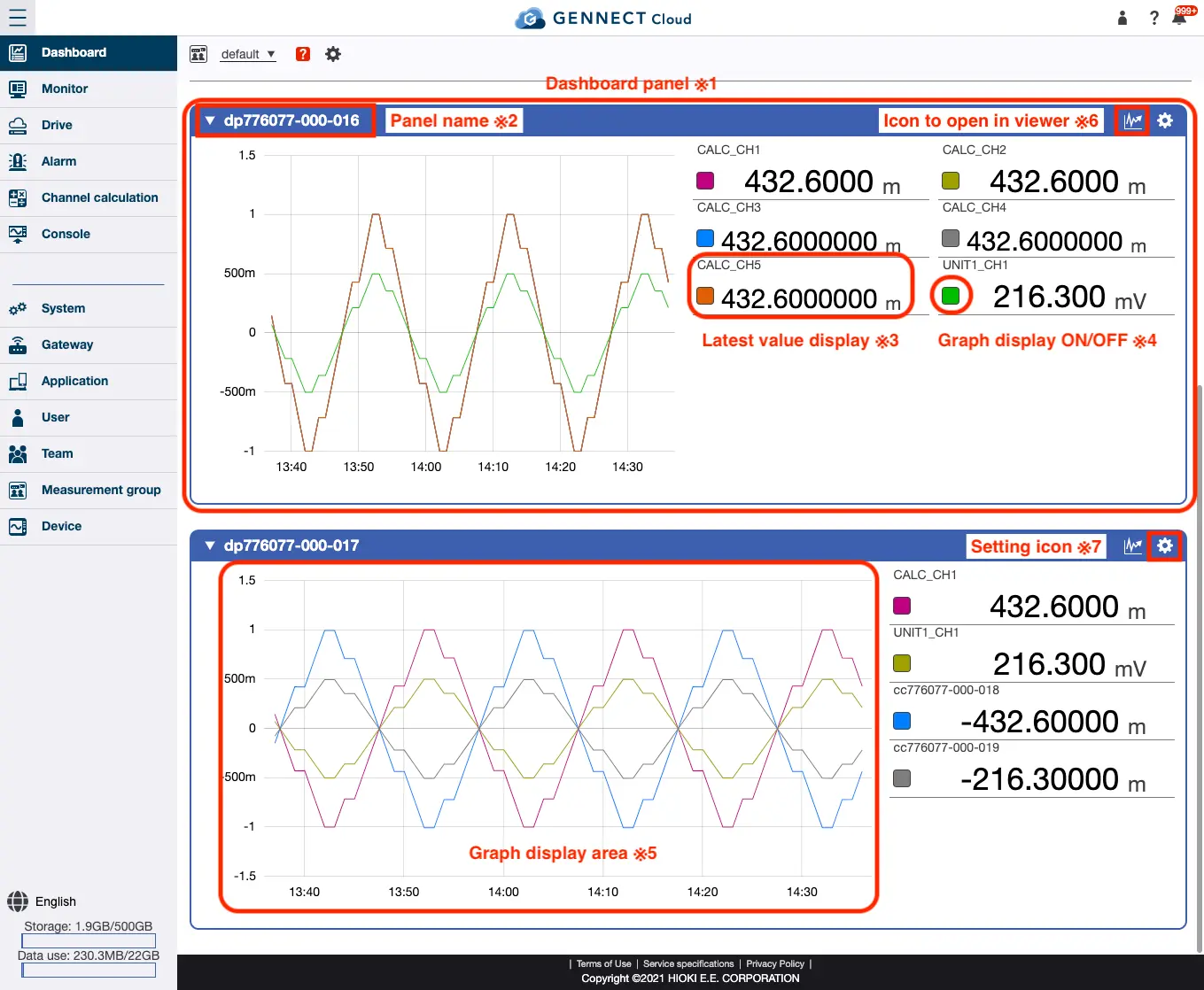
*1 Panel for displaying selected channels. Multiple panels can be displayed on the dashboard, and up to 10 channels can be registered for each panel.
*2 Displays the panel’s name. You can make changes by editing the panel.
*3 Displays the most recent values for the selected channels. The unit and number of decimal places can be set on the monitor screen. For more information, see "Configuring channel display settings".
*4 Allows you to toggle the graph corresponding to each color on and off.
*5 Depending on the setting, the most recent (1 hour / 1 day / 1 week) transition of the selected channel is displayed in the graph. You can read a value for a given time by mousing over the graph.
*6 Displays a graph or list using the viewer function for selected channels.
*7 Updates the panel name and selected channels. For more information, see "Editing a dashboard panel".
Screen description (Image + Value)
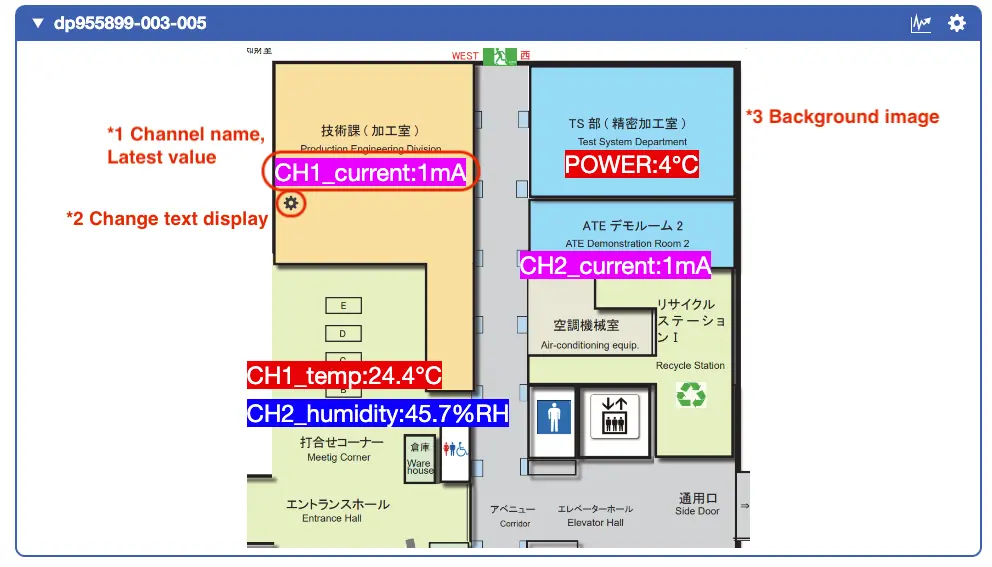
*1 The channel name and the latest value are displayed. The display position can be changed by dragging.
*2 Click to open the text display edit screen. You can change the text size, color, and background color of the text area.
*3 Any image can be set as the background.
Screen description (Alarm)
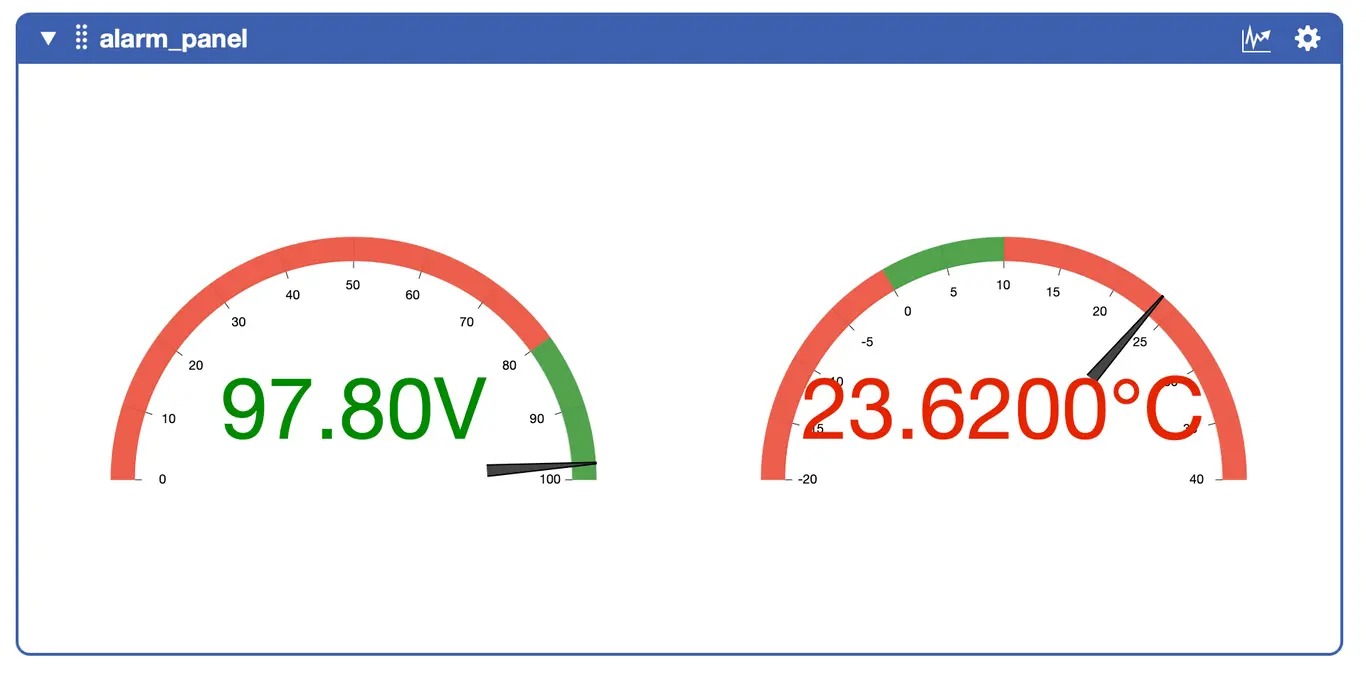
One panel corresponds to one alarm.
The meter is displayed in green for ranges where no alarms occur and in red for ranges where alarms do occur.
The current measured value is displayed as a numerical value and the needle of the meter, providing a visual indication of how much the value is in relation to the alarm condition.