

Opening GENNECT polled data in the time-series viewer
This section describes how to review displayed or saved GENNECT polled data as a graph or list in your browser. Functionality for displaying data as a graph or list is known as the “time-series viewer.” Since the time-series viewer uses pop-ups, be sure to enable the display of pop-ups in your browser.
Selecting target channels
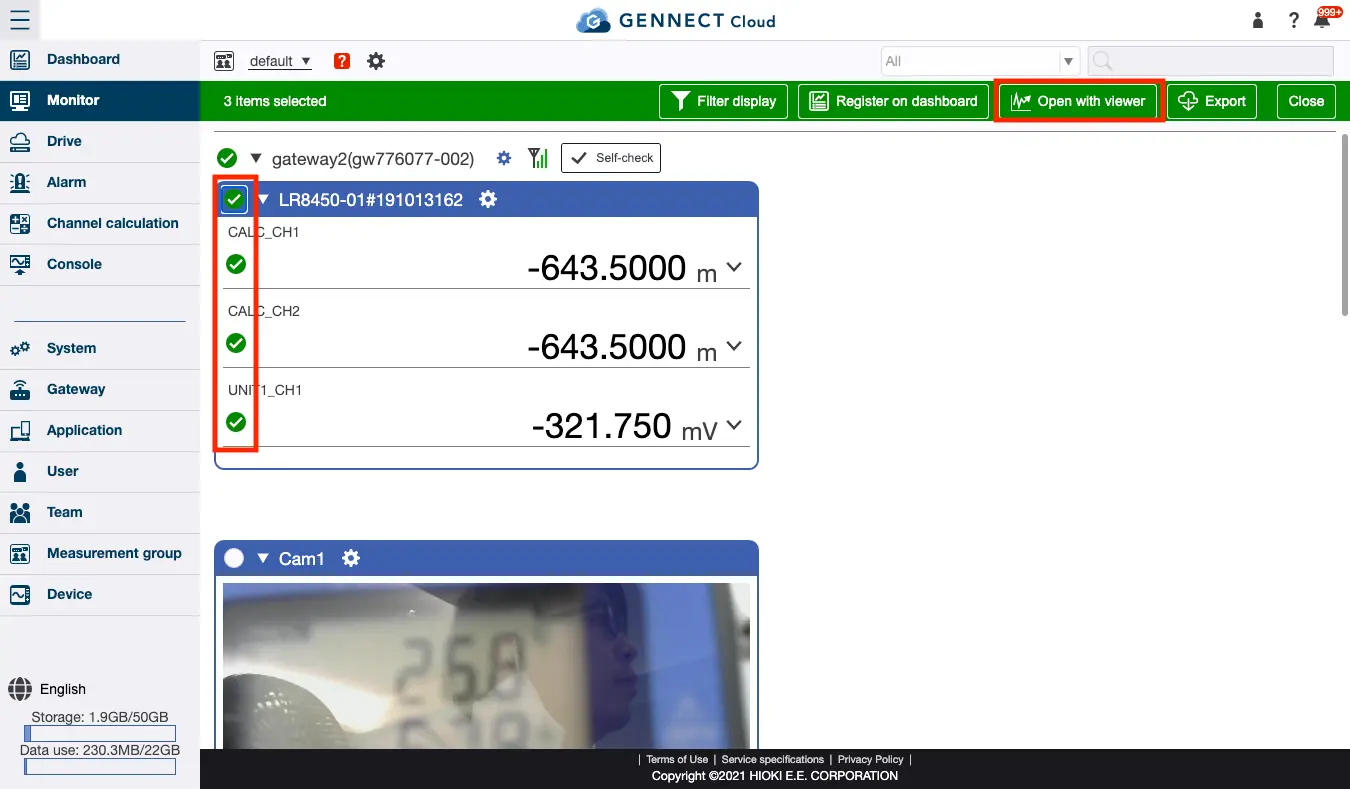
Click [Channel selection] and select the checkbox for the channel you wish to display as a graph or list. Then click [Open in viewer].
Setting the data display range
To display a specified range of GENNECT polled data as a graph, select the period of time you wish to display and the data aggregation method and click [Open].
**If no graph is displayed, enable JavaScript in your browser. **
- Aggregation period
Select the display range for the data from [Today / Last week / Last month / Last year / User-defined period]. If you chose [User-defined period], enter the aggregation period and date. - Aggregation type
If you select any aggregation period other than [Today], the displayed data will be aggregated (condensed). Select the aggregation type for the data from [Average / Maximum / Minimum / Instant / Addition].
Examples: If you review data from the last month, it will be automatically aggregated at an interval of 30 minutes. If you select [Average], data from the last month will be shown as a series of average values for every 30 minutes.
Only data with a display range of 1 day or less can be shown in its entirety, without aggregation. If you wish to review all data from a period of more than 1 day without aggregating it, refer to “Exporting GENNECT polled data” to export it.
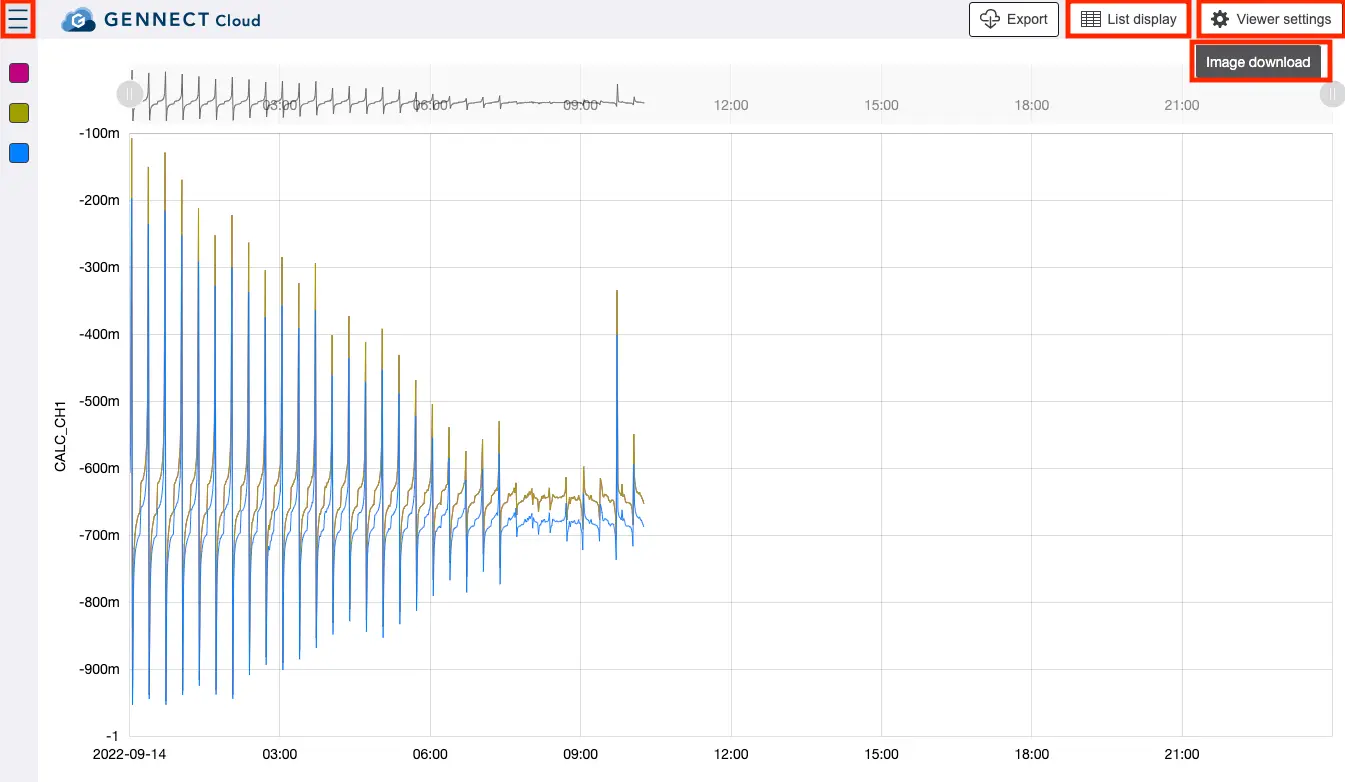
You can toggle between a graph and list display by clicking the graph/list toggle tab at the top of the time-series viewer.
Alternatively, you can display a list of GENNECT polled data that’s being displayed as a graph by clicking [List display]. You can change the aggregation period with [Viewer settings], and you can export the GENNECT polled data currently being displayed as a file with [Image download].
In addition, you can display a menu for configuring the axis display settings (see next section) by clicking the button at the top left.
(Application) Changing the axis display settings
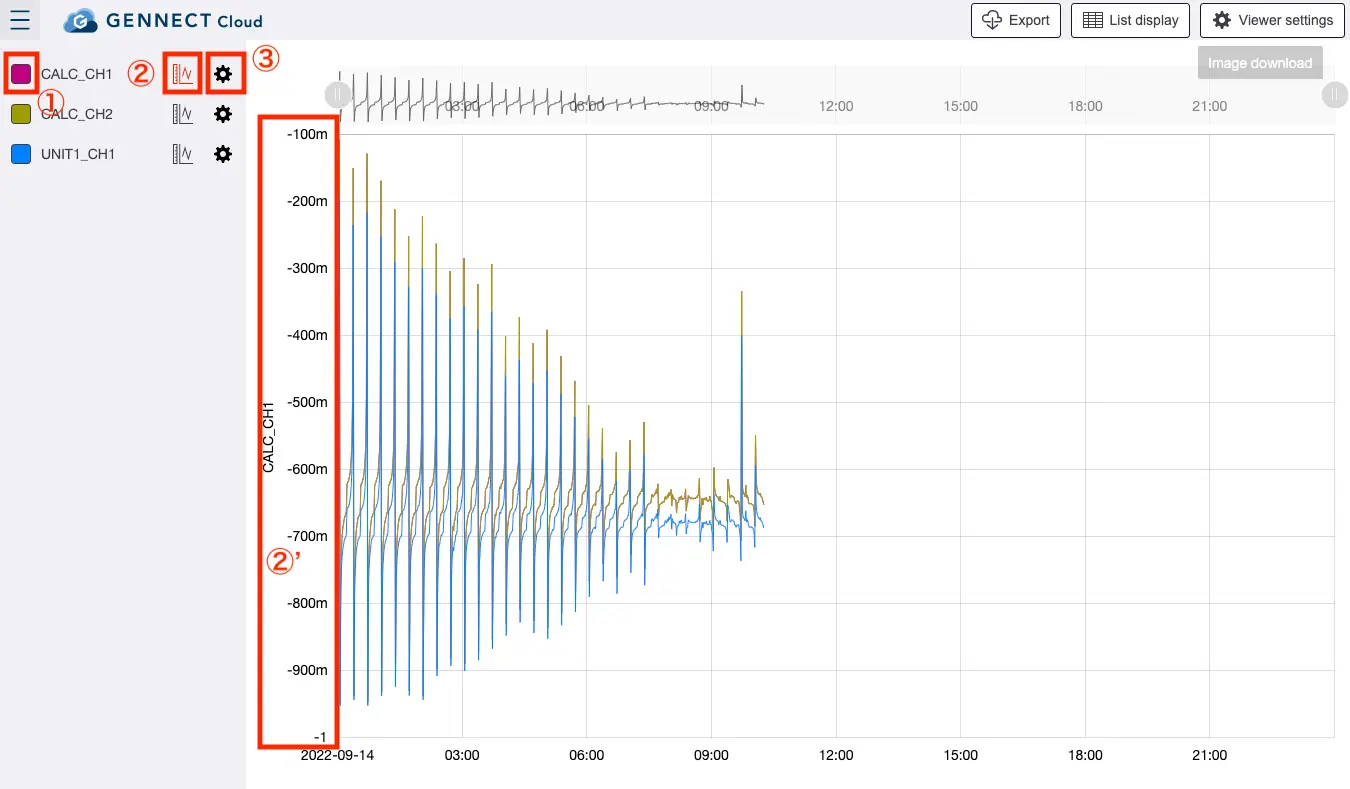
(1): Hides/unhides the graph.
(2): Hides/unhides the axes (area [2]’).
(3): Configures the channel display settings (vertical axis name, vertical axis units, vertical axis upper and lower limit values, number of axis decimal places).