

Log in to GENNECT Cloud
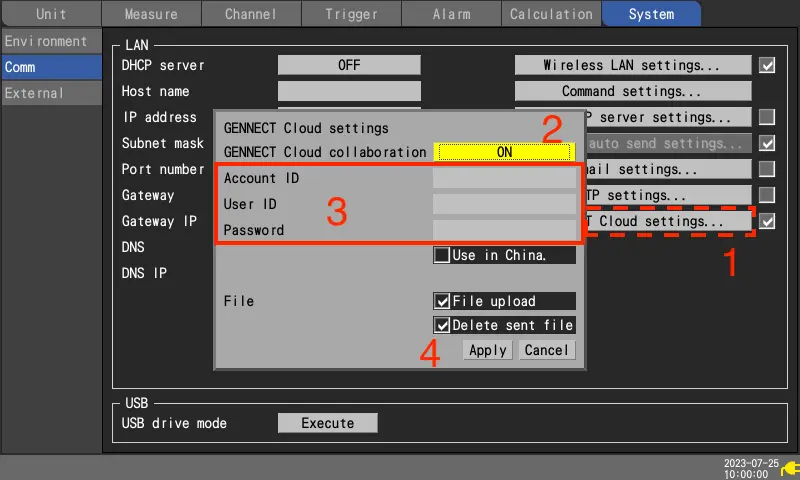
- at [GENNECT Cloud Settings], press ENTER key.
The settings window will open. - set [GENNECT Cloud integration] to [ON].
- enter [Account ID], [User ID], and [Password].
- press ENTER key at [Apply].
The configuration window will close.
If the authentication is successful, the [Authentication succeeded.] message will appear.
If two-factor authentication has already been set up, a window for entering the verification code will appear.- If two-factor authentication by e-mail has been set up
Enter the verification code sent to your registered e-mail address and click [Verification]. - If you have set up two-factor authentication by application
Enter the verification code displayed in your two-factor authentication application (e.g. Authy) and click [Authentication].
- If two-factor authentication by e-mail has been set up
For details on how to set up two-factor authentication, please refer to (Application) Enabling two-factor authentication for a user.
Want help or have questions?