

Configure network settings
To use the LR8450 Cloud linking function, the LR8450 itself must be connected to the Internet.
This chapter describes an example of connecting the LR8450-01 to the Internet using iPhone tethering.
- Turn on Internet sharing on the iPhone.
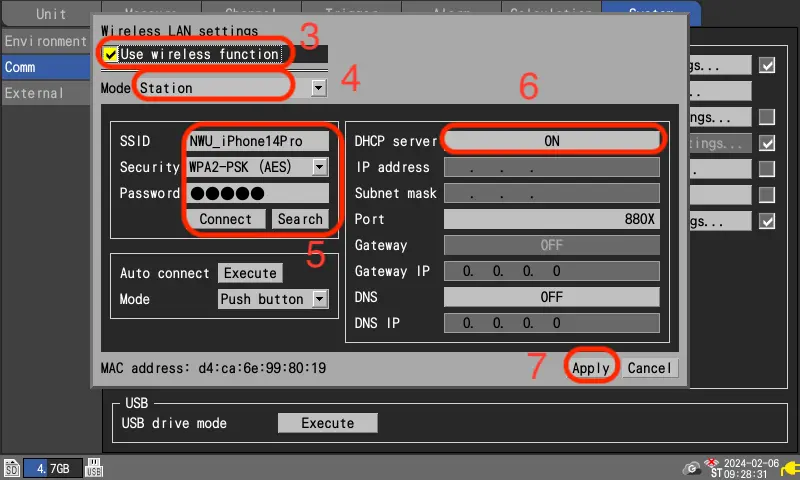
- Open [System] - [Comm] - [Wireless LAN settings..].
- Check the [Use wireless function] check box.
- Set the [Mode] to [Station].
- Enter the [SSID] and [Password] displayed on the iPhone.
For [Security], select [WPA-PSK (AES)].
Press [Connect]. - Turn [DHCP server] to [ON].
- Press [Apply].
- The LR8450 will automatically reboot to apply the network settings.
- iPhone is a registered trademark of Apple inc.
- The iPhone trademark is used under license from Aiphone Co.
Want help or have questions?