

Configuring measurement group settings
In GENNECT Cloud, all resources (users, teams, gateways/applications, instruments, and alarms) and all data (GENNECT polled data and instrument data files) belong to a measurement group, the basic unit by which resources are managed.
A (default) measurement group will be created immediately after you create an account, and all newly created data and resources will be assigned to the default measurement group.
You may find it convenient to create a measurement group when you need to handle data for a certain measurement site.
On the monitor screen, you can set which gateways/applications and instruments belong to the measurement group. For more information about measurement groups, see “[Administrators only] Measurement groups.”
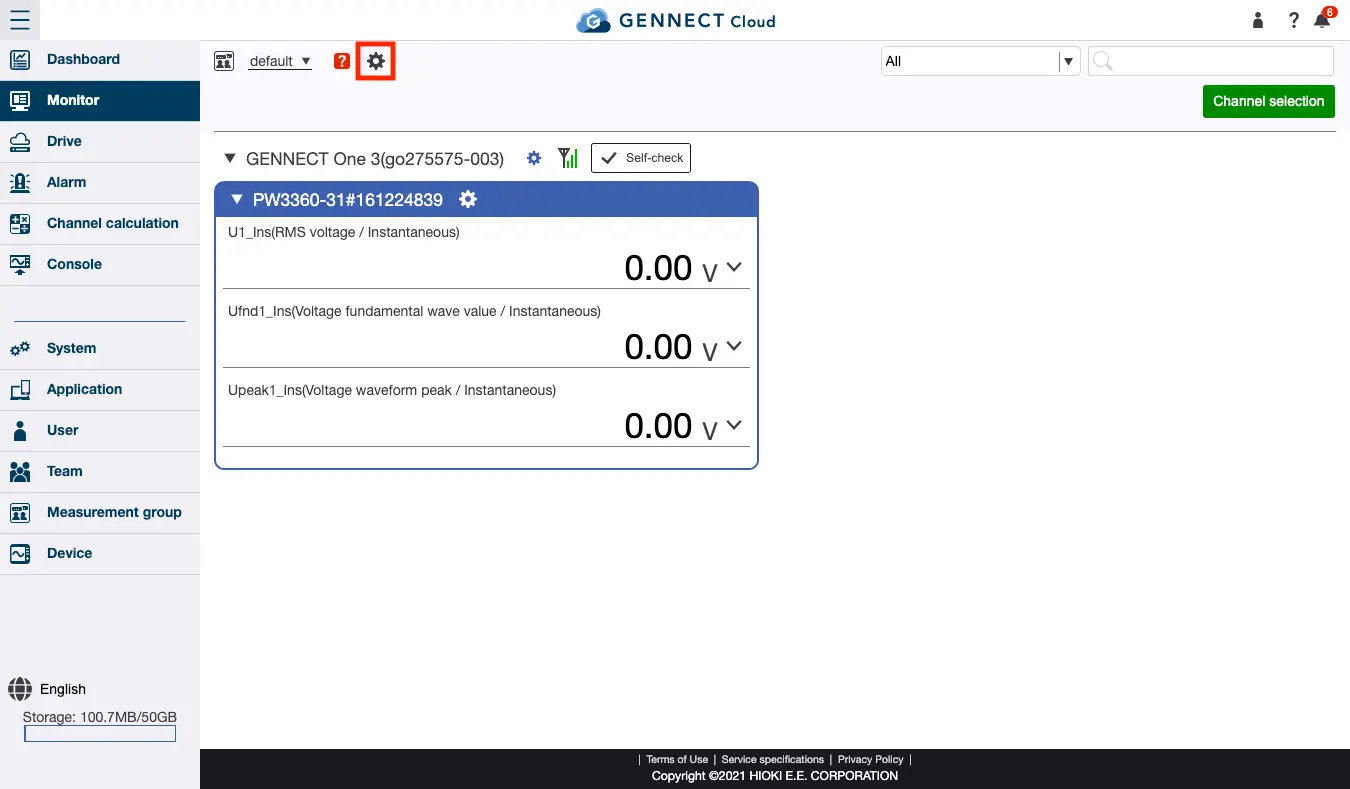
Click the settings button to the right of the measurement group drop-down to open the measurement group settings screen.
The following settings can be configured:
- Measurement group information
Edit the measurement group’s name and comment. - Set instrument time
This setting provides functionality for setting the instrument’s clock to the gateway’s time.- Set time only when starting measurement:
Sets the clock only when starting measurement. - Set each instrument’s clock using an NTP server daily:
Sets instruments' clocks at the specified time as well as at the start of measurement. **Note that using this function may cause some instruments to miss a measurement near the specified time. ** For more information about instrument operation, see “Instrument-specific notes when connecting to the SF4111/ SF4112.”
- Set time only when starting measurement:
- Automatic file uploads
This setting allows generated instrument data files to be uploaded to the cloud.- Yes:
Uploads instrument data files automatically. Note that this setting will automatically use mobile data.
Automatic uploading is limited to files that are 128 MB or less in size. - No:
Stores instrument data files in gateway or PC storage instead of uploading them automatically.
Upload and delete files manually as necessary.
- Yes:
- Start measurement automatically (setting for gateways only)
Provides functionality for starting measurement automatically when an instrument and gateway are connected with a LAN cable.- Start measurement automatically when an instrument is connected to the gateway (recommended):
Starts measurement automatically when connected to an instrument with a LAN cable. Ordinarily this setting should be used.
If measurement has not been started, GENNECT polled data and instrument data files will not be saved. - Start measurement based on instrument operation:
Starts recording manually based on operation of the instrument’s buttons. Use this setting when changing an instrument’s settings.
- Start measurement automatically when an instrument is connected to the gateway (recommended):
- Automatic file deletion (setting for gateways only)
Deletes files automatically when little gateway storage space remains.- Yes:
Deletes files automatically starting with the oldest instrument data files until a certain amount of gateway storage space is available.
Only files on gateway storage will be deleted; files that have been uploaded to the cloud will remain. - No:
Old files will not be deleted, even if there the gateway storage runs out of free space.
Note that if gateway storage is full, new instrument data files will not be saved.
- Yes: