

Searching and refining information to display
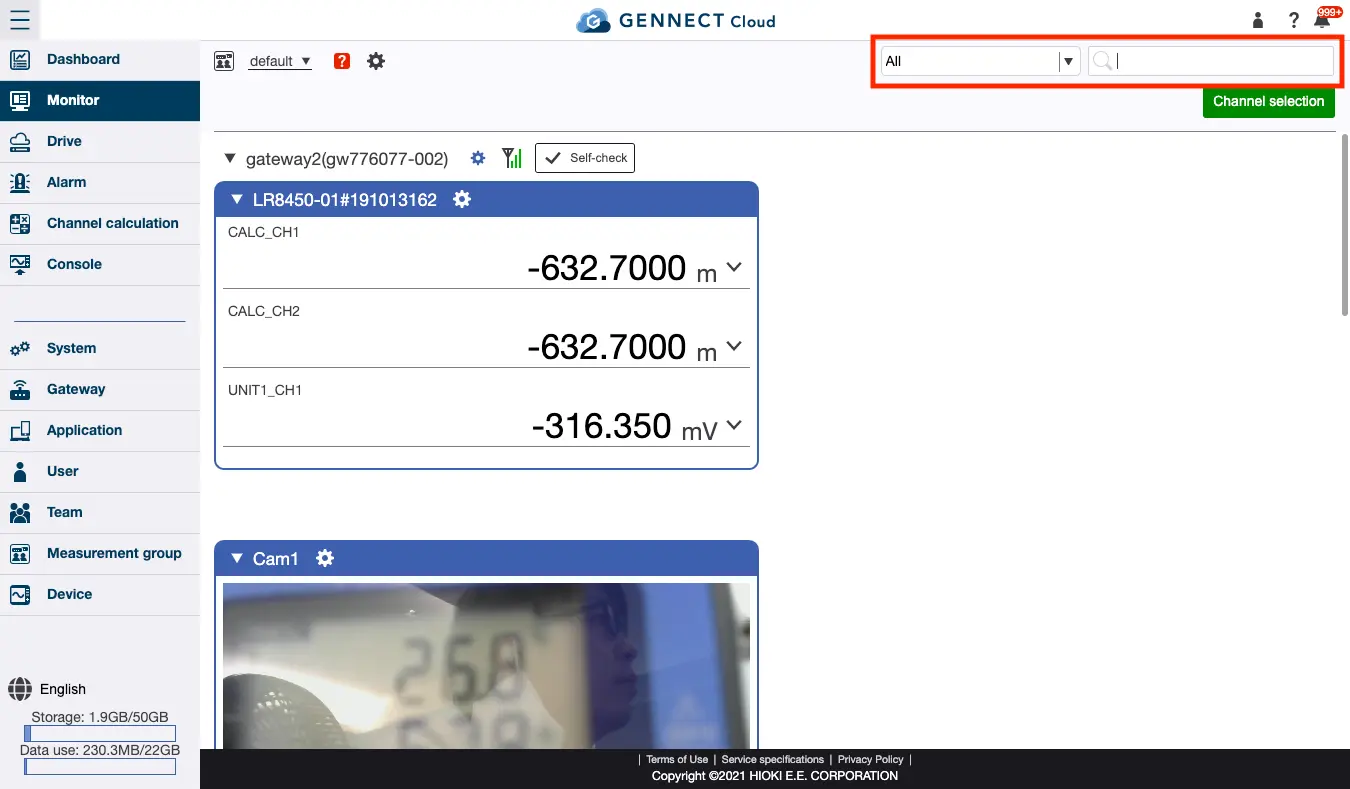
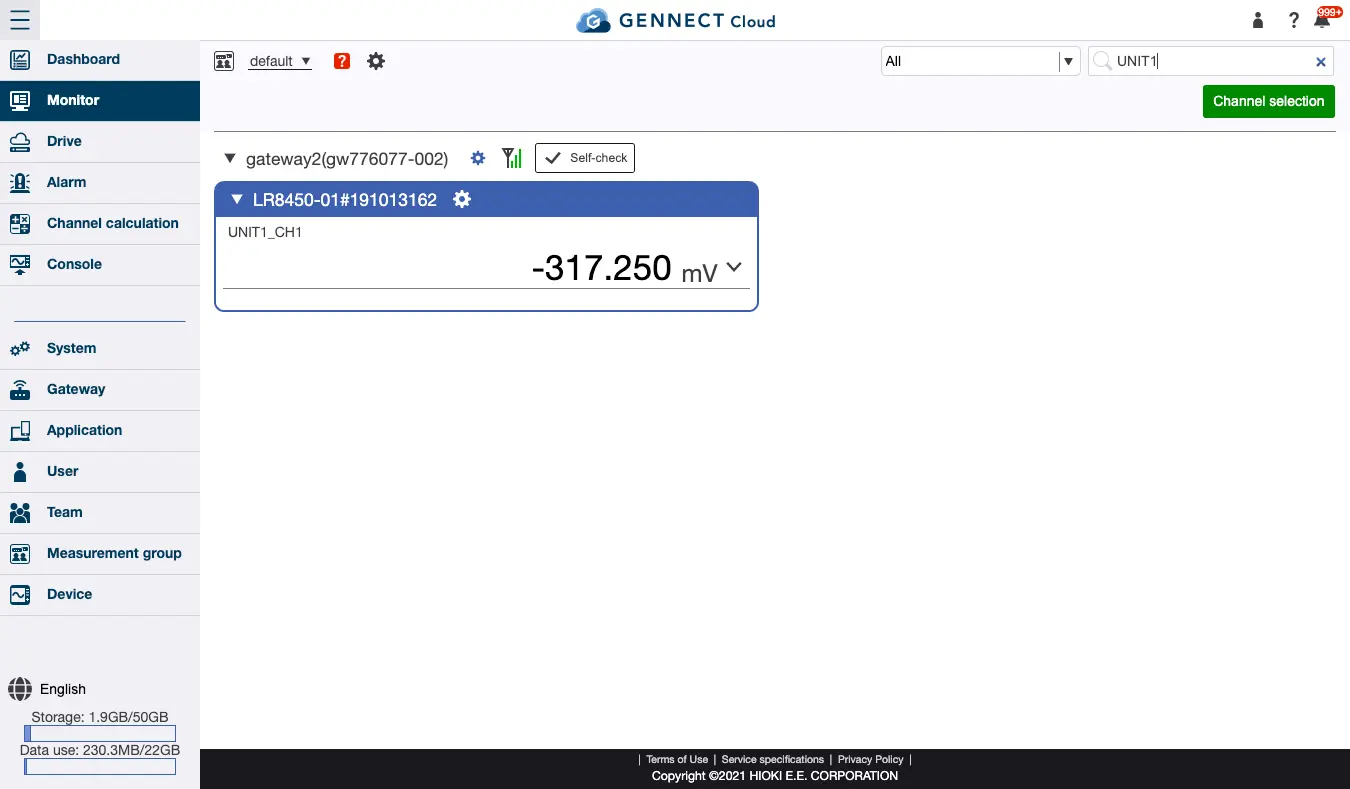
This page describes how to narrow data shown by the application, for example instruments or GENNECT acquisition channels. The screenshot below provides an example in which only GENNECT acquisition channels whose name includes the string “CH1” are shown.
- Select the search type and enter a search string.
From the search box at the top left of the window, select [Channel] as the search target and enter “CH1” in the text box.
As shown in the screenshot below, only channels whose name includes the string “CH1” are shown.
The search function distinguishes between single- and double-byte characters. It does not distinguish between lowercase and uppercase letters.
The range of data shown can be refined on windows other than the monitor window as well. Following is a list of how displayed data can be refined for each window:
- Monitor: Gateway/application name, instrument name, channel name, camera name, or display all without distinction
- Drive (GENENCT acquisition data): Gateway/application name, instrument name, channel name, camera name, or display all without distinction
- Drive (data folder): Filename, instrument name, file type, or display all without distinction
- Alarm: Channel name, alarm name, or display all without distinction
Want help or have questions?