

Exporting GENNECT polled data
This section describes how to acquire GENNECT polled data as a file. You can choose either CSV (ZIP) or HIOKI GENNECT Format (HOK/HOK2) as the file format.
HOK is the file format used by Hioki products. After importing the file into the GENNECT One Windows application, you can view its contents using the time-series viewer. For more information, see “Referencing data with GENNECT One.”
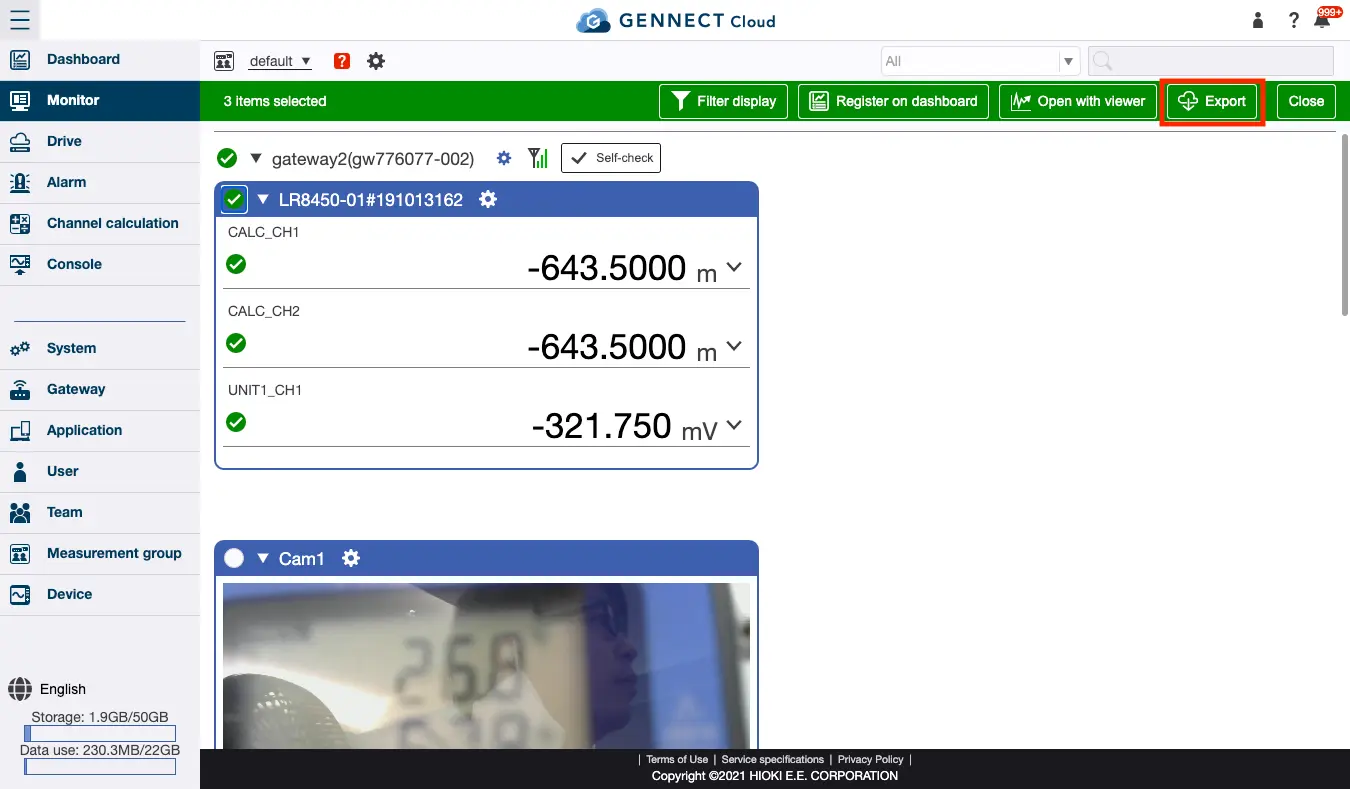
Selecting target channels
Click [Channel selection] and select the checkbox for the channels you wish to display as a graph or list. Then click [Export].
Camera images cannot be exported. If the checkbox for a camera image has been selected, you won’t be able to click [Export].
Specifying and exporting an interval of data
Specify the following items and click [Export] to begin downloading the file.
- Aggregation Period
Select the range of data from [Today/past week/past month/past year/arbitrary period]. For an arbitrary period, enter the date you wish to export. - Aggregation Type
If the interval between data to be exported exceeds 1 minute, you can aggregate the data. Select the type of data aggregation from [Average/Maximum/Minimum/Instantaneous/Addition]. - Aggregation Interval
Select the aggregation interval for the data to be exported. - Format
Select the format of the data to be exported.
To download files, downloads of ZIP format files must be enabled on your network. If you are unable to download files properly, contact your network administrator and ask them to create an exception for (i.e., to whitelist) “cloud.gennect.net.”