Moving instrument data files from gateway/PC storage to cloud storage
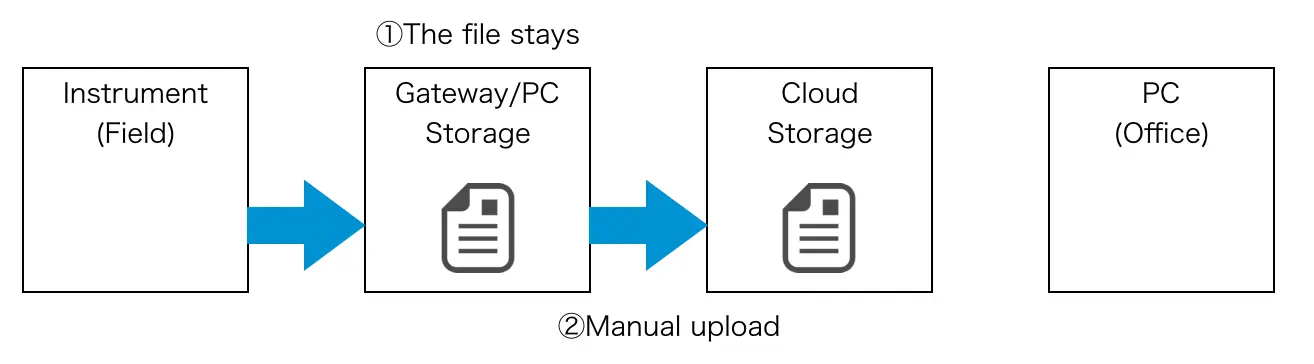
Instrument data files generated in the following circumstances are saved on gateway storage (when using GENNECT Remote (In Japan only)) or PC storage (when using GENNECT One) (labeled [1] in the image).
To acquire these files, you must first upload them manually from the gateway/PC storage to cloud storage (labeled [2] in the image).
- When manual uploads are enabled
- When automatic uploads are enabled, but the instrument data file is larger than 128 MB
- When the file upload failed, for example due to a communications issue
Moving instrument data files to cloud storage
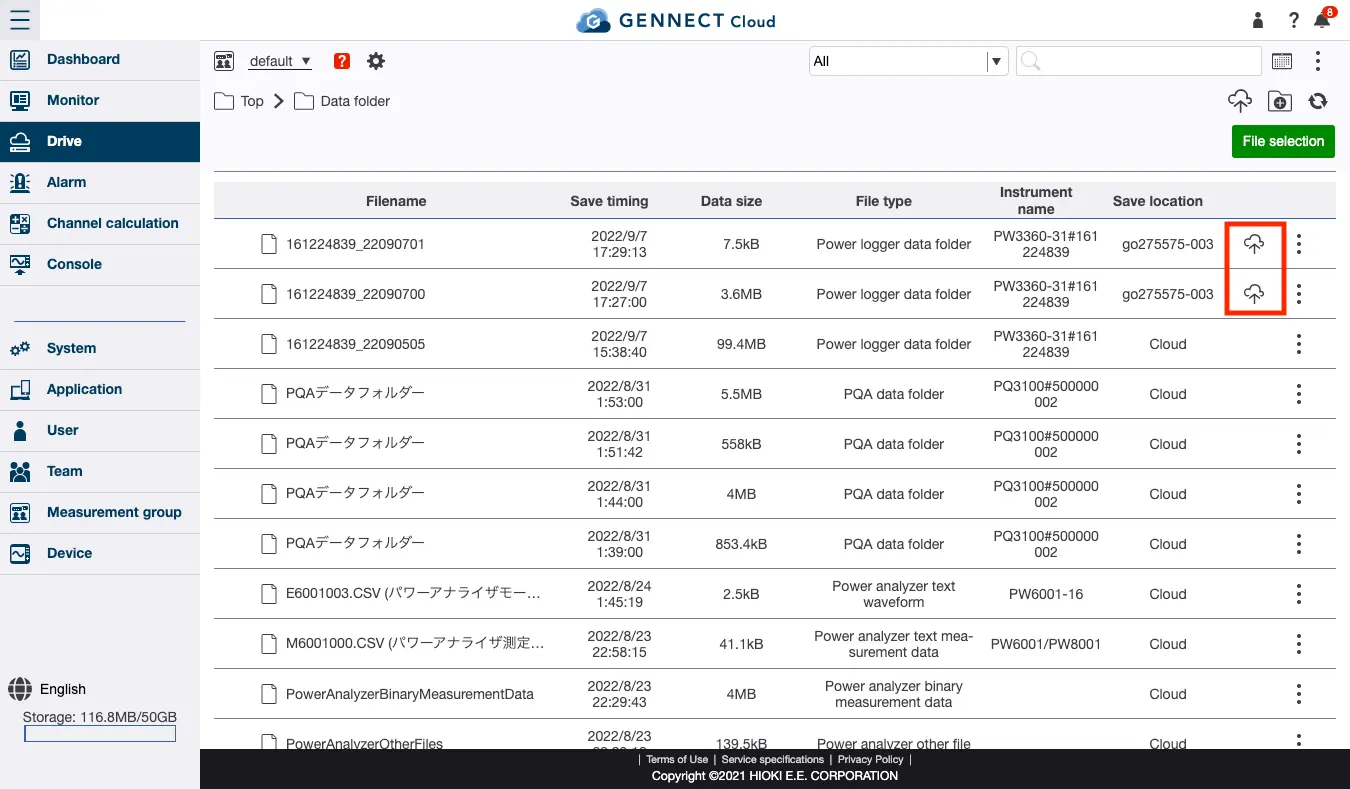
Click [Data folder] on the drive screen.
An upload icon will be displayed next to files stored in gateway/PC storage that have not been uploaded to the cloud.
Click the icon to start moving the corresponding file to the cloud. Depending on the gateway’s connection speed, signal strength (when using GENNECT Remote (In Japan only)), and Internet connection status (when using GENNECT One), it may take some time to move the files.
Once the upload is complete, the storage location of the files will change to [Cloud], and the file’s upload icon will no longer be displayed.
If the gateway/application from which a file is being uploaded is offline, the icon will be displayed in a lighter color. In this case, it will not be possible to upload the file.