

Upload measurement file
If the [Upload] checkbox in [GENNECT Cloud Settings] is selected, automatically saved files will be uploaded to the GENNECT Cloud.
Automatic and manual uploads are supported.
The mode can be switched in GENNECT Cloud.
For details, see Setting up measurement groups.
Automatic file upload
- Yes (automatic upload)
Upload the file itself to the GENNECT Cloud. - No (manual upload)
Upload only the information of the file itself to GENNECT Cloud by requesting the upload on GENNECT Cloud.
You can upload measurement files from the Media screen. Uploadable file extensions are .SET, .MEM, .CSV, .TXT, .M4F, .PNG, and .A2L.
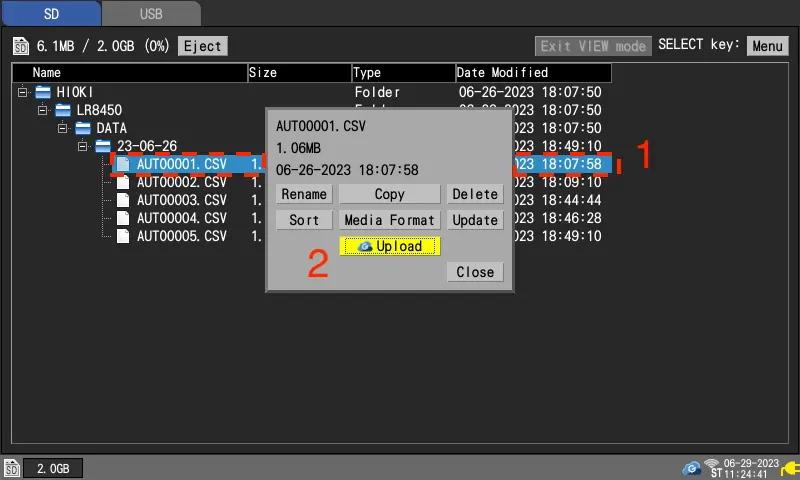
-
select the file or folder you wish to upload and press SELECT key.
A menu will appear.
If you select a folder, the files in the selected folder are the target of the upload. -
press [upload] and press ENTER key
- If the setting on GENNECT Cloud is [yes] (automatic upload):
Uploading will begin. - If the setting on GENNECT Cloud is [no] (manual upload):
Only the information of the file will be uploaded to GENNECT Cloud.
If the [Delete files after upload] checkbox in [GENNECT Cloud Settings] is selected,
Files in the media of this unit will be deleted after a successful upload.
Please refer to What is a drive for more information about checking files.