

Registering a GENNECT Cloud license card
When you register a license card, the plan and number of days corresponding to the license card will be added to your license.
Only license cards for your currently registered plan can be registered. To register a license card for a different plan, you must first change your plan.
Once the license expiration date is reached, your plan will be automatically switched to the GENNECT Cloud Free plan.
Please note that data may be deleted when you switch from the Pro plan to the Free plan or from the Basic plan to the Free plan, depending on how you’re using the service. Exercise caution concerning possible data loss.
Registering a new license card
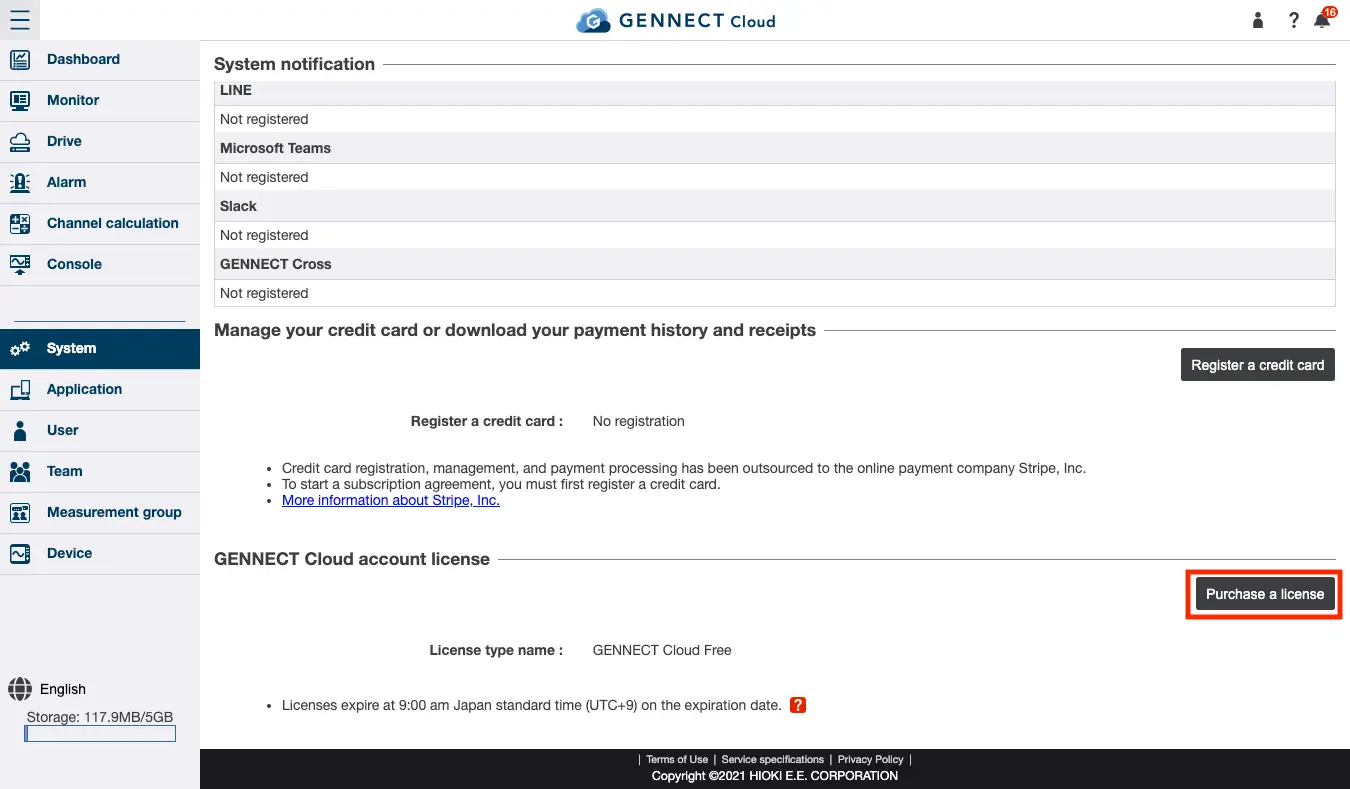
Click [Purchase a license] under a GENNECT Cloud account license on the system administration screen.
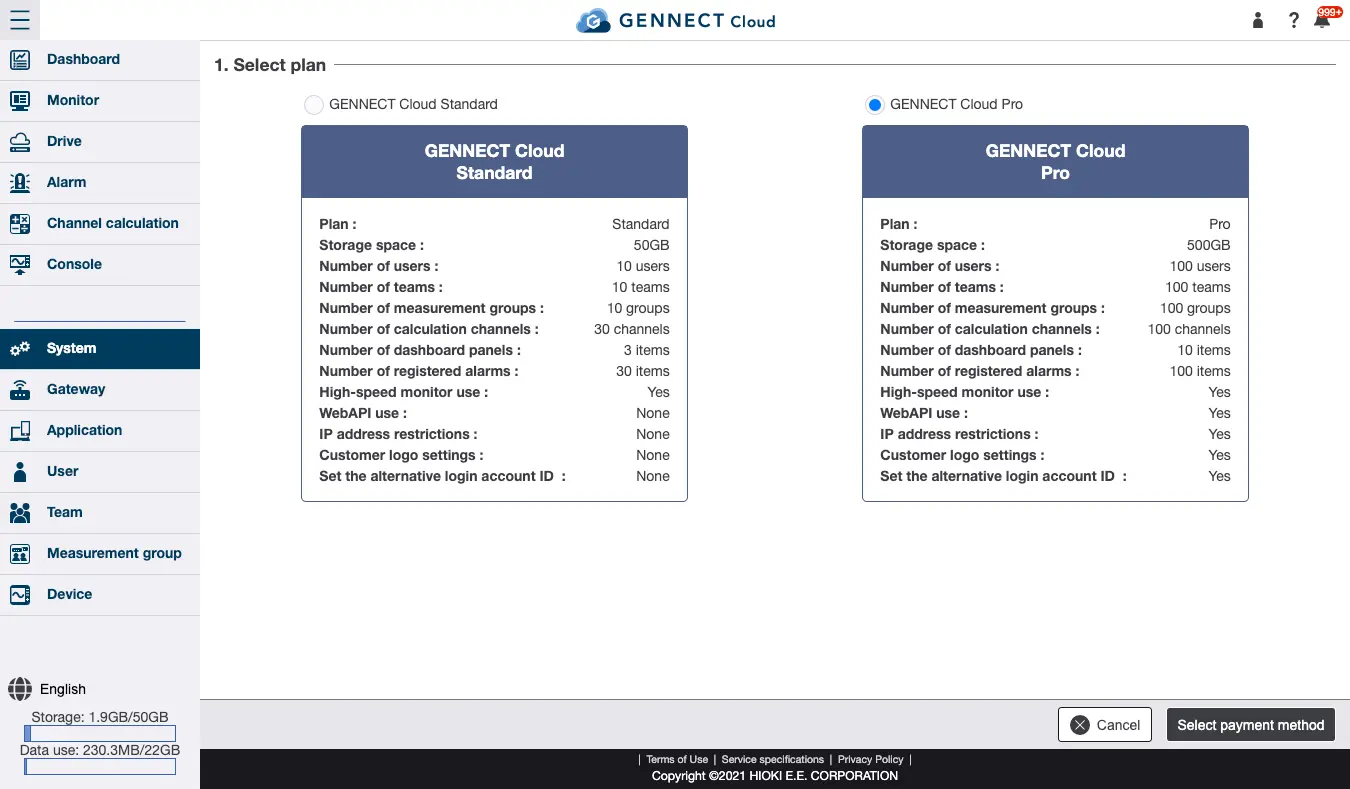
Select the plan you wish to purchase on the plan selection screen and click [Select payment method].
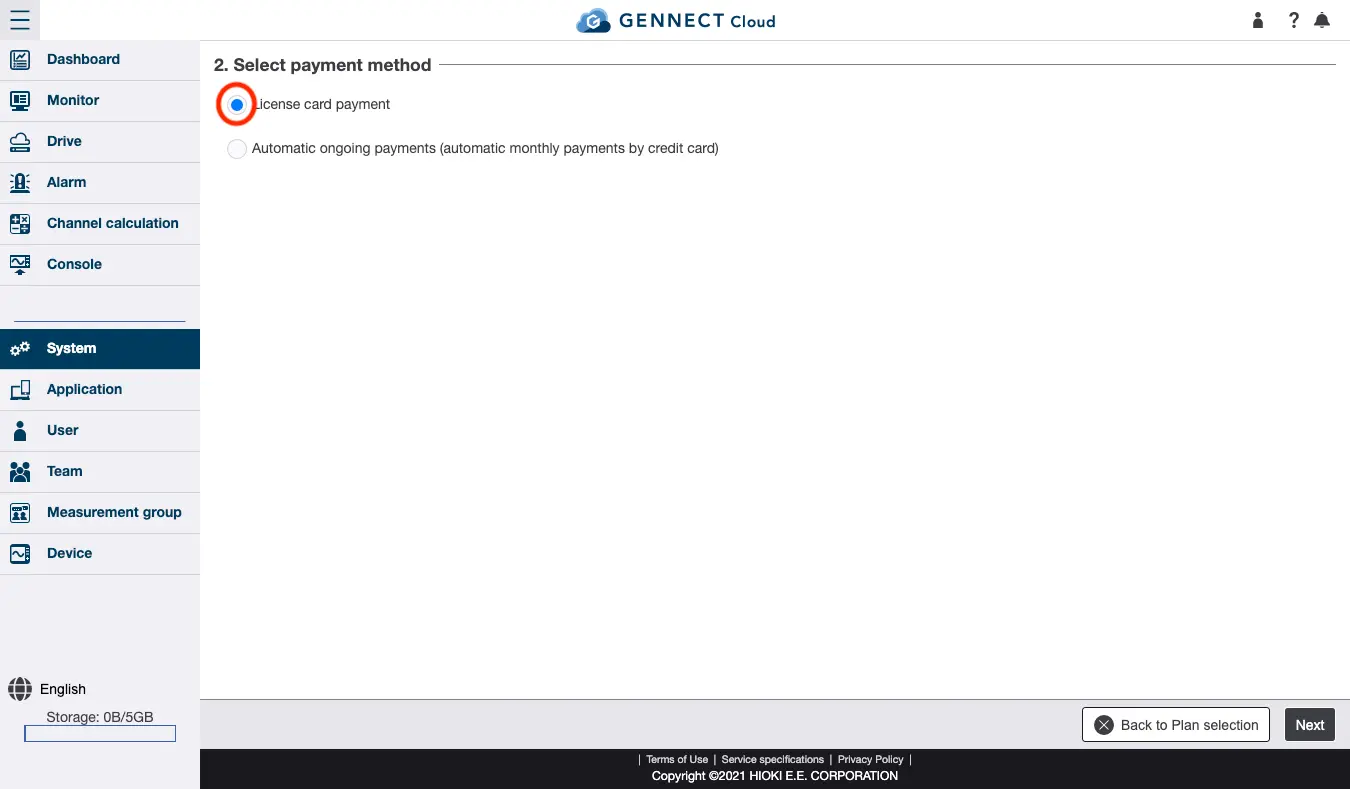
Select “payments by by license card” on the payment method selection screen and click [Next].
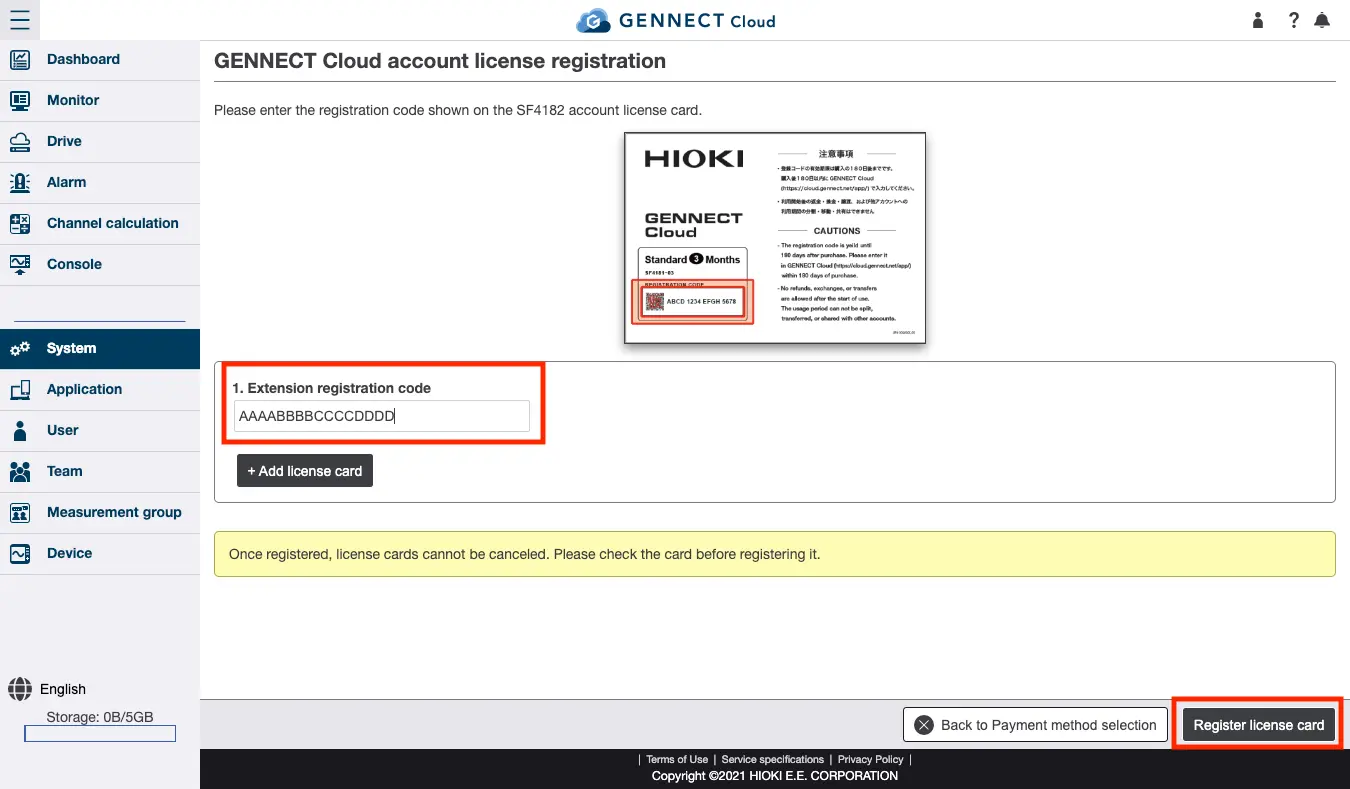
On the GENNECT Cloud account license registration screen, enter the registration code shown on the license card, click [Register license card], review the information, and click [Accept].
Extending your license with a license card
Click [Extend] under GENNECT Cloud account license on the system administration screen.
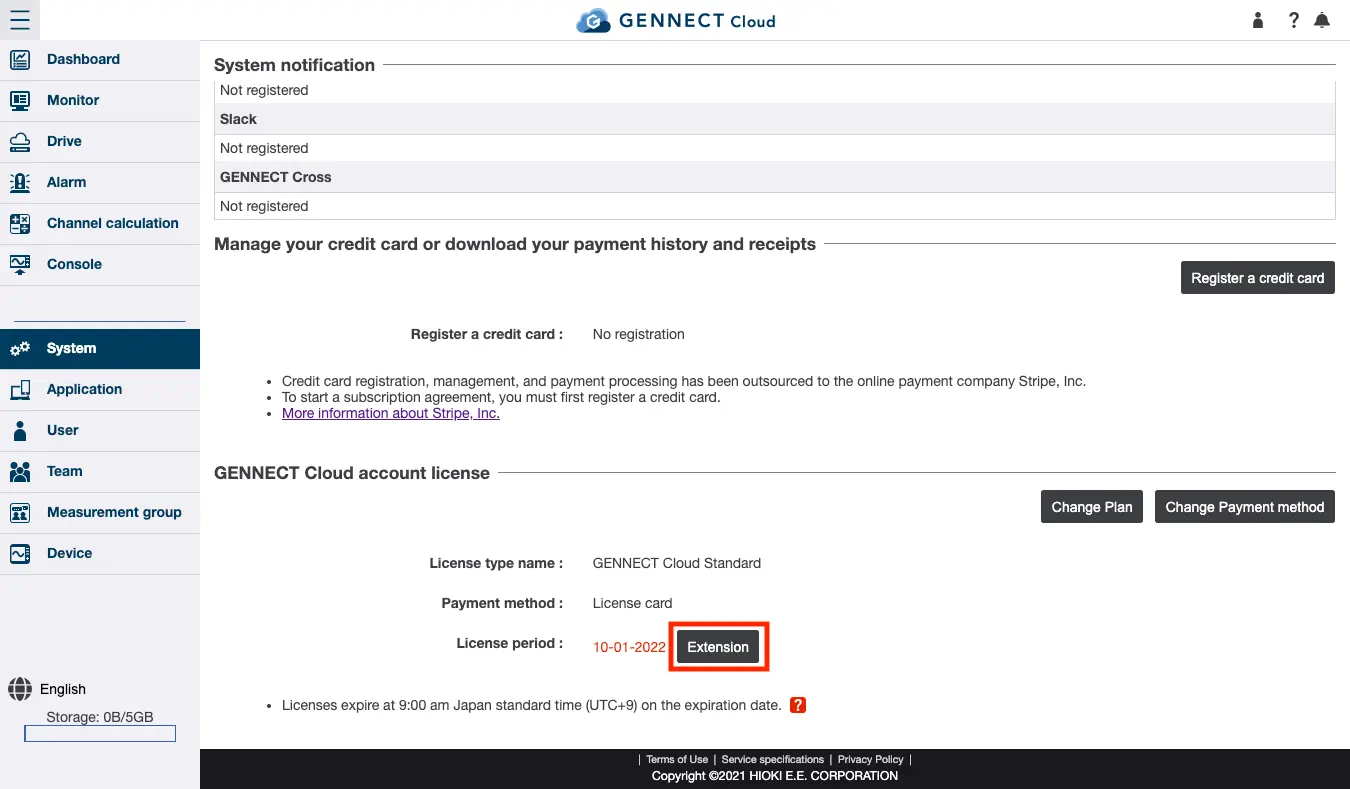
On the GENNECT Cloud account license registration screen, enter the registration code shown on the license card, click [Register license card], review the information, and click [Accept].