

Reviewing notifications
You can review notifications that have been issued on the notifications screen. The following notifications can be reviewed:
- Cloud storage notifications
When there is less than 10% of cloud storage space remaining, cloud storage notifications will be sent. - Measurement alarm notifications
These notifications occur when the conditions set in the following are satisfied: “Setting alarm conditions for GENNECT polled data” and “Configuring alarm notification settings.” If an alarm set for GENNECT polled data occurs or if a new instrument data file can be acquired, a notification will be sent with the time and date, alarm name, channel name/filename, and content. - Gateway status notifications
These notifications are set for gateway connections as described in “Configuring alarm notification settings.” If a gateway/application connects or disconnects, or if remaining gateway storage space falls below a certain level, a notification will be sent with the time and date, target gateway, and relevant information (connected, disconnected, or storage space) according to the notification conditions. - Self-check history
If a self-check is performed on the monitor screen, a notification will be sent with the time and date, target gateway, measurement group, and results. For more formation about self-checks, see “Performing a self-check.” - Undeliverable email (administrators only)
The email addresses and their associated users will be displayed for any undelivered messages in the account. - License notifications
This area displays license-related notifications. For more information about GENNECT Cloud licenses, see “Checking your GENNECT Cloud license.”
For more information about GENNECT Remote licenses (In Japan only), see “Checking your GENNECT Remote license.”
Following is an explanation of how to use the notifications screen:
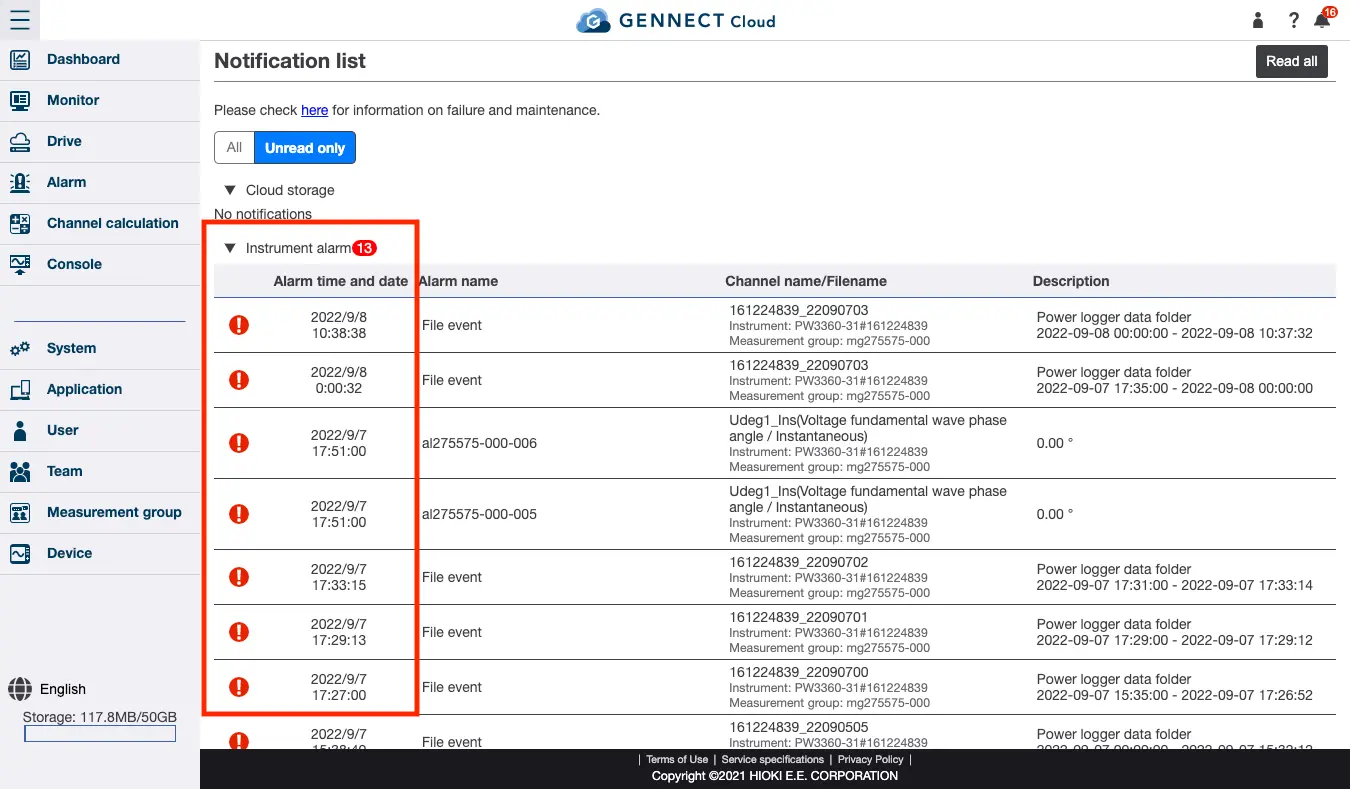
(1) Displays the number of unread measurement notifications of each type. You can click the [!] mark at the left to mark the corresponding notification as read, which will reduce the number of unread notifications.
(2) Marks all notifications as read. The [!] mark for all notifications will disappear, and the number of unread notifications will be reset to 0.
(3) Switches to the notifications screen. You can access the notifications screen by clicking this button on any page in the web application. The figure indicates the total number of unread notifications.