

What is the monitor?
The monitor function explained in this section allows you to review GENNECT polled data in real time and display it as a graph or list. Referring to “Selecting channels for acquiring GENNECT polled data," use the monitor function after selecting channels for acquiring GENNECT polled data.
Interface description
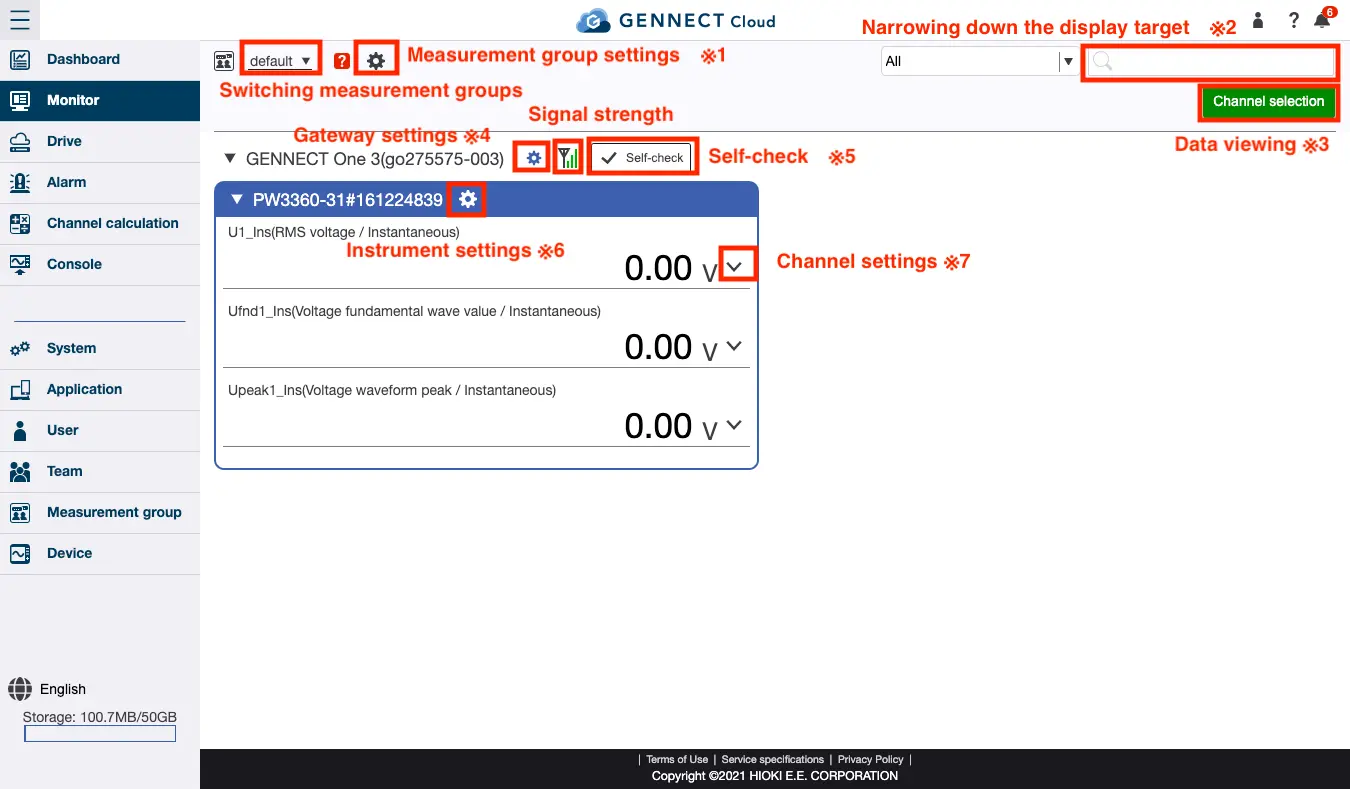
*1 Sets the measurement group. For more information, see “Setting the measurement group.”
*2 Refines the information shown on the display from the gateways/applications, instruments, and channels shown on the screen.
For more information, see “Searching and refining information to display.”
*3 Selects channels for which to view or export GENNECT polled data.
For more information, see “Opening GENNECT polled data with the time-series viewer" and “Exporting GENNECT polled data.”
*4 Configures gateway/application settings, enables high-speed monitor mode, and searches for LR851X Wireless Logger, among other functionality.
For more information, see “Using high-speed monitor mode (Basic and Pro plans only)" and “Searching for, registering, and disconnecting LR851X Wireless Logger.”
(LR851X Wireless Loggers can only be used with GENNECT Remote.) (In Japan only)
*5 Performs a self-check to see whether gateways/applications can be used normally.
For more formation, see “Performing a self-check.”
*6 Configures instruments and select channels.
For more information, see “Selecting channels for acquiring GENNECT polled data.”
*7 Configures display settings for individual channels.
For more information, see “Configuring channel display settings.”