

Update the version of the instrument
GENNECT Cloud can be used to update online instrument.
- If the update fails, the instrument may need to be repaired. We recommend that you update your instrument while it is still in your possession.
- Upgrading consumes communications traffic.
- Upgrading may take some time.
| Corresponding measuring instruments | Connection method | Guideline for data size | Supported versions |
|---|---|---|---|
| LR8450 | GENNECT Remote | 100MB | V2.20 or later |
| LR8530 | GENNECT Remote | 300KB | V1.06 or later |
| LR8531 | GENNECT Remote | 300KB | V1.06 or later |
| LR8532 | GENNECT Remote | 300KB | V1.06 or later |
| LR8533 | GENNECT Remote | 300KB | V1.06 or later |
| LR8534 | GENNECT Remote | 300KB | V1.06 or later |
| LR8536 | GENNECT Remote | 300KB | V1.06 or later |
Perform version update
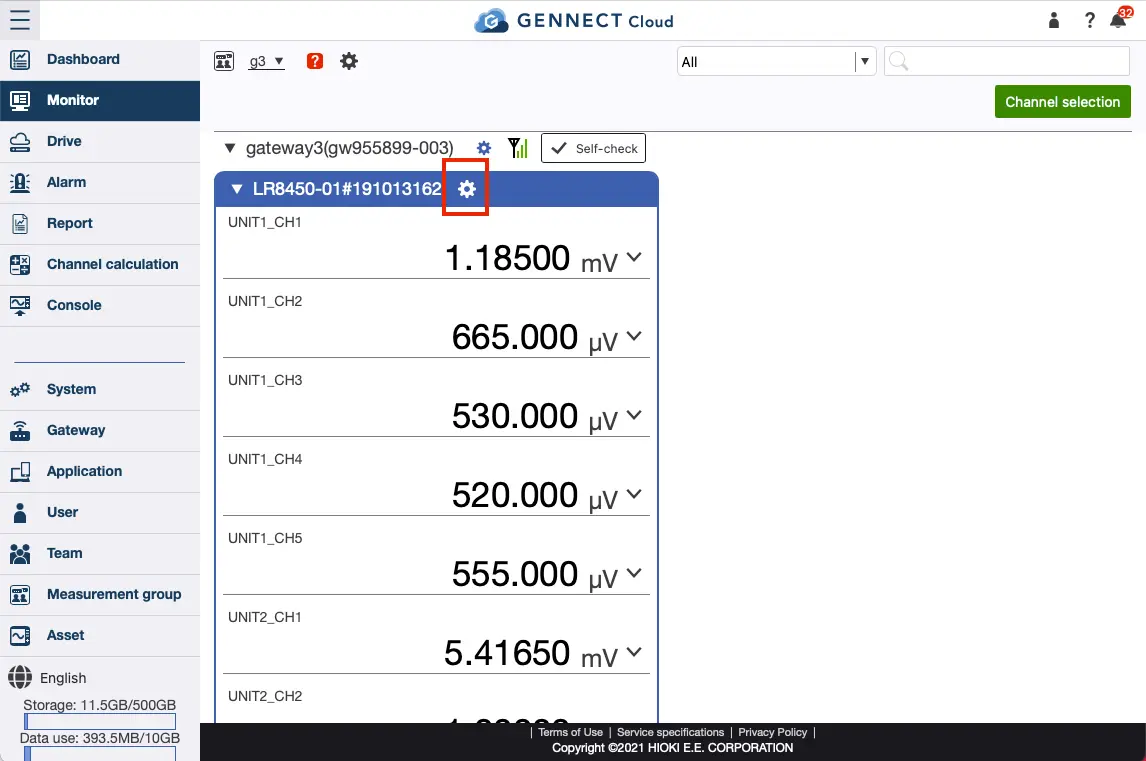
Click [Monitor] on the left menu.
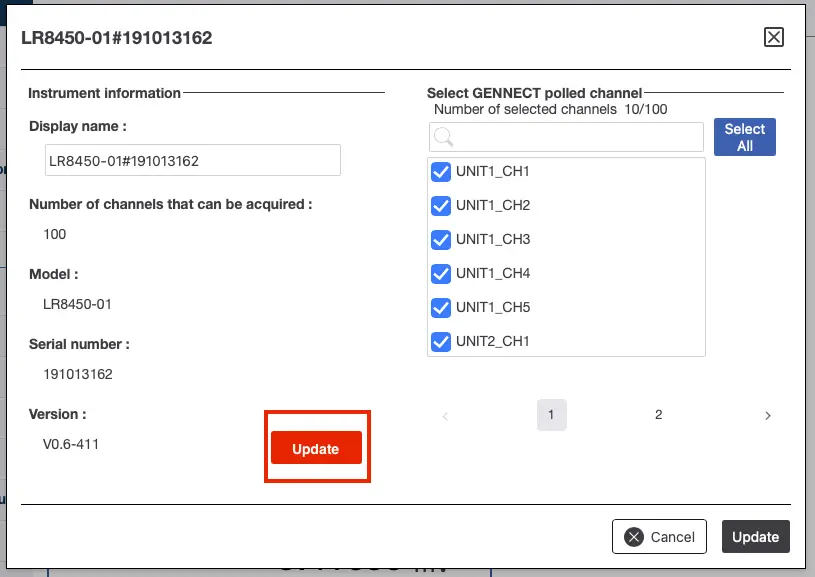
Click the gear icon of the corresponding instrument to display the instrument information.
If the current version is not the latest version, click the [Version Up] button.
Then click [Update] after confirming the notes about the version update.
Check the status of version-up execution
During the update, the instrument is not connected. When the update is completed, the instrument will be connected again and the status will be displayed on the monitor page.
To check the status of the update, click the notification icon in the upper right corner and check the [Gateway] item in the notification list.
Want help or have questions?