Setting alarm conditions for GENNECT polled data
This section describes how to set alarm conditions for GENNECT polled data. An alarm will be generated if the most recent GENNECT polled data satisfies the conditions.
Alarms can only be set for selected channels. For more information about how to select channels, see “Selecting channels for acquiring GENNECT polled data.”
Alarm conditions only apply to measured values for the most recent 1-minute interval (if using high-speed monitor mode, 5-second interval).
If, for example, you wish to monitor power supply quality events that fluctuate more quickly, issue notifications using alarm conditions when instrument data files are generated.
Examples:
Generating an alarm when the temperature channel value exceeds 100°C
Generating an alarm when the frequency channel value is less than or equal to 58 Hz
Alarms are reported only once when the condition is satisfied. If generating an alarm when the temperature channel value exceeds 100°C, one alarm will be reported when the temperature switches from being less than or equal to 100°C to exceeding 100°C. No alarms will be generated while the temperature subsequently continues to exceed 100°C. If the temperature falls to 100°C or below and then exceeds 100°C again, an alarm will be reported.
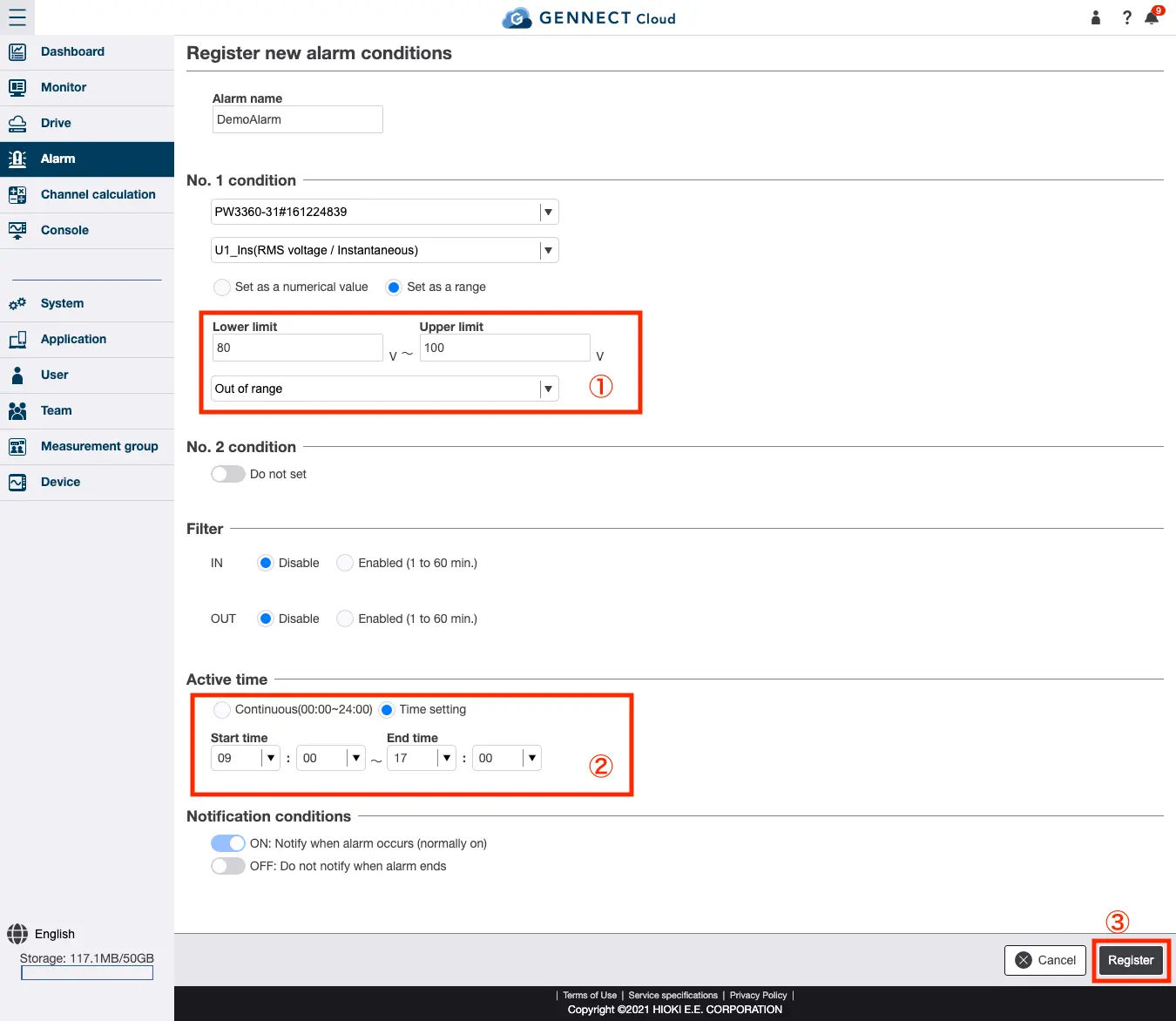
The following example settings will result in an alarm being reported if the voltage channel value moves outside the range of 90 V to 100 V between 9:00 am and 5:00 pm.
Accessing the alarm registration screen
Click [Register new conditions] under [Editing alarm conditions for GENNECT polled data] on the alarm screen.
Setting and registering alarm conditions
Configure the settings.
- Alarm name
Sets a name for the alarm (as desired). - No. 1 condition
Sets the target instrument, channel, and value to use for the alarm condition.
For this example, select [Set as a range] and configure the alarm so that it is issued if the value of the PQ3198’s Urms_CH1 (voltage RMS value) moves outside the range of 90 V to 100 V (labeled [1] in the image).
When you select [Set as a numerical value], you can set one threshold value and select the alarm condition as one of the following: [Greater than or equal to, less than or equal to, greater than, or less than]. - No. 2 condition
You can register up to two conditions for each alarm. You can select AND or OR logic to combine the second condition with the first condition. In this case, no second condition is set. - Filter
When enabled, a filter lets you generate an alarm if an alarm state continues for a specified period of time.
If disabled, the alarm will occur as soon as the condition is satisfied.
IN indicates the filter time until the alarm state is entered, while OUT indicates the filter time until the alarm state is exited.
In this case, no filter is set. - Active time
Sets the time during which the alarm is enabled.
In this case, configure the settings so that the alarm is enabled from 9:00 am to 5:00 pm (labeled [2] in the image). - Notification conditions
Alarms are always reported when they occur, but you can select whether to report an alarm when the condition ends (when the value returns to normal). In this case, no notification condition is set.
Once you’ve finished setting the conditions, click [Register].
Enabling/disabling alarms
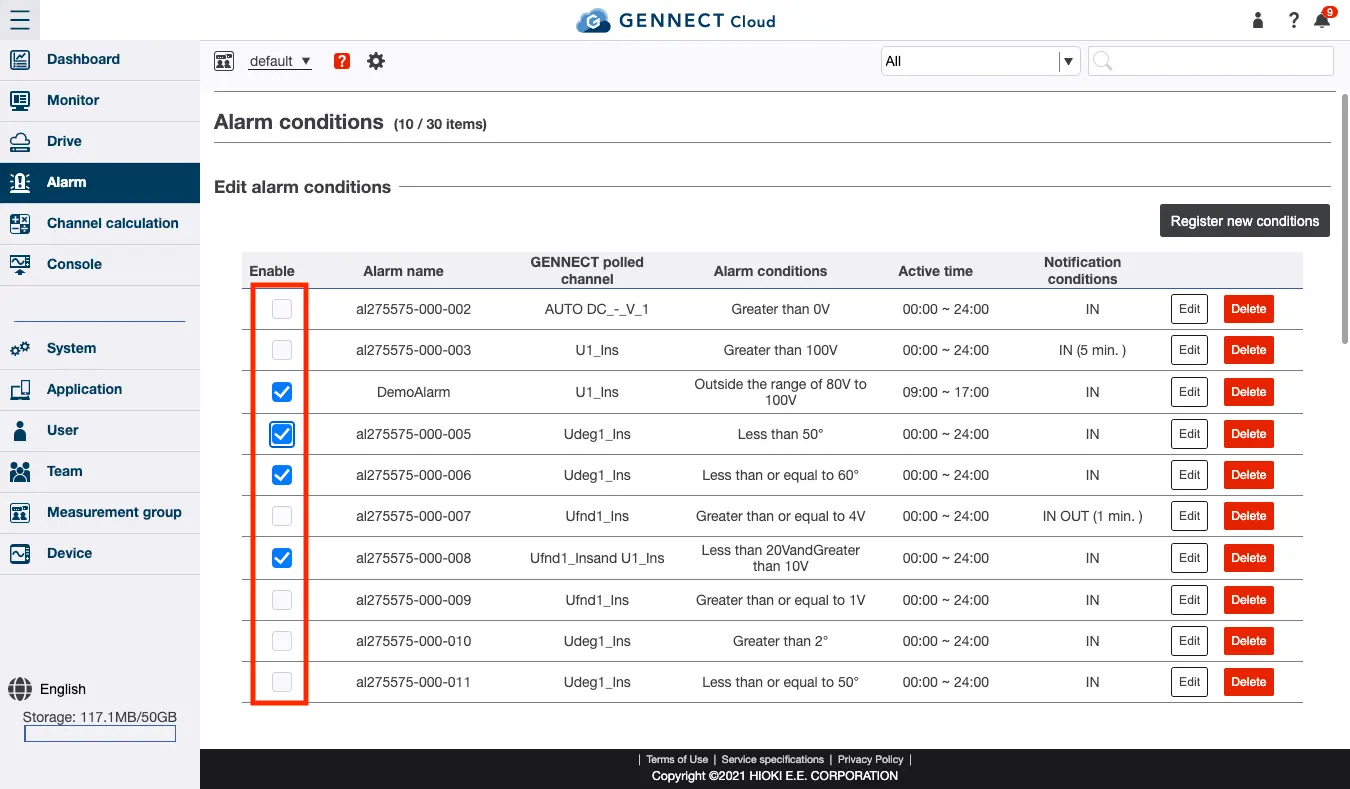
You can view a list of registered alarms. Alarms are enabled as soon as they’re configured, but you can deselect the checkboxes shown in the image if you wish to temporarily disable an alarm.
Checking alarms that are occurring
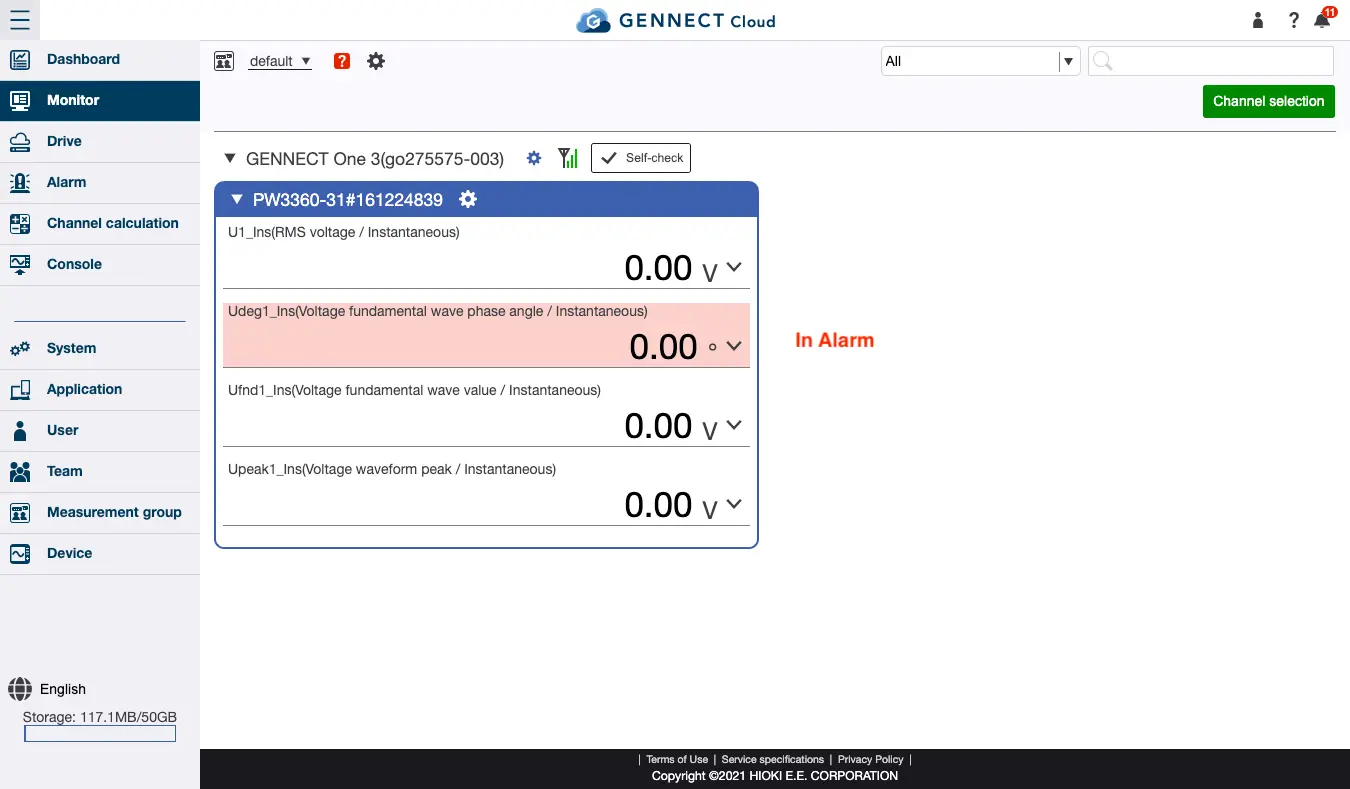
Although, as described above, alarms are only reported once as soon as the associated condition occurs, the channels in question will be highlighted in red on the monitor screen while alarms are occurring.