

For customers who have a license card
If you have a license card with a 16-digit registration code, please refer to this page for more information about how to download the item.
Create a GENNECT Cloud account
If you do not have a GENNECT Cloud account, see “[Create a New Account] (/en/cloud/manual/1-2)” for more information about how to create one.
Enter the registration code
Go to the GENNECT Download Portal top page (https://cloud.gennect.net/dl/) and click [For customers who have a registration code].

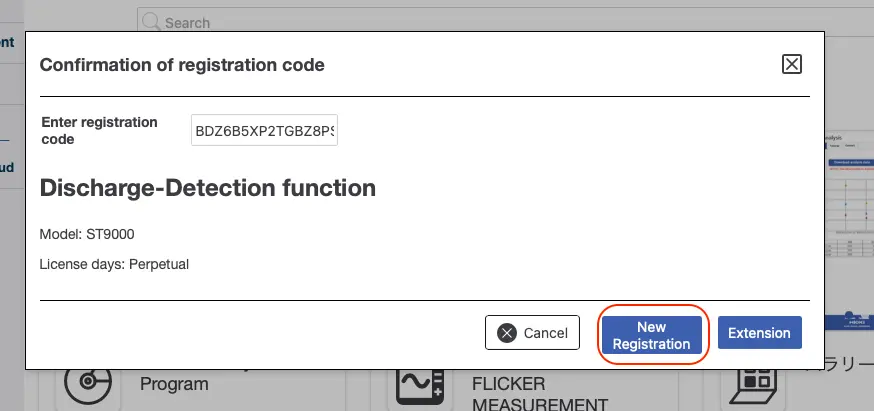
Enter your registration code and click [Confirm].
A description of the purchased software will appear; if there are no mistakes, click [Register].
Download the unlock key
You will automatically be redirected to the purchased license page. Select the license and click [Download].

Enter the serial number of the measuring instrument that will use the license and then click [Download].
Exercise care to enter the correct serial number without any mistakes.
Load into the measuring instrument
A ZIP file will download. Once the download is complete, extract the ZIP file, copy the extracted file to a USB drive, and load it into the measuring instrument.
For instructions on how to load the file into the measuring instrument, please see your instrument’s user manual.